Our platform supports all major controller types (PlayStation, Xbox, and other standard gamepads) without requiring any additional configuration. Once the controller is connected to the user’s device, it can be used immediately within the streamed application.
Key Highlights
-
Supports all standard game controllers
-
No extra setup required
-
Plug-and-play experience
-
Compatible with browser-based Pixel Streaming
-
Works across different controller models
Controller Setup
No special configuration is needed on Eagle 3D Streaming.
Steps:
-
Connect your controller to your device (USB or Bluetooth).
-
Open the Eagle 3D Streaming application URL.
-
Start using the controller instantly.
The browser automatically detects the controller and maps the inputs to the streamed application.
Unreal Engine Template Requirement (Important)
All testing videos were created using the Unreal Engine Third Person Template, without any modifications.
All Epic Games Unreal Engine templates come with controller support enabled out of the box.
No Additional Setup Required — When
-
You are using an Epic Games Unreal Engine template (e.g., Third Person Template).
-
Default controller input mappings have not been removed or modified.
-
The project is packaged and uploaded as-is.
In this case, you can simply package the project, upload it to the platform, and start testing—controller input will work automatically.
Additional Setup Required — When
Controller input may not work automatically if:
-
A custom project or third-party project kit is used.
-
Controller-related input mappings were removed or altered.
-
The project was built from a custom source template without controller bindings.
In such cases, the original controller input mappings must be restored or reconfigured in Unreal Engine to enable controller support in the streamed application.
Test Environment
For demonstration purposes, PlayStation controller support was tested using the following Pixel Streaming application URL:
https://connector.eagle3dstreaming.com/v5/demo/E3DS_StarterApp/default
Validation & Testing Tools
Controller detection and input mapping were validated using external testing platforms. The same tools were used for both tests, with the only difference being the controller itself.
Tool Used:
https://gpadtester.com/
https://hardwaretester.com/gamepad
Preview Video (XBOX Controller)
In this video:
-
The connected controller is displayed in real time.
-
Button presses, joystick movement, and trigger inputs are visible.
-
This confirms that the browser correctly detects the controller while the Pixel Streaming session is active.
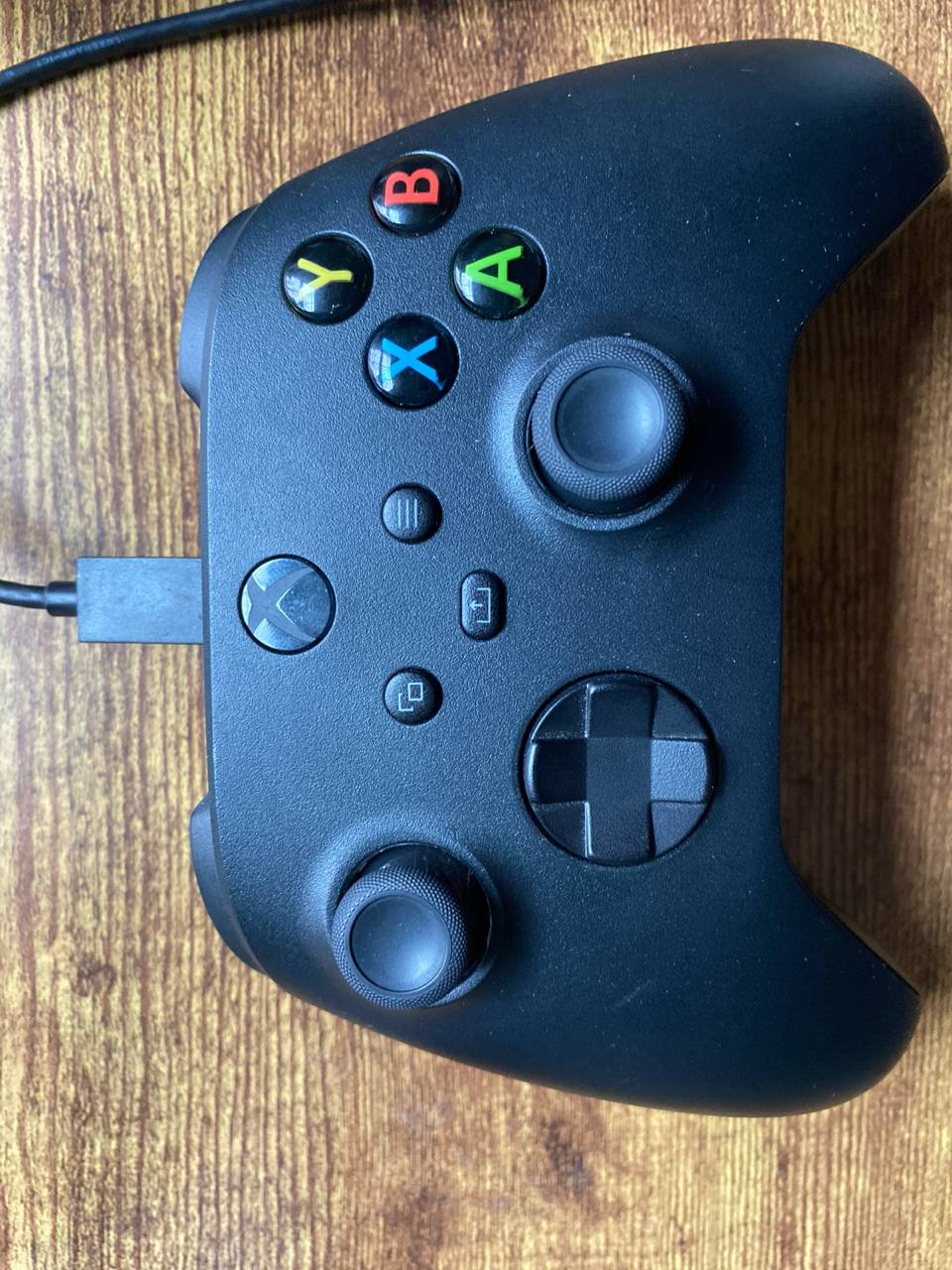
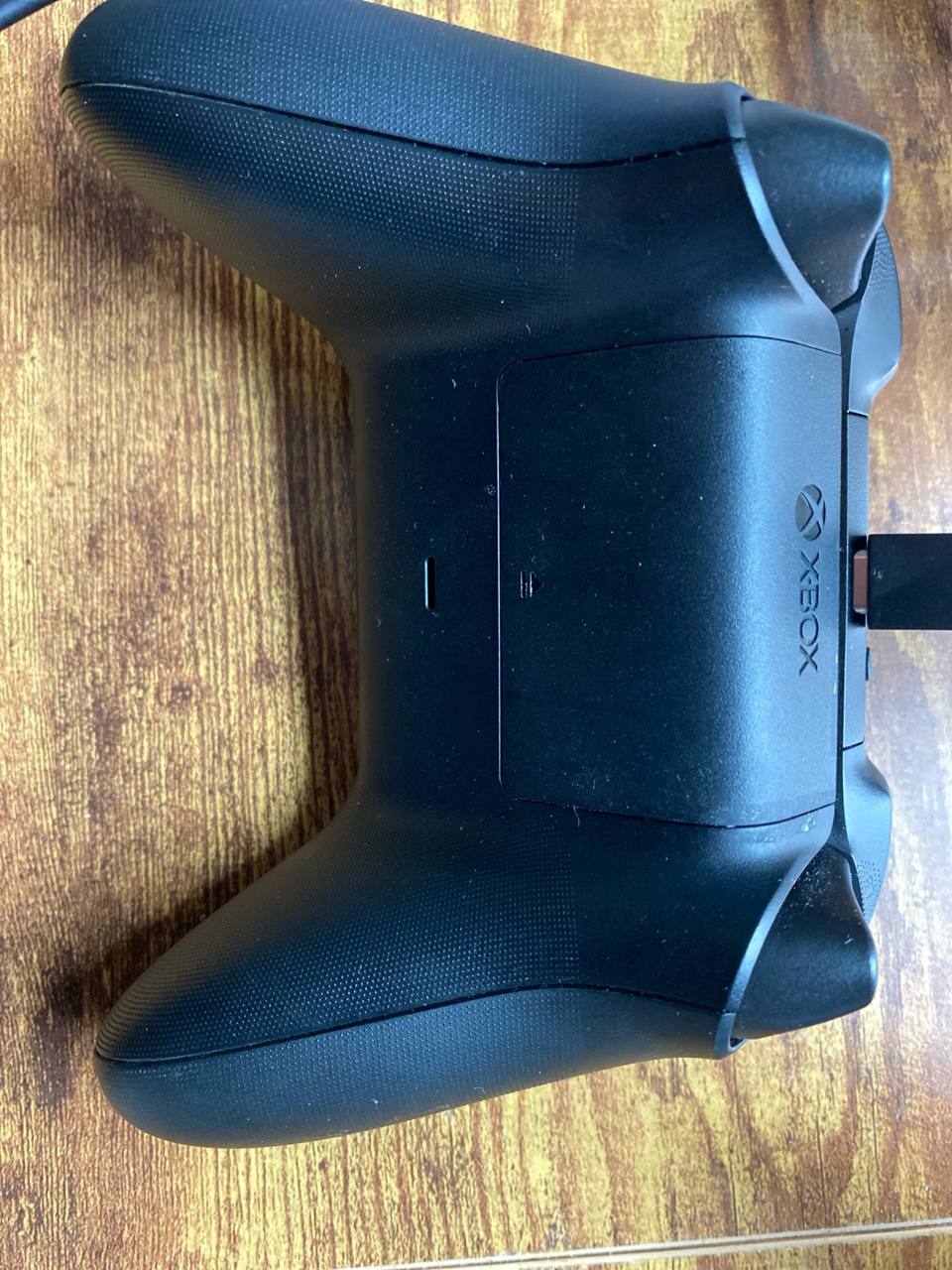
Used Controller
Preview Video (Play Station)
In this second video:
-
Controller inputs are verified using an alternative testing platform.
-
This ensures consistent detection and input handling across different tools and environments.
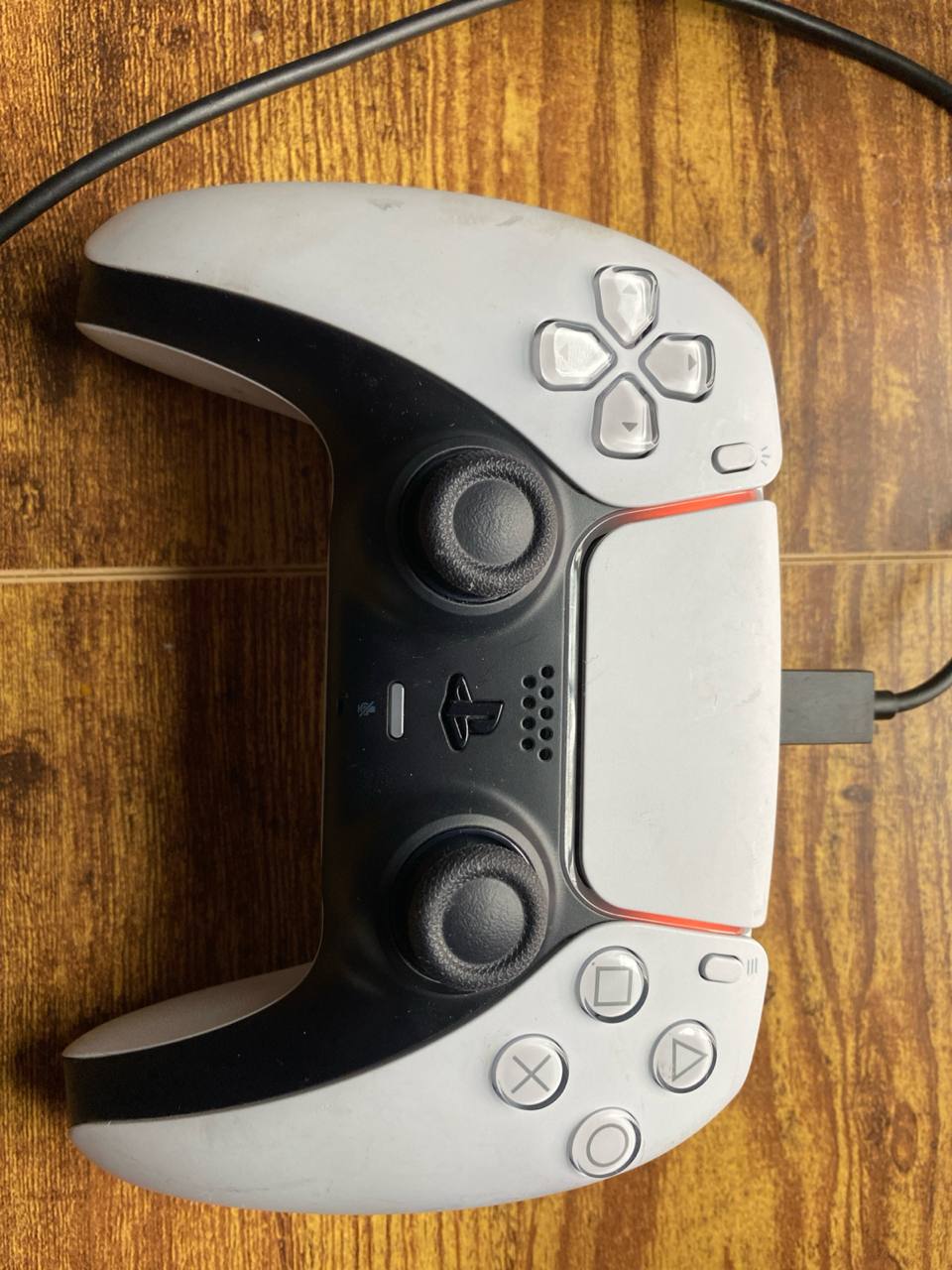
Used Controller
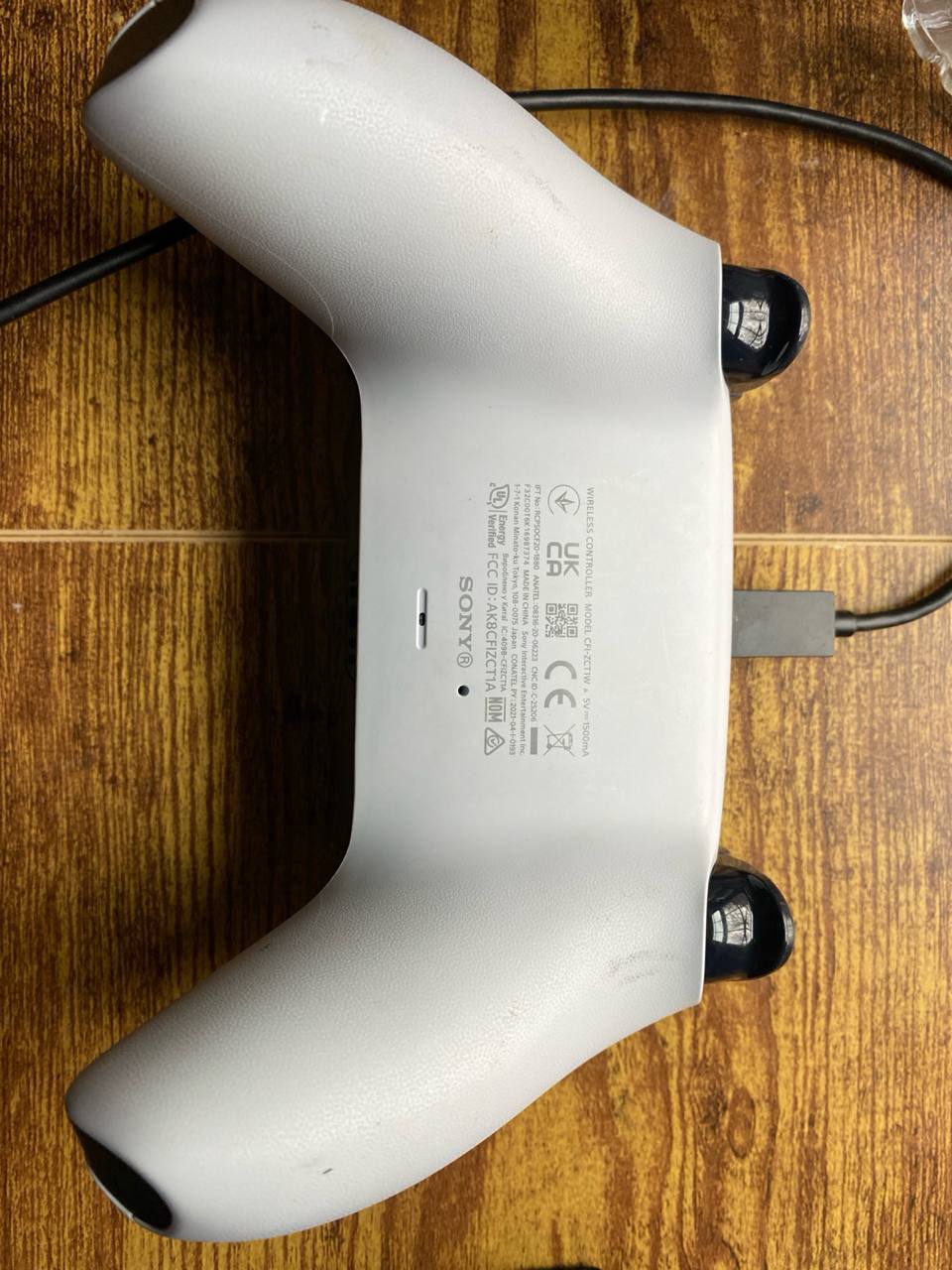
Multiple Controller Testing
We performed tests using two separate controllers in two independent test sessions to validate consistency and reliability.
-
Each controller was detected correctly
-
Inputs were mapped accurately
-
No conflicts or connection issues were observed
This confirms stable controller support across multiple devices.
Troubleshooting
|
Issue |
Possible Cause |
Solution |
|---|---|---|
|
Controller not detected |
Controller not connected properly |
Ensure the controller is connected via USB or paired via Bluetooth. Check that it is recognized by the operating system. |
|
Buttons or joysticks not responding |
Browser or Pixel Streaming session not detecting controller |
Refresh the browser tab and reconnect the controller. Ensure the browser supports the Gamepad API (Chrome or Edge recommended). |
|
Controller inputs are inconsistent |
Multiple controllers connected or interference |
Disconnect other controllers and try using a single controller. Verify inputs in a controller testing tool (e.g., http://gpadtester.com ). |
|
Controller works in OS but not in game |
Game input mapping issue |
Verify that the Pixel Streaming application correctly maps controller inputs. Check Unreal Engine input settings if applicable. |
|
Lag or delayed response |
Network latency |
Ensure stable internet connection. Close background apps that may consume bandwidth. |
Summary
Game controllers provide a seamless input experience for Pixel Streaming applications when standard Unreal Engine controller mappings are present. Epic Games templates, including the Third Person Template, support controllers out of the box and require no additional setup when packaged and uploaded without modification.
For custom projects or modified templates, controller support depends on correctly configured Unreal Engine input settings.
Need help?
If you need any assistance, feel free to reach out through any of the following channels:
🛠️ Support Portal: Contact Our Support Team
💬 Discord Community (Faster Support): Join Our Discord Community
📧 Email Support: support@eagle3dstreaming.com
Follow us on: