In this guide, we will demonstrate the SDK integration using a sample demo project available on GitHub. We strongly recommend starting with this demo project to validate your configuration before integrating the SDK into your own production application.
Live Streaming URL:
https://e3ds.github.io/pixelstreaming-sdk/e3ds_streaming_FE.html
Follow the steps below:
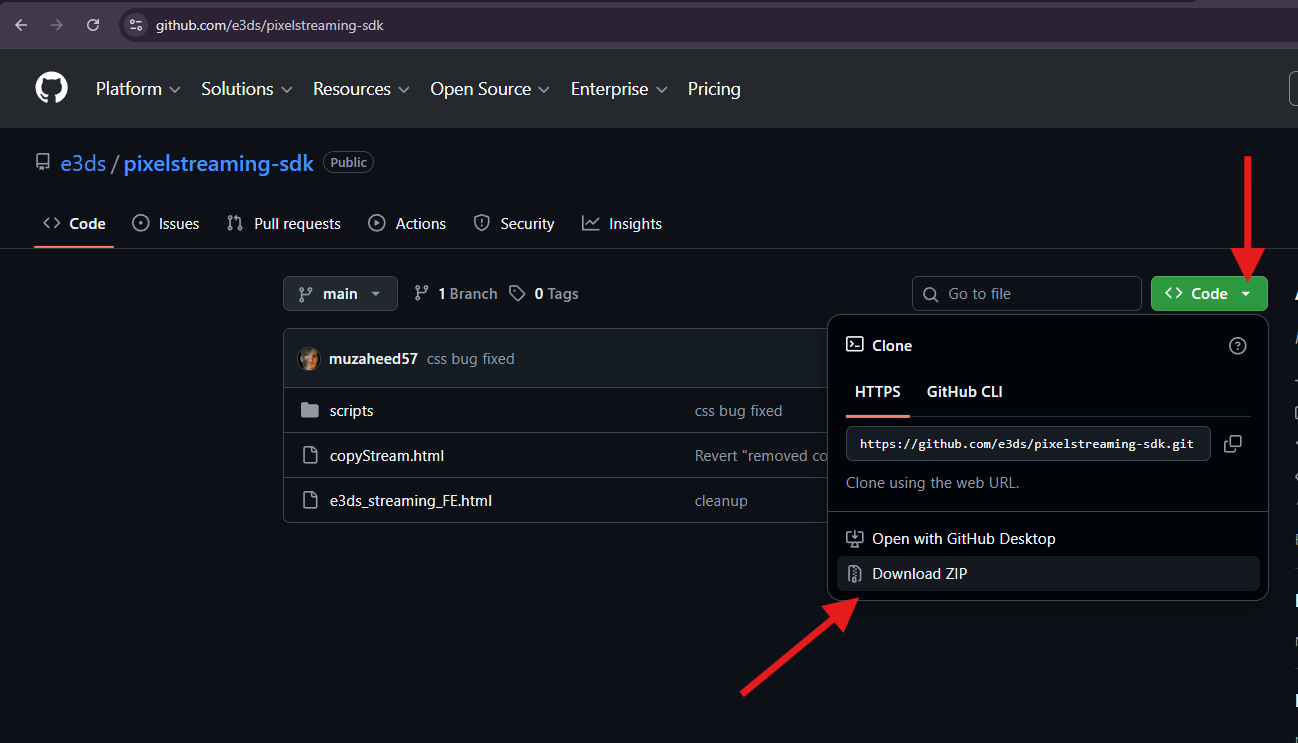
Step 1. Download the Demo Project with SDK
Download the demo project that includes the E3DS Frontend SDK from GitHub: Get the Sample Project with SDK from GitHub
Step 2. Extract the Downloaded Project
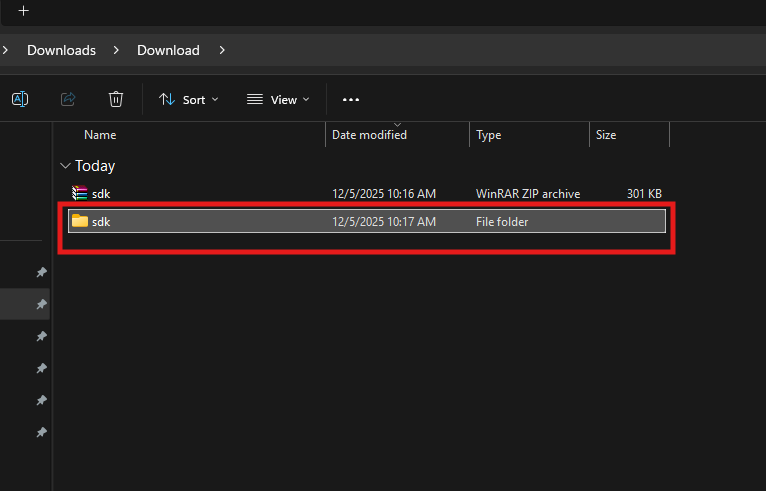
Extract the downloaded ZIP file to a local directory on your machine.
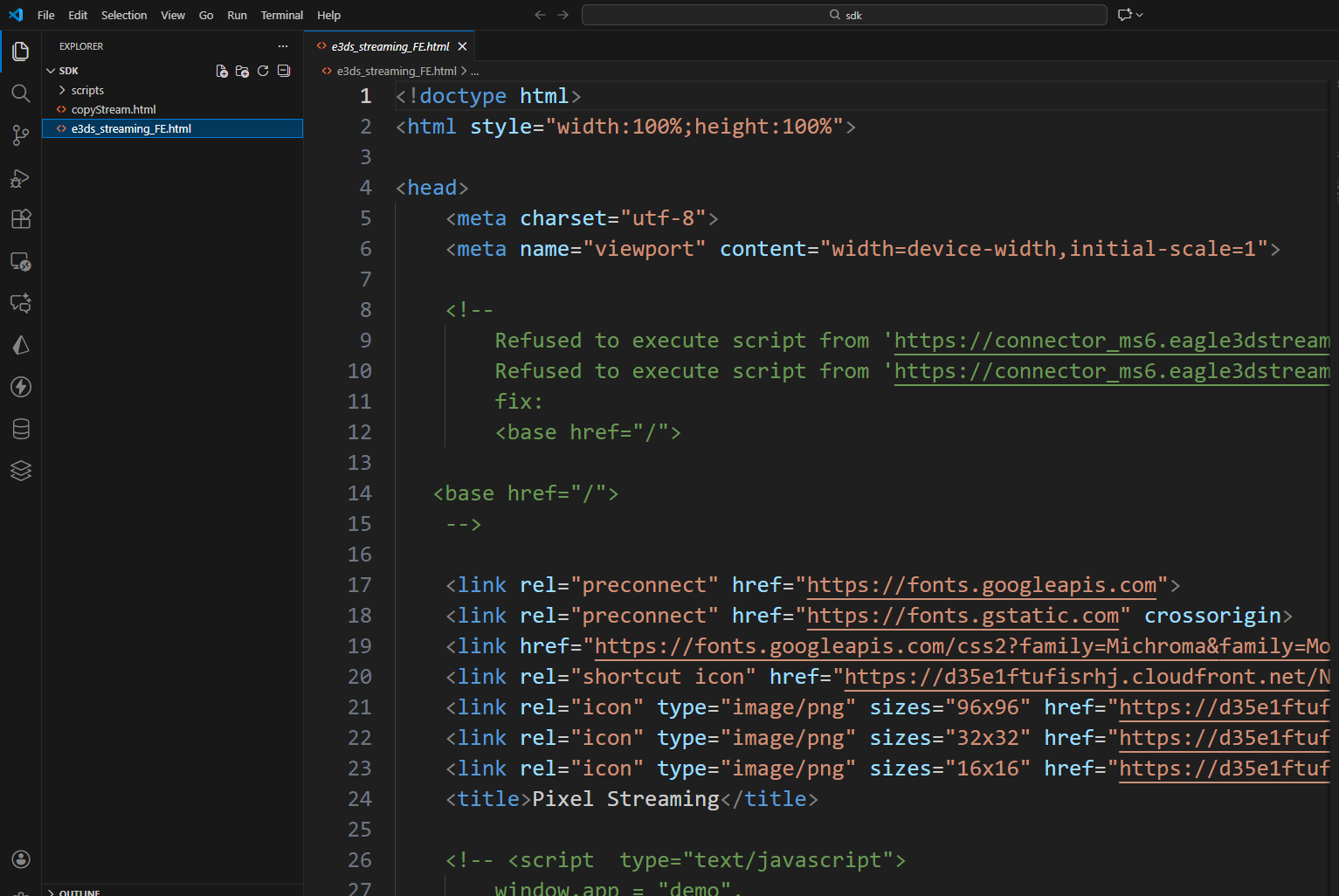
Step 3. Open the extracted project folder using your preferred code editor
Step 4. Open tokenManager.js
Locate and open the file:
/tokenManager.js
This file is responsible for generating and managing authentication tokens required to access the Pixel Streaming session.
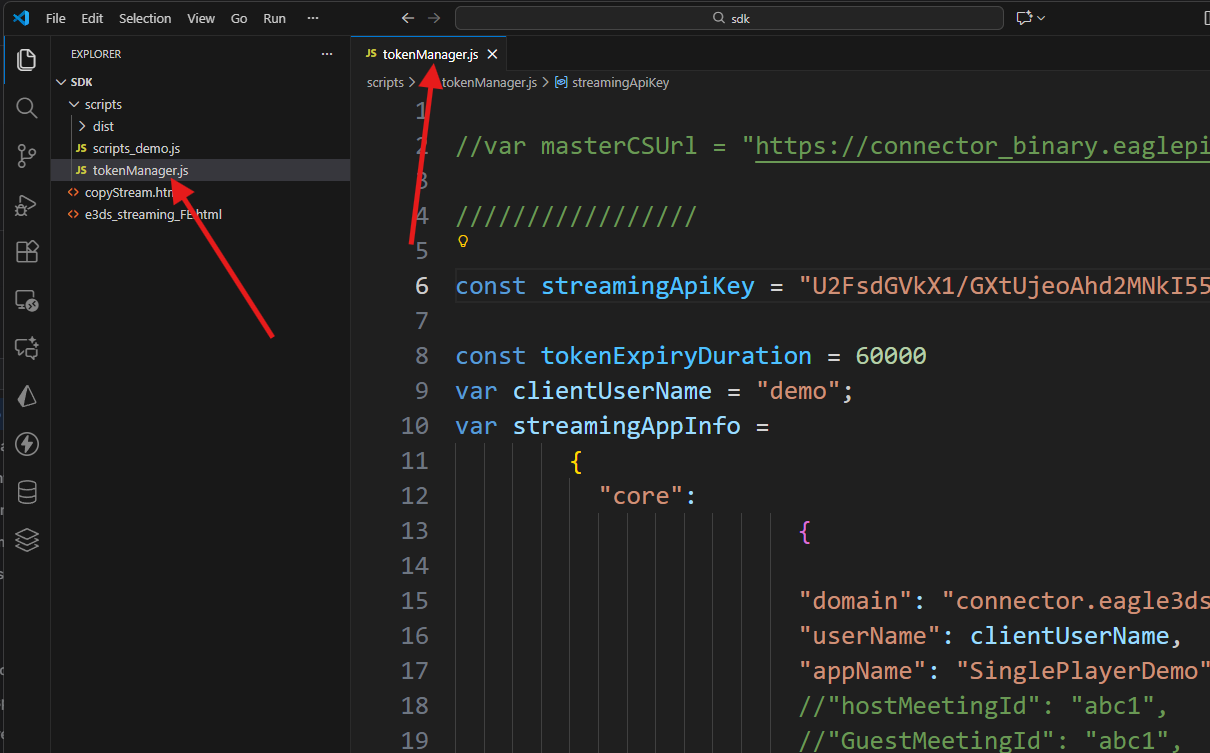
tokenManager.js
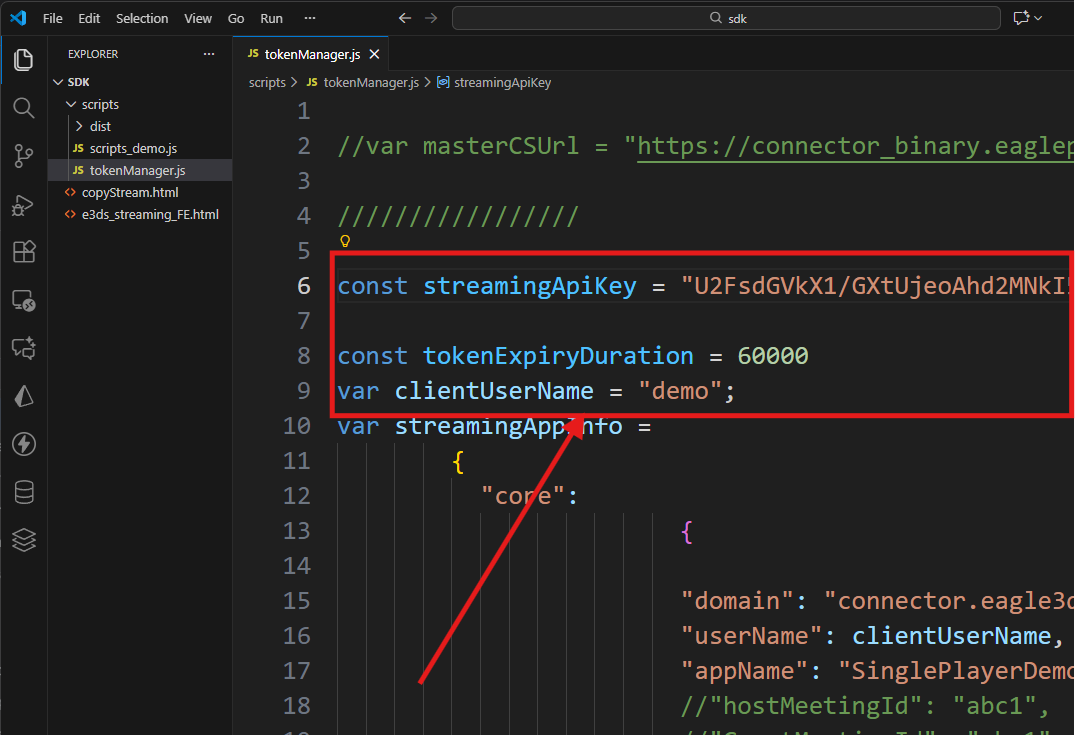
Step 5. Configure Authentication Details
Update the following values in tokenManager.js:
-
streamingApiKey → Your Streaming API Key (refers to Streaming API Key doc)
-
clientUserName → Your Username on the Eagle 3D Streaming Platform
-
tokenExpiryDuration → Define the token validity duration
Note: There are two types of API keys. Ensure you are using the Streaming API Key.
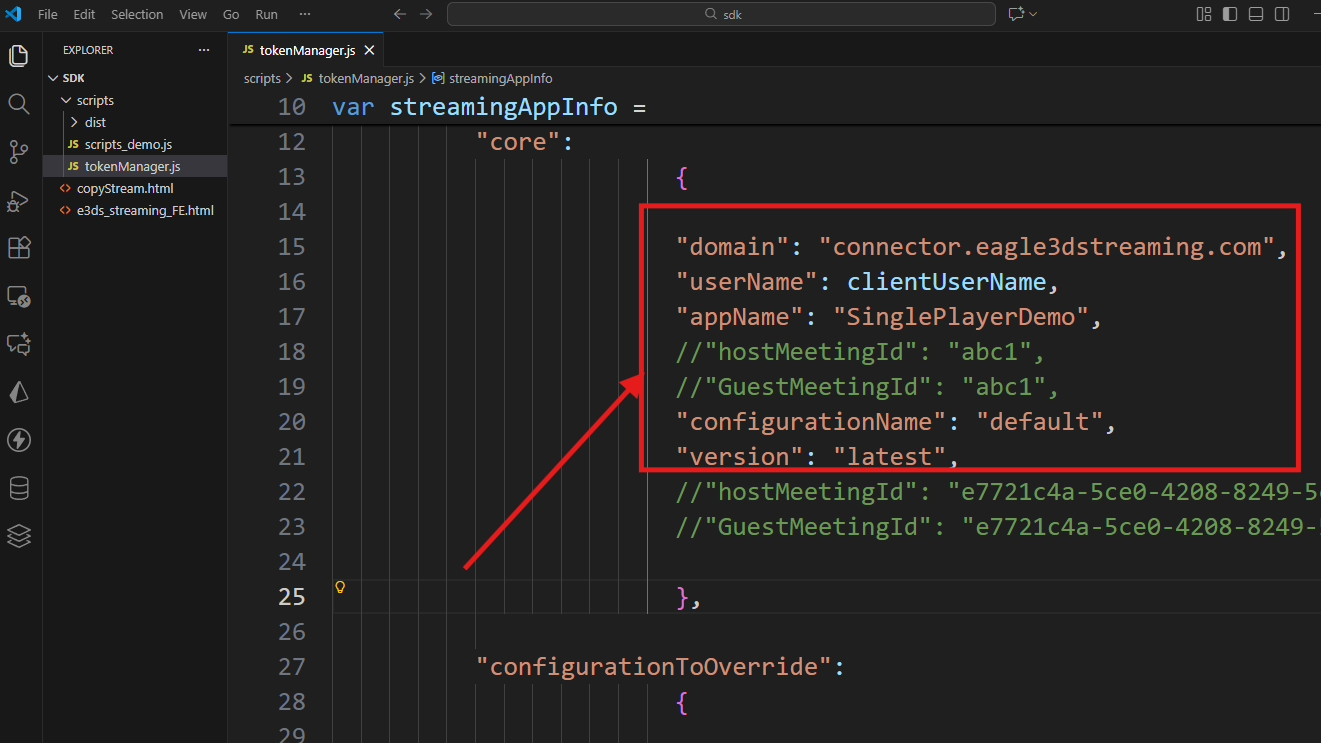
Step 6. Update Required Streaming Information
Inside the configuration file, update the following fields:
-
domain →
connector.eagle3dstreaming.com
Note: If you are using Enterprise Plan, please replace this with your custom domain provied by Eagle 3D Streaming. If you are unsure which domain to use, please contact support@eagle3dstreaming.com -
appName → Name of the app you want to embed
-
configurationName → Configuration name for the app
-
version →
latest(recommended to use the latest build)
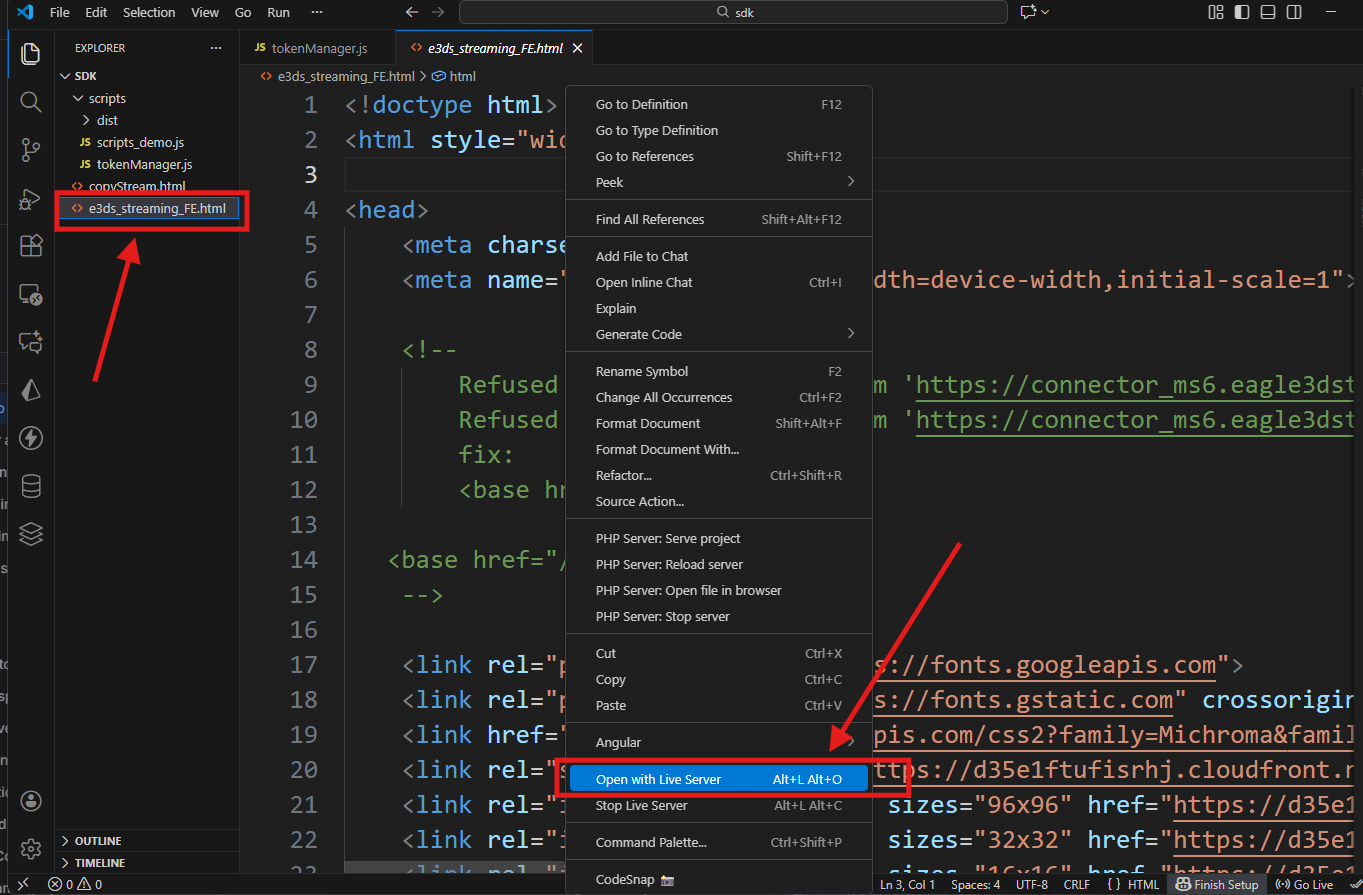
Step 7. Run the Demo HTML Locally
Open the following file:
e3ds_streaming_FE.html
Run it via a live server (VS Code Live Server, or any local web server).
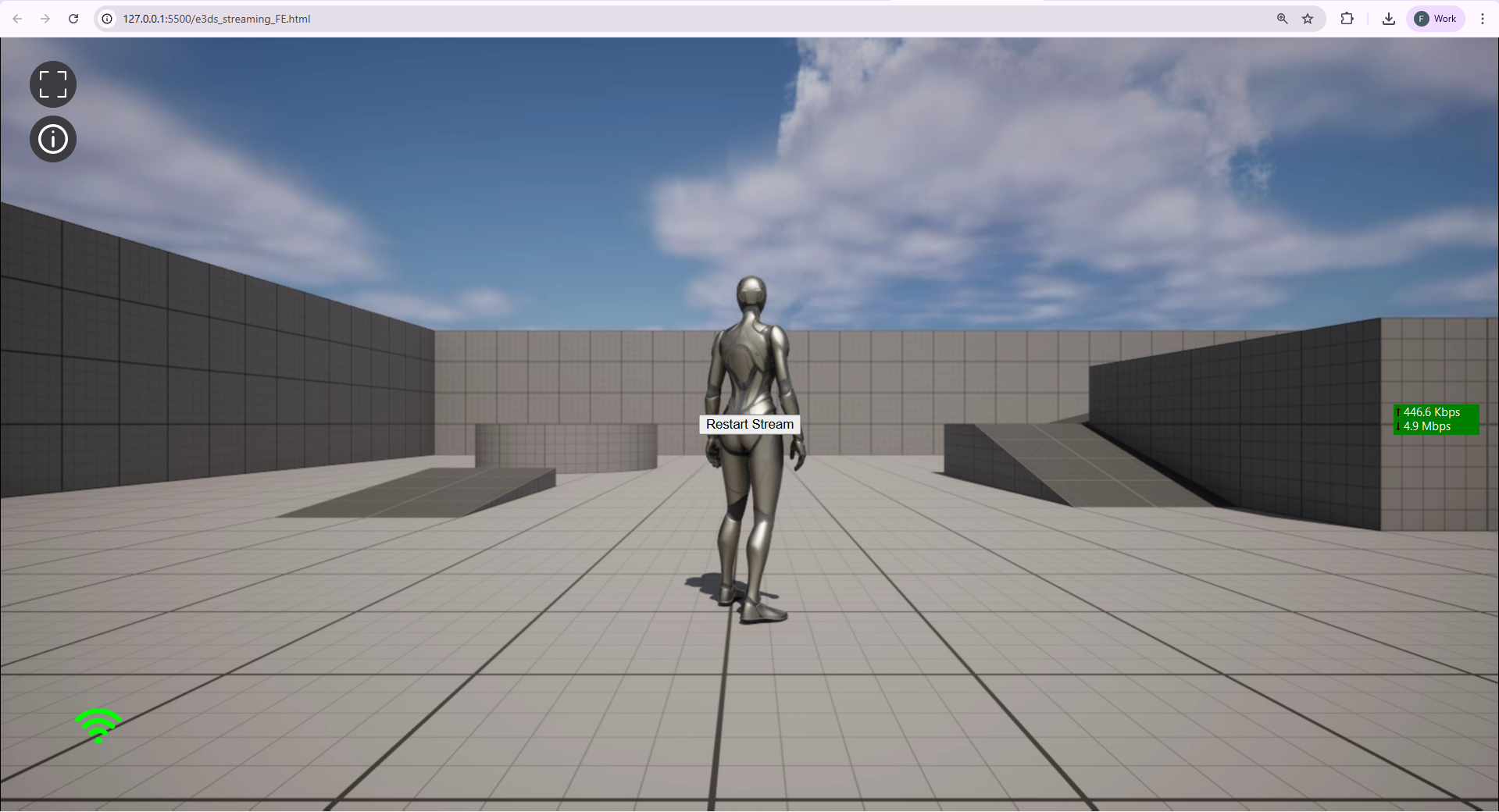
Once running, the page will load the hosted Pixel Streaming experience using your configured settings.
Notes & Best Practices
This guide demonstrates the simplest and fastest way to set up the E3DS Frontend SDK. After validating the demo project, you can:
-
Integrate the SDK into your existing web application
-
Customize UI and layout
-
Deploy your webpage on any hosting environment (company servers, cloud hosting, or modern static hosting platforms)
Troubleshooting
|
Issue |
Possible Cause |
Solution |
|---|---|---|
|
Token not generated / Authentication fails |
Wrong API key, wrong username, or invalid token duration |
Use Streaming API Key, verify username, check tokenExpiryDuration, remove extra spaces/quotes |
|
Stream not loading |
Incorrect domain/app/config names |
Set domain to |
|
Black screen / Stuck on connecting |
Network or browser blocking WebRTC |
Try another network, disable VPN, use Chrome/Edge/Firefox |
|
Local page not working |
Opened using file path ( |
Run using Live Server or any local server tool |
|
Console errors |
CORS issues, missing values, wrong API key, incorrect version |
Open DevTools → Console; fix the specific error shown |
|
App not responding or inactive |
App not deployed or not ready in the Control Panel |
Confirm the app is uploaded & shown in the Control Panel |
Need help?
If you need any assistance, feel free to reach out through any of the following channels:
🛠️ Support Portal: Contact Our Support Team
💬 Discord Community (Faster Support): Join Our Discord Community
📧 Email Support: support@eagle3dstreaming.com
Follow us on: