
This guide explains how to replace the default Eagle 3D Streaming Session Expired screen with your own custom fullscreen image and optionally allow users to start a new streaming session.
Follow the steps below:
Step 1. Embed the Streaming Session in Your Webpage
Add the Eagle 3D Streaming iframe to your HTML page.
For detailed instructions, refer to Embed Streaming within HTML Webpage Guide
<iframe
      id="iframe_1"
      src="YOUR_PIXEL_STREAMING_URL_HERE"
      //src="https://connector.eagle3dstreaming.com/v5/demo/DemoAppTP/default"
      allowfullscreen
      title="streaming"
    >
</iframe>
Step 2. Add a Custom Session Expired Overlay
Create a fullscreen overlay that will remain hidden while the streaming session is active.
When the session expires, this overlay will appear and replace the streaming iframe.
The overlay contains:
-
Custom Image: Displays your own Session Expired artwork or branding.
-
Start New Session Button (Optional): Reloads the page so a new streaming session can be created automatically.
<div
      id="sessionExpiredOverlay"
      style="
        display: none;
        position: fixed;
        top: 0;
        left: 0;
        width: 100vw;
        height: 100vh;
        background: #000;
        z-index: 9999;
        justify-content: center;
        align-items: center;
        flex-direction: column;
      "
    >
      <img
        src= "YOUR_SESSION_EXPIRED_IMAGE_URL"
        //src="https://i.ibb.co.com/WW5c1hKg/session-sesh.png"
        alt="Session Expired"
        style="max-width: 80%; max-height: 80%"
      />
      <!-- optional: add a reload button below the image -->
      <button
        onclick="location.reload()"
        style="
          margin-top: 20px;
          padding: 10px 30px;
          font-size: 16px;
          cursor: pointer;
        "
      >
        Start New Session
      </button>
    </div>
Step 3. Create the JavaScript File
Create a folder named js in your project's root directory.
Inside the folder, create a file named:
message.js
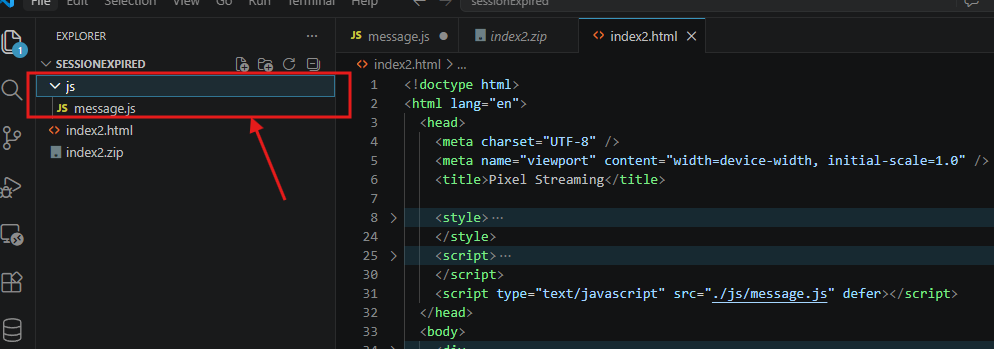
Step 4. Include the JavaScript File
Link the newly created message.js file in your webpage.
This script listens for events coming from the streaming iframe and detects when the session has expired.
<script type="text/javascript" src="./js/message.js" defer></script>
Step 5. Add the Session Expired Handler
Copy the following code into message.js.
This script performs the following tasks:
-
Listens for messages sent by the streaming iframe.
-
Detects the sessionExpired event.
-
Hides the streaming iframe.
-
Displays your custom Session Expired overlay.
-
Automatically focuses the iframe when the page loads.
const messageHandler = (event) => {
    const iframeElem = document.getElementById("iframe_1"); // fixed from "content"

    console.log("received data event type " + event.data.type)

    switch (event.data.type) {

        case "sessionExpired": {
            iframeElem.style.visibility = "hidden";
            const expiredOverlay = document.getElementById("sessionExpiredOverlay");
            expiredOverlay.style.display = "flex";
            break;
        }
        default:
            console.error("Unhandled message data type: " + event.data.type);
            break;
    }
}

window.addEventListener("message", messageHandler);

// focus iframe on load
window.addEventListener("load", () => {
    document.getElementById("iframe_1").focus();
});
Step 6. Run Your Webpage
Open your webpage in a browser and start a streaming session.
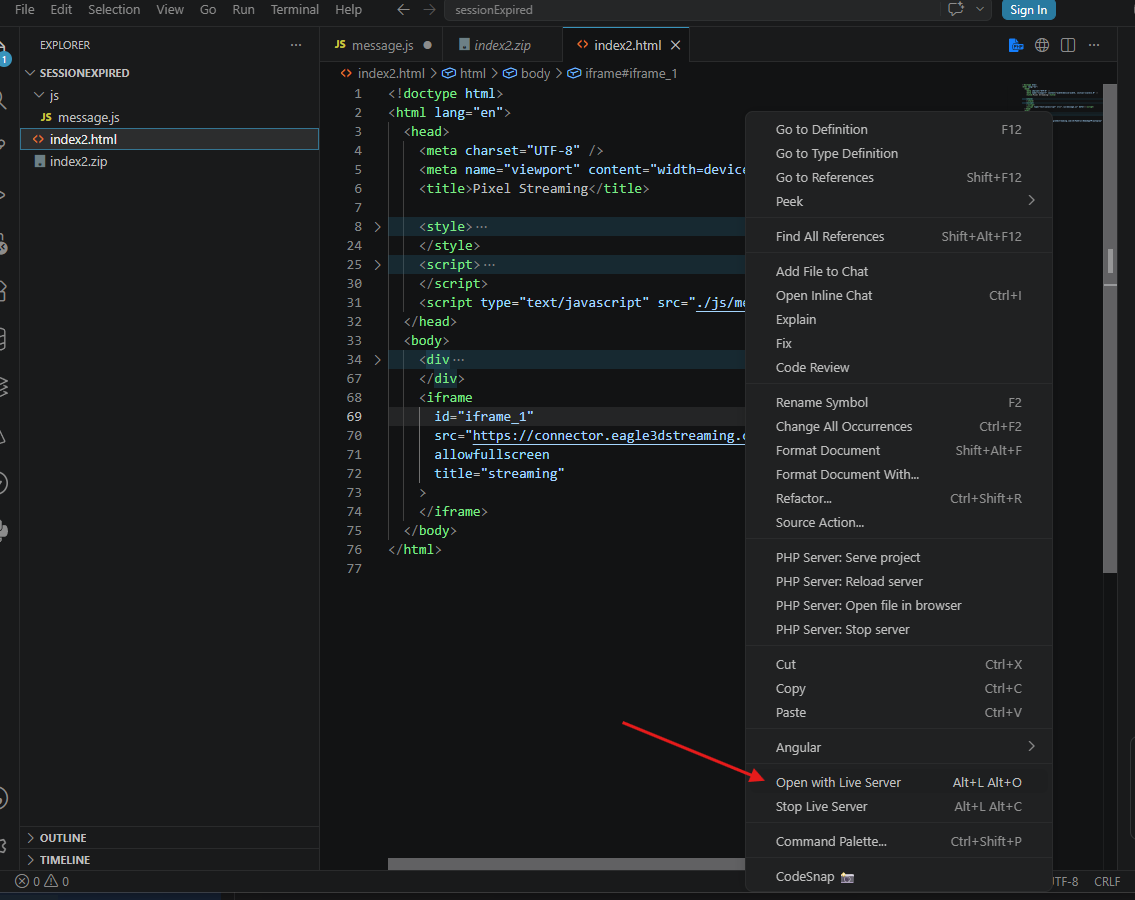
Step 7. Wait for the Session to Expire
Use the application normally until the configured streaming session reaches its maximum session time.
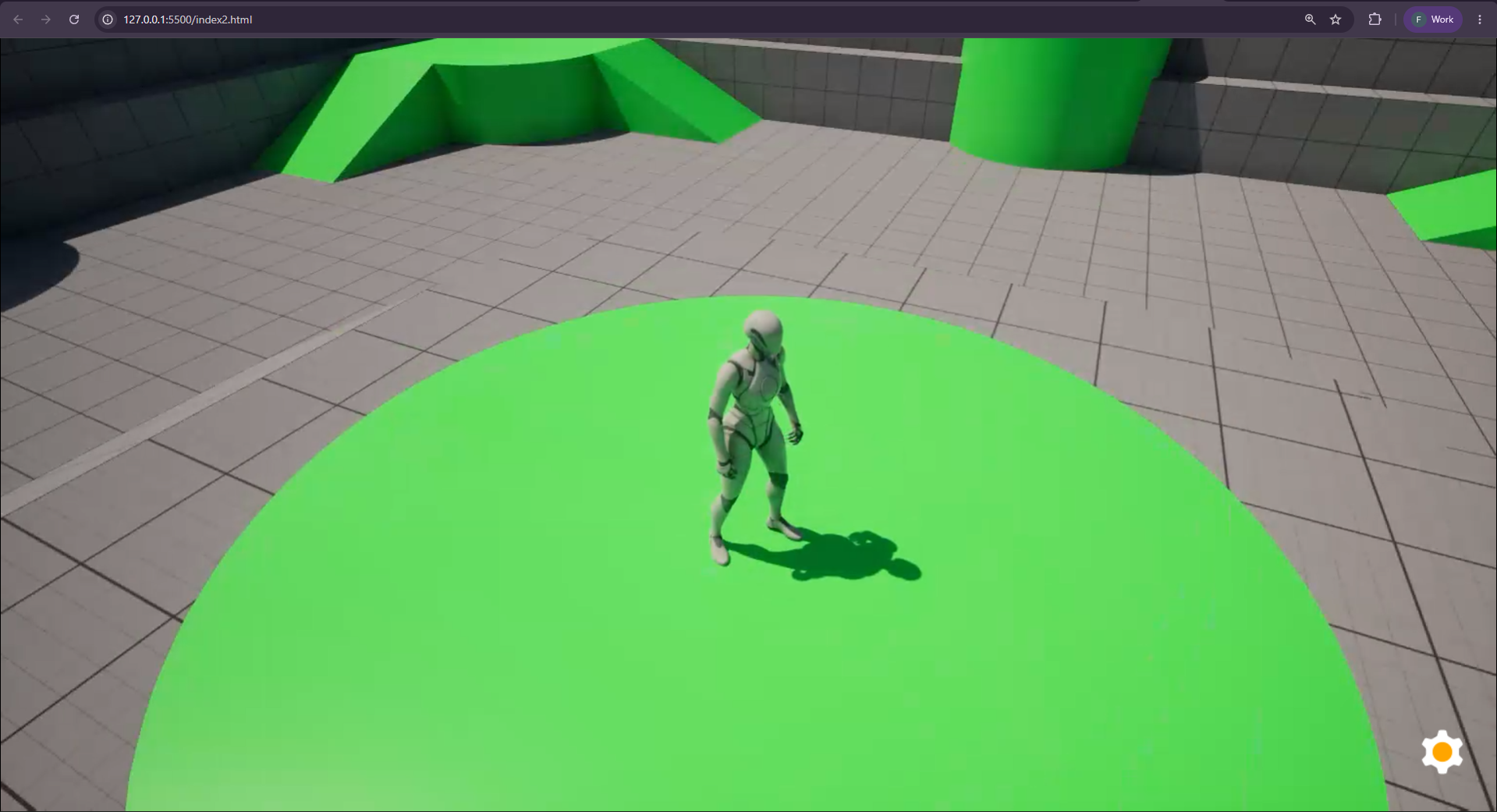
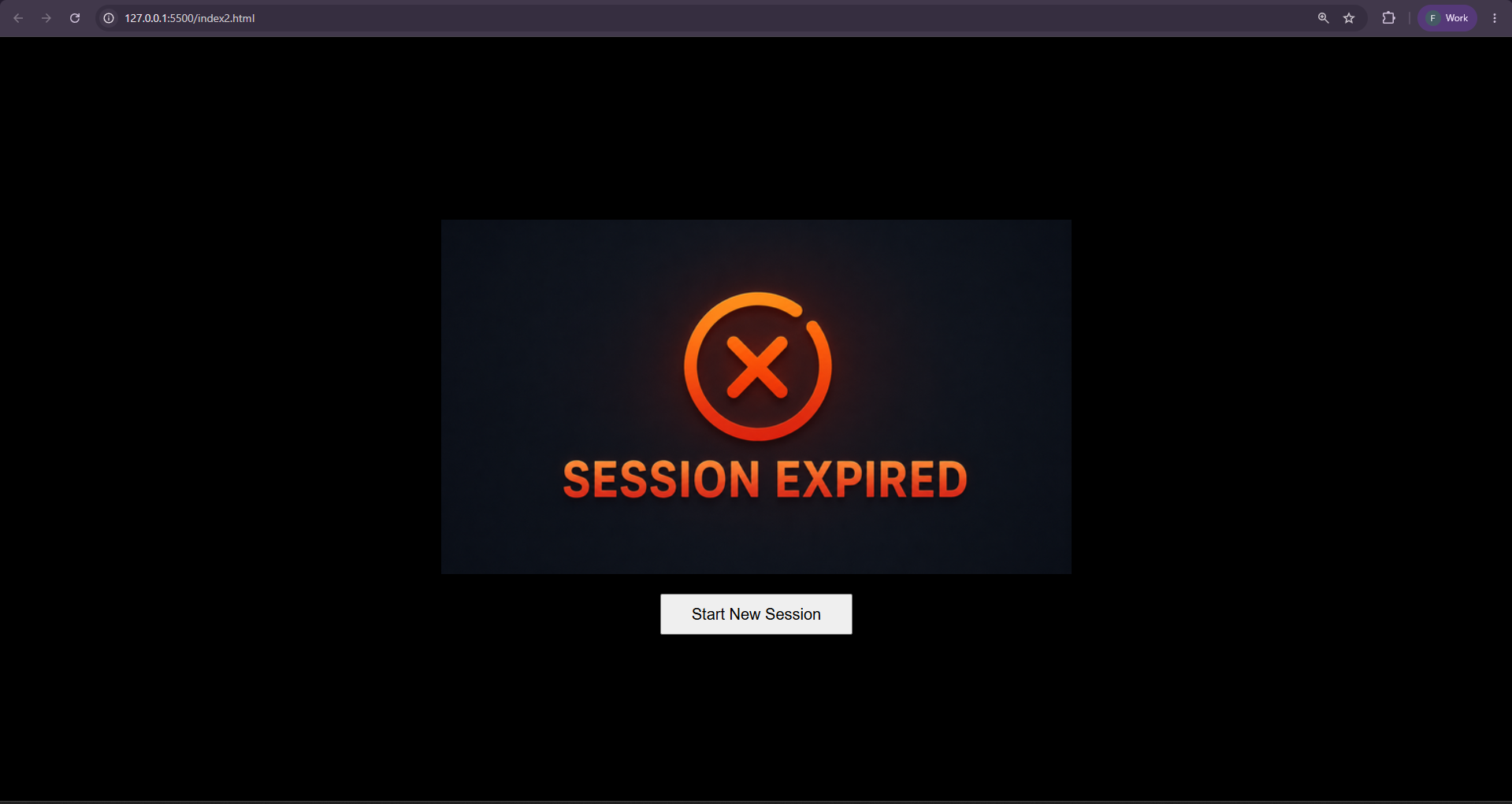
Step 8. Display the Custom Session Expired Page
When the session expires:
-
The streaming iframe is hidden.
-
Your custom fullscreen image is displayed.
-
The Start New Session button becomes available.
Clicking Start New Session reloads the page, allowing a new streaming session to begin.
To increase the maximum session time, refer to Increase Max Session Time Guide
Full Code Example
Expand to view the complete index.html example.
Expand to view the complete message.js example.
Troubleshooting
|
Issue |
Possible Cause |
Solution |
|---|---|---|
|
Custom Session Expired page does not appear |
|
Verify that the |
|
Nothing happens after the session expires |
Incorrect iframe ID |
Ensure the iframe ID matches the ID referenced inside |
|
Custom image is not displayed |
Invalid image path |
Verify the |
|
Start New Session button does not work |
Page cannot reload or custom logic was modified |
Verify the button uses |
|
Overlay appears behind the iframe |
CSS stacking order issue |
Ensure the overlay uses a high |
|
Overlay is visible immediately when the page loads |
Initial display property is incorrect |
Ensure |
|
Session expires but the iframe is still visible |
The |
Verify that |
Need help?
If you need any assistance, feel free to reach out through any of the following channels:
🛠️ Support Portal: Contact Our Support Team
💬 Discord Community (Faster Support): Join Our Discord Community
📧 Email Support: support@eagle3dstreaming.com
Follow us on:
Facebook | GitHub | LinkedIn | YouTube
Related content