In this guide, we’ll show you how to receive data from an Unreal Engine (UE) application (sender) into your webpage (receiver) using the Eagle 3D Streaming SDK.
Live Streaming URL
You can test this workflow using the live streaming URL below:
https://e3ds.github.io/pixelstreaming-sdk/e3ds_streaming_FE.html
Demo Project GitHub Repository: https://github.com/e3ds/pixelstreaming-sdk
Follow the steps below:
Step 1. Add Callback Function in scripts_demo.js
Open your scripts_demo.js file and add this callback function:
e3ds_controller.callbacks.onResponseFromUnreal = function(descriptor) {
    console.log("Message sent from Unreal:", descriptor);
};
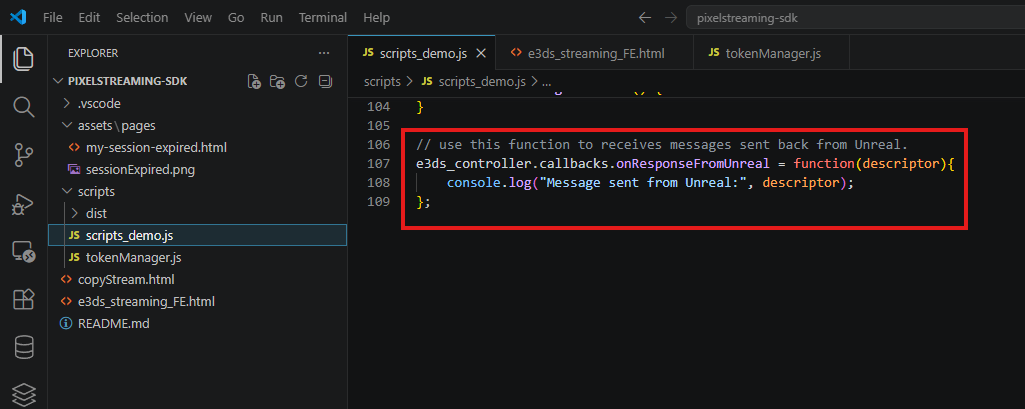
onResponseFromUnreal callback in scripts_demo.js
Explanation
|
Code |
Meaning |
|---|---|
|
|
This callback is triggered when the webpage receives data from the Unreal app. |
|
|
|
|
|
Prints the received Unreal message in the browser console for testing/debugging. |
For testing, we added console.log() to print the message sent from Unreal in the browser console.
You can later use this received message as per your requirements, for example:
-
Show it on the webpage
-
Trigger a frontend action
-
Update UI
-
Open a modal
-
Store the data
-
Process commands from Unreal
Step 2. Send Message from Unreal
Now send a message from the Unreal app.
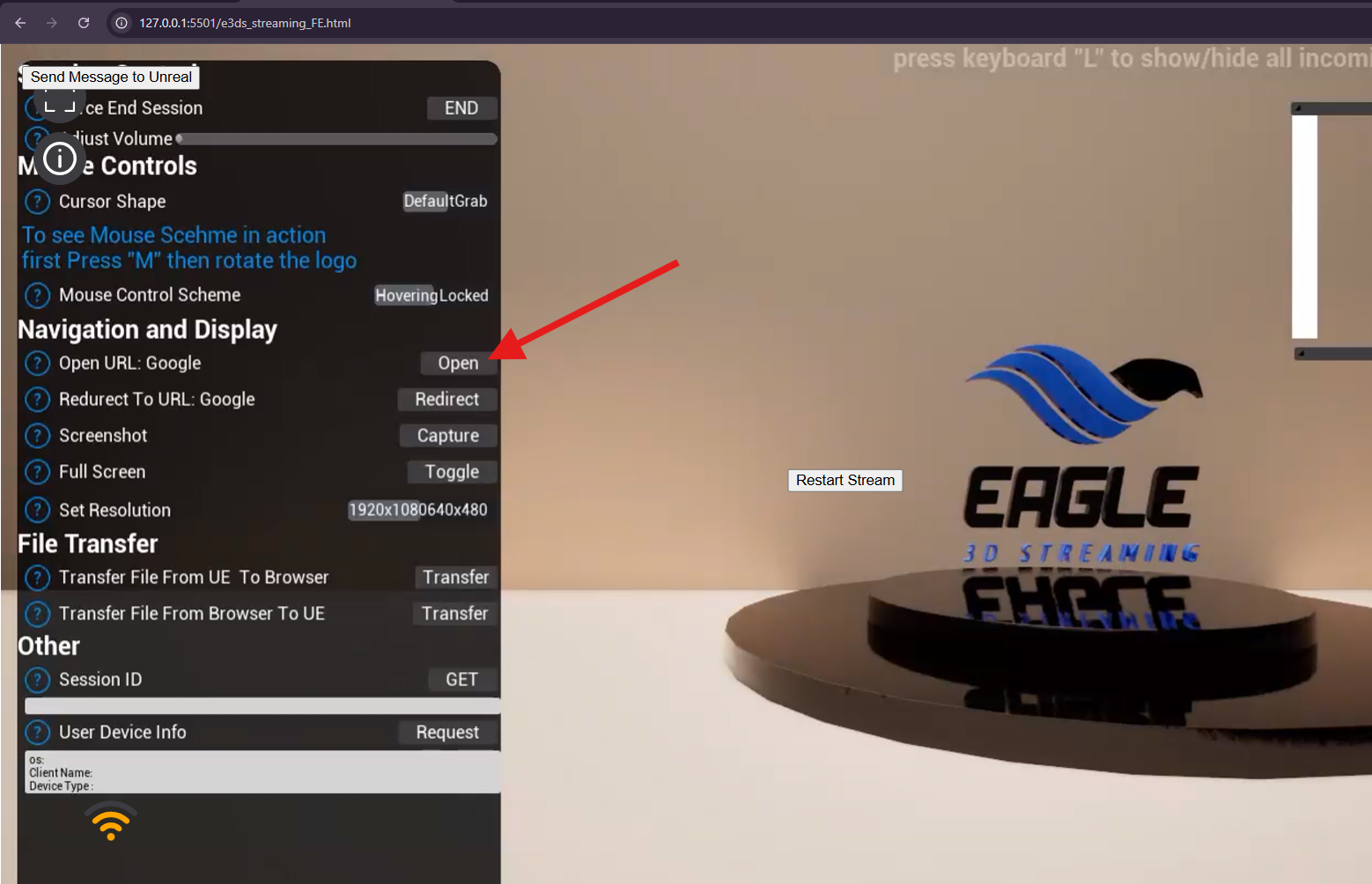
In our demo app, we have an Open URL button inside the Unreal application.
Click the Open URL button in the Unreal app.
When the button is clicked, Unreal sends a message to the webpage.
Step 3. Check Browser Console Log
Open the browser Developer Tools.
You can open Developer Tools by pressing:
F12
or:
Right click on webpage → Inspect → Console
Now check the Console tab.
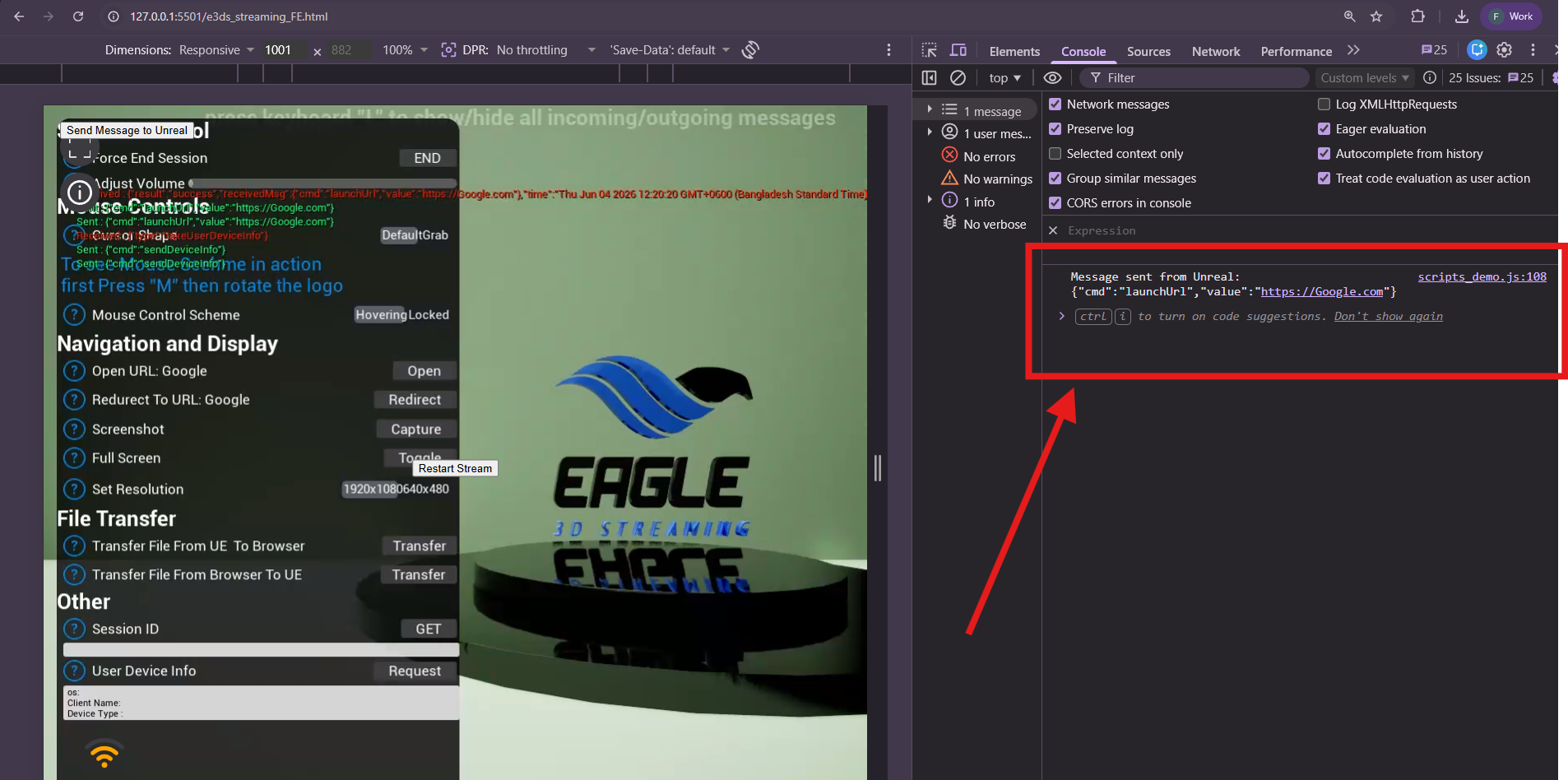
If the message is received successfully from Unreal, you should see a log like this:
UnrealResponse: <message from Unreal>
This confirms that the webpage successfully received data from the Unreal application.
Expected Result
After completing the steps:
-
Unreal sends a message.
-
The webpage receives the message.
-
The message prints in the browser console.
Example console output:
Message sent from Unreal: {"cmd":"openUrl","value":"https://eagle3dstreaming.com"}
Demo Video
You can watch the demo video below to see the final result:
Troubleshooting
|
Issue |
Possible Cause |
Solution |
|
No message appears in browser console |
Callback function is not added or not loaded |
Make sure |
|
|
SDK is not loaded yet |
Make sure the SDK script is loaded before using |
|
Unreal button clicked but no browser response |
Unreal may not be sending the message correctly |
Check the Unreal Blueprint/message-sending setup. |
Need help?
If you need any assistance, feel free to reach out through any of the following channels:
🛠️ Support Portal: Contact Our Support Team
💬 Discord Community (Faster Support): Join Our Discord Community
📧 Email Support: support@eagle3dstreaming.com
Follow us on: