In this guide, we will show how to send data from a webpage to an Unreal Engine application using the Eagle 3D Streaming SDK.
Live Streaming URL
You can test this workflow using the live streaming URL below:
https://e3ds.github.io/pixelstreaming-sdk/e3ds_streaming_FE.html
Demo Project GitHub Repository: https://github.com/e3ds/pixelstreaming-sdk
Follow the steps below:
Step 1. Add Function in scripts_demo.js
Open your scripts_demo.js file and add this code:
function sendMessageToUnreal() {
    const descriptor = "This message is sent by frontend";

    console.log("Sending to Unreal:", descriptor);

    e3ds_controller.sendToUnreal(descriptor);
}
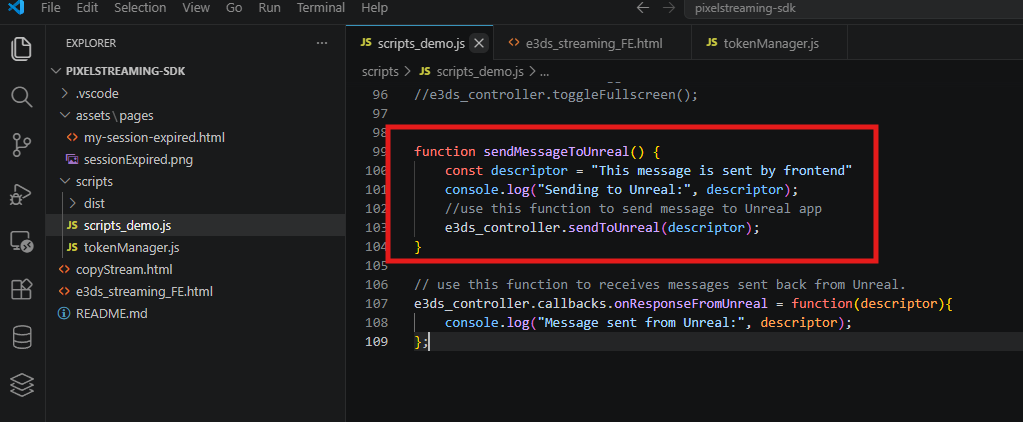
scripts_demo.js
Explanation
|
Code |
Meaning |
|---|---|
|
|
Creates a function that can be called from the HTML page. |
|
|
Defines the message that will be sent to Unreal. |
|
|
Prints the message in the browser console for debugging. |
|
|
Sends the message to the Unreal app using the Eagle 3D Streaming SDK. |
Step 2. Add Button in HTML Page
Open your HTML page and add this button:
<button onclick="sendMessageToUnreal()">Send Message</button>
Explanation
|
Code |
Meaning |
|---|---|
|
|
Creates a clickable button on the webpage. |
|
|
Calls the |
|
|
The text shown on the button. |
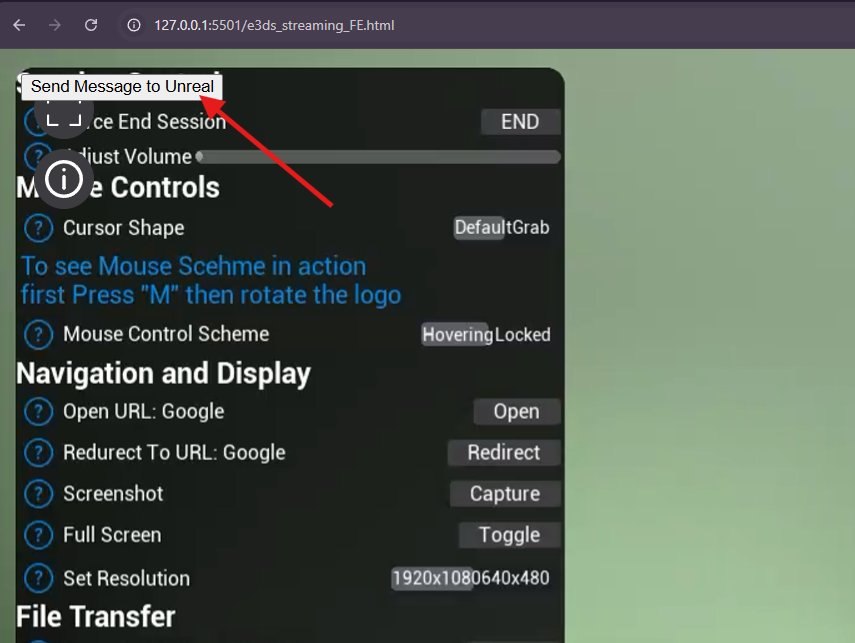
Step 3. Test the Message
After adding the function and button:
-
Run your SDK webpage.
-
Wait until the stream is connected.
-
Click the Send Message button.
-
Check whether the message appears inside the Unreal app.
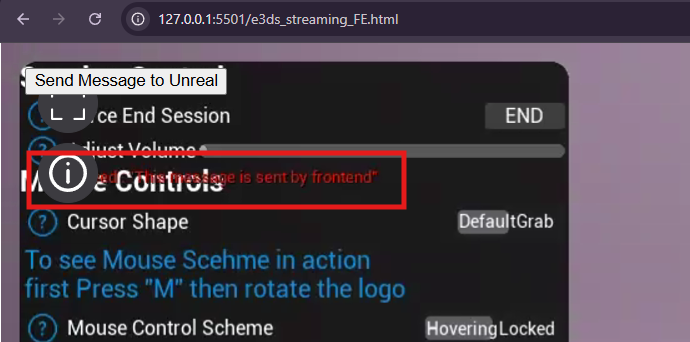
In our demo app, we enabled on-screen messages inside Unreal. So whenever the button is clicked, the message is printed inside the app screen.
Example message shown inside Unreal:
This message is sent by frontend
You can also check the browser console. You should see:
Sending to Unreal: This message is sent by frontend
Important
Send the message only after the stream is fully connected.
You can confirm the stream connection with this callback:
e3ds_controller.callbacks.onDataChannelOpen = function () {
    console.log("Stream Connected");
};
After the stream is connected, click the button and test the message.
Demo Video
You can watch the demo video below to see the final result:
Troubleshooting
|
Issue |
Possible Cause |
Solution |
|---|---|---|
|
Button click does nothing |
Function name mismatch |
Make sure the button calls the same function name used in |
|
|
Function is not available globally |
Use the |
|
|
SDK is not loaded yet |
Make sure SDK files are loaded before calling |
|
Message logs in browser but not in Unreal |
Stream is not connected or Unreal receiver is missing |
Wait until stream is connected and make sure the Unreal app can receive the message. |
|
Unreal receives message but nothing shows on screen |
On-screen message logic is not enabled in Unreal |
Enable Print String, on-screen message, or custom UI display logic in Unreal. |
Need help?
If you need any assistance, feel free to reach out through any of the following channels:
🛠️ Support Portal: Contact Our Support Team
💬 Discord Community (Faster Support): Join Our Discord Community
📧 Email Support: support@eagle3dstreaming.com
Follow us on: