
Some streams may fail to start when Microphone is enabled in the application configuration but browser microphone access is not allowed.
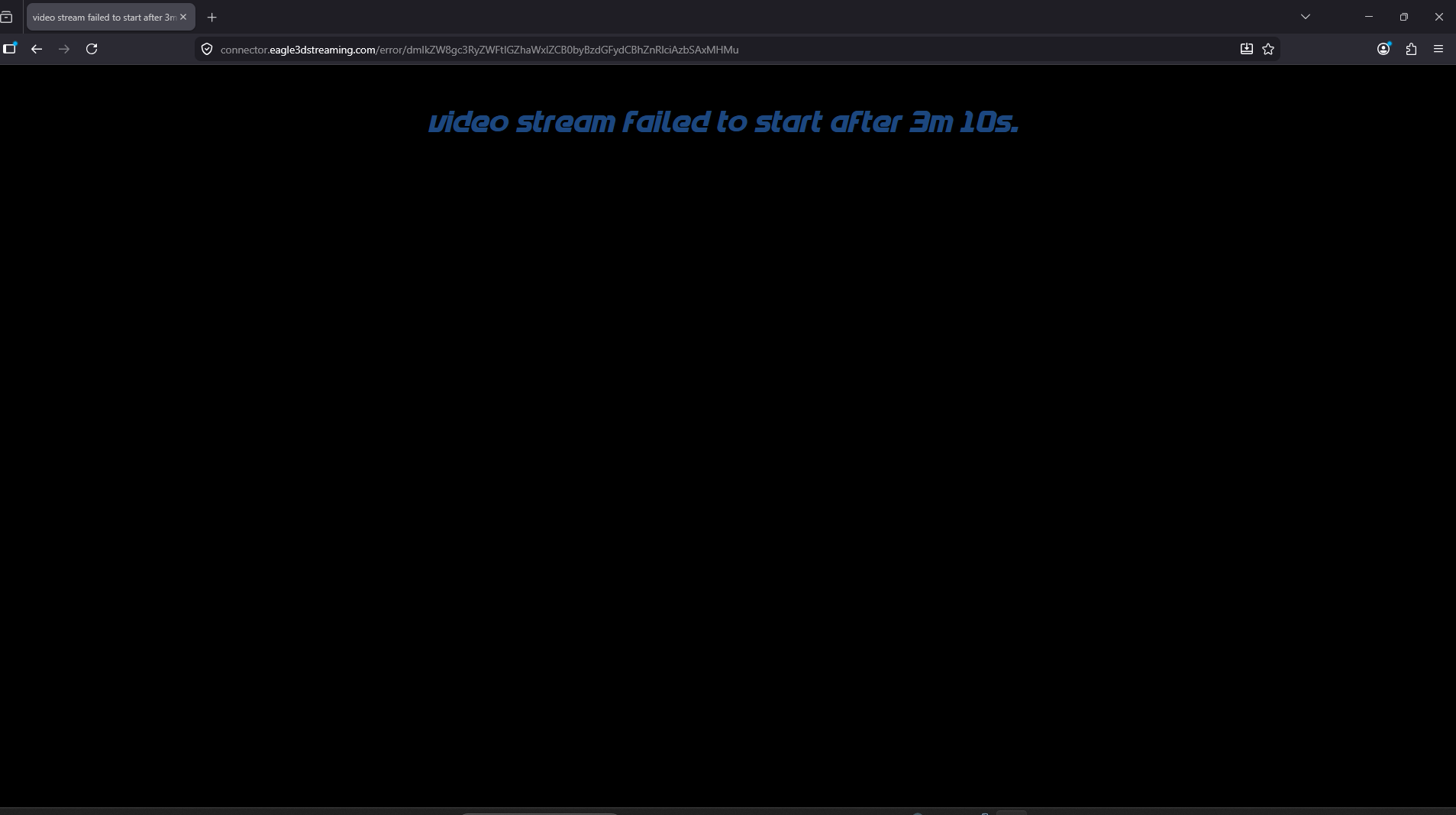
Cause
When microphone access is required, the browser asks the user to allow permission for the streaming website.
If the user blocks, ignores, or does not receive the microphone permission prompt, the stream may remain stuck during initialization and fail after a few minutes.
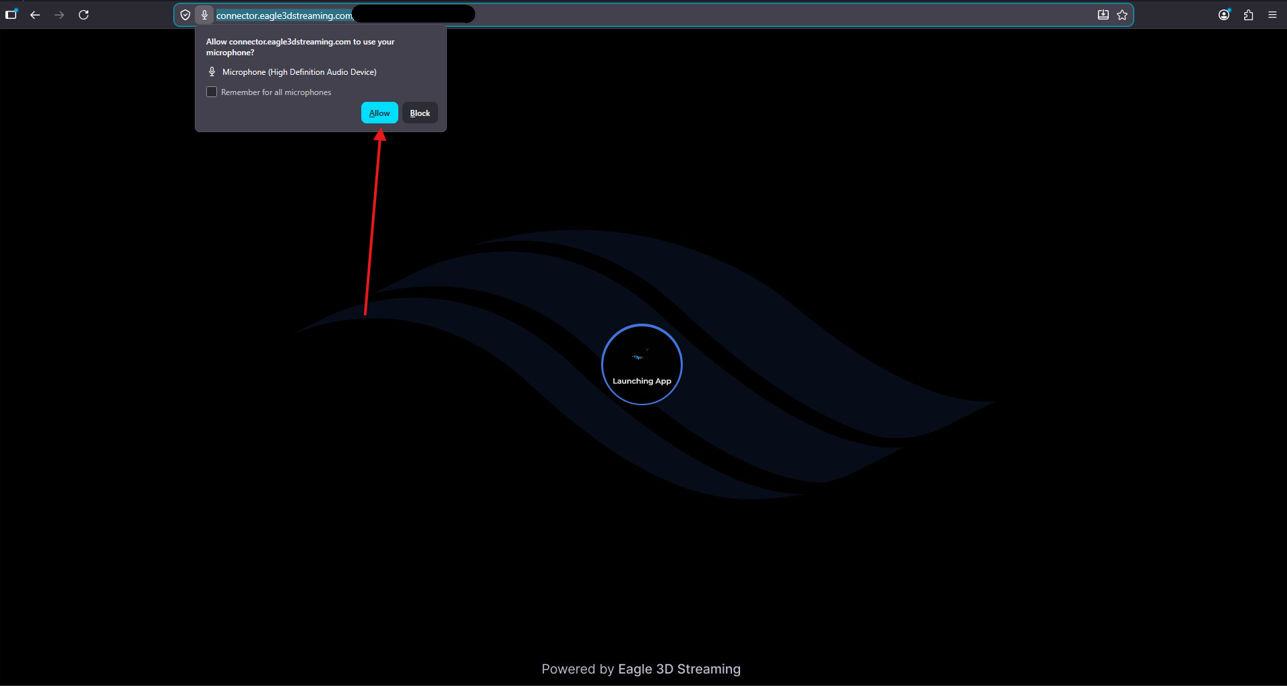
Common Scenarios
|
Scenario |
Result |
|---|---|
|
User clicks Block on the microphone permission prompt |
Stream may fail to start |
|
User ignores the permission prompt |
Stream may fail to start |
|
Browser permission pop-ups are blocked |
Stream may fail to start |
|
Microphone permission is disabled in browser settings |
Stream may fail to start |
How to Fix
Allow microphone access and make sure browser permission prompts are enabled.
In the Browser:
-
Open the streaming page.
-
Click the lock/settings icon beside the address bar.
-
Open Site settings.
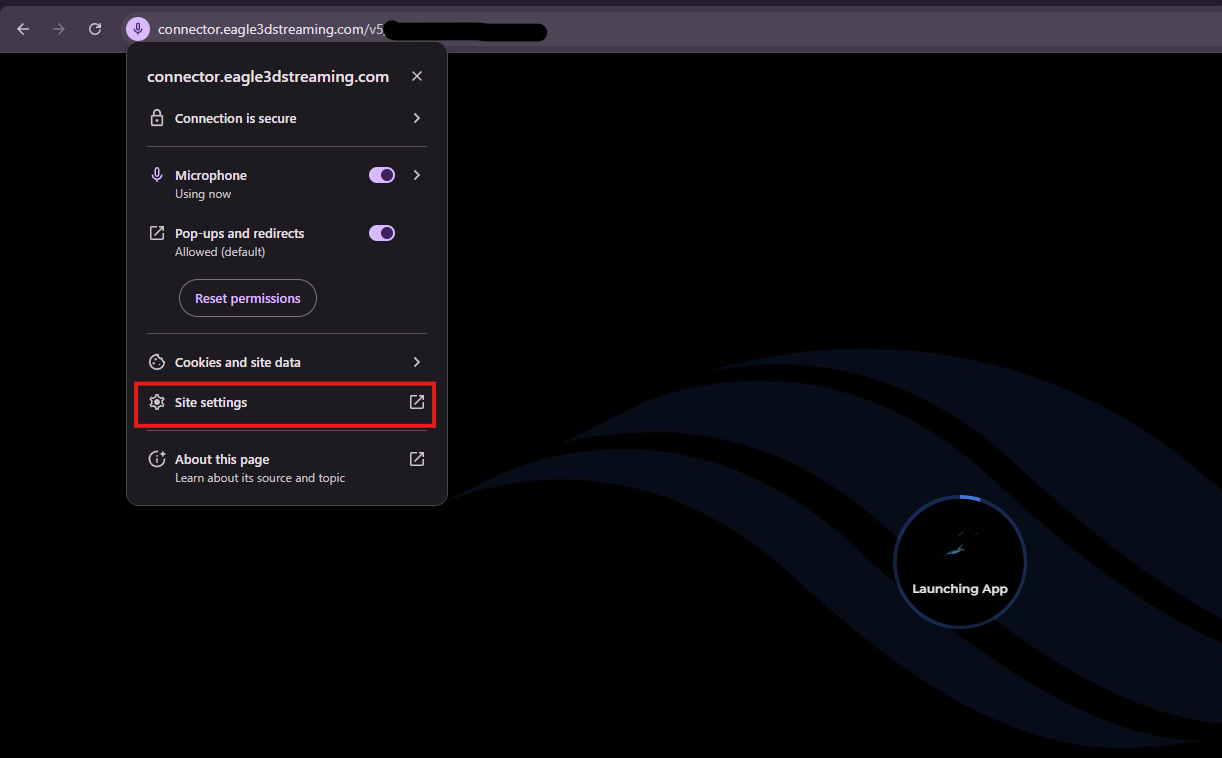
Figure 3. Site Permission
-
Set Microphone & Pop-ups to Allow.
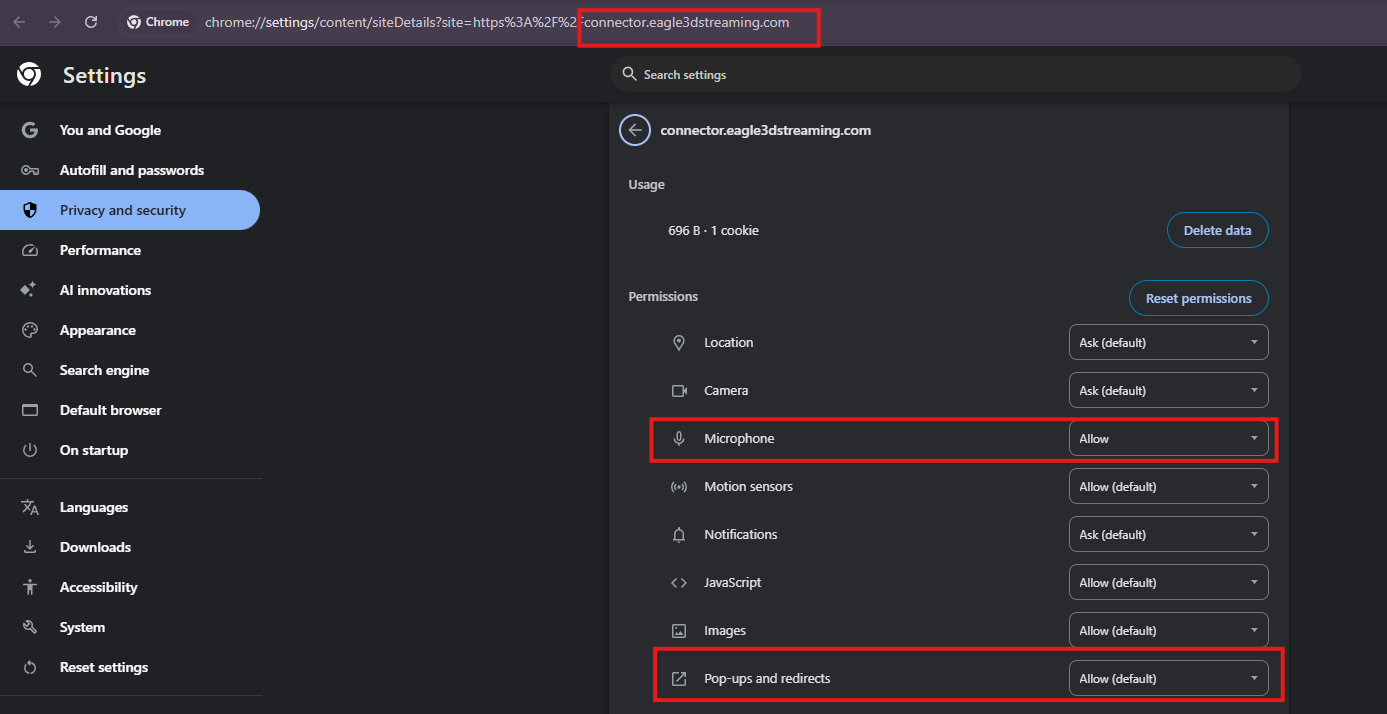
Figure 4. Allow Microphone Access
-
Make sure Pop-ups and redirects are not blocked if permission prompts are not appearing.
-
Reload the stream.
Important
If microphone access is required by the application, users must allow microphone permission in the browser.
If the permission prompt does not appear, check that browser pop-ups or permission prompts are not blocked. This allows the browser to show the microphone request so the user can allow access.
If microphone access is not required, disable the microphone option in the application configuration to prevent startup issues.
Need help?
If you need any assistance, feel free to reach out through any of the following channels:
🛠️ Support Portal: Contact Our Support Team
💬 Discord Community (Faster Support): Join Our Discord Community
📧 Email Support: support@eagle3dstreaming.com
Follow us on: