
This guide explains how to send keyboard input to a Pixel Streaming application from a webpage that uses an E3DS iFrame embed.
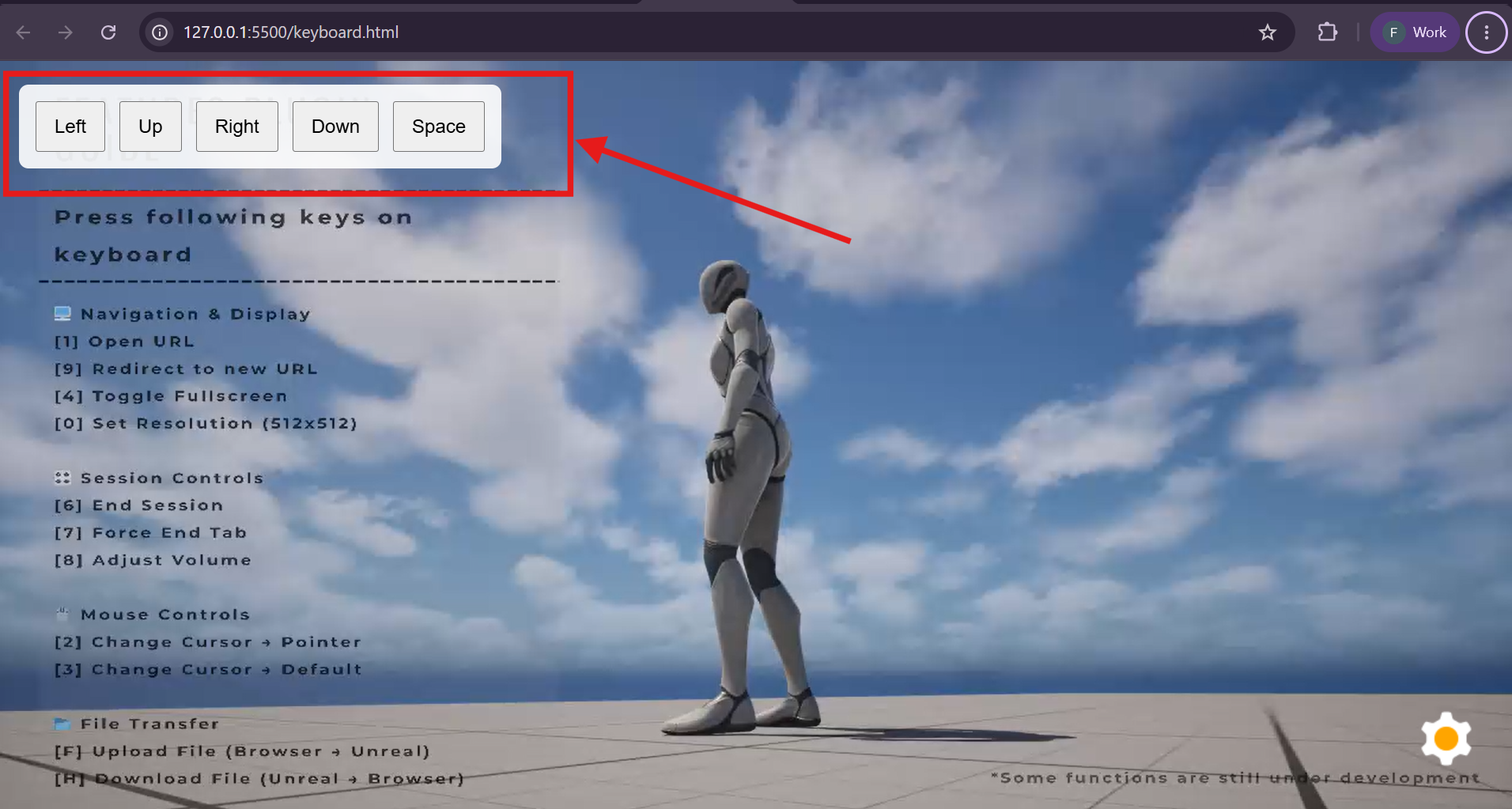
In this setup, users do not need to press physical keyboard keys. Instead, we will add custom buttons in the webpage UI. When a user clicks one of these buttons, the button will work like a keyboard key and send the related keyboard input to the Unreal Engine application inside the iFrame.
In this example, we are using the following keyboard inputs:
-
Arrow Left
-
Arrow Up
-
Arrow Right
-
Arrow Down
-
Space
However, the same method can be used for other keyboard buttons as well by changing the key, code, keyCode, and charCode values.
Demo Video
Follow the steps below:
Step 1. Add the iFrame Script in Your Page
First, embed the stream in your webpage.
<iframe
  id="iframe_1"
  src="https://connector.eagle3dstreaming.com/v5/demo/E3DS_StarterApp/0"
  //use your own streaming url
  allowfullscreen
  title="Unreal Stream"
></iframe>
Note: Replace the src value with your own streaming URL.
You can follow this doc for this.
Step 2. Make the iFrame full screen
Use CSS to make the iFrame take the full browser width and height.
<style>
  html,
  body {
    margin: 0;
    padding: 0;
    width: 100%;
    height: 100%;
    overflow: hidden;
  }

  #iframe_1 {
    position: absolute;
    top: 0;
    left: 0;
    width: 100vw;
    height: 100vh;
    border: none;
    z-index: 1;
  }
</style>
Step 3. Add a button panel on top of the stream
Add a custom button panel and keep it above the stream using a high z-index.
<style>
  #buttonPanel {
    position: absolute;
    top: 20px;
    left: 20px;
    z-index: 999999;
    background: rgba(255, 255, 255, 0.9);
    padding: 10px;
    border-radius: 8px;
  }

  button {
    margin: 4px;
    padding: 10px 14px;
    font-size: 16px;
    cursor: pointer;
  }
</style>
The button panel will appear on top of the Pixel Streaming iFrame.
Step 4. Create a JavaScript function to send commands to the iFrame
Add a JavaScript function that sends keyboard commands to the iFrame using postMessage().
<script>
  function sendToUE(cmd, value) {
    const obj = {
      cmd: cmd,
      value: value,
    };

    const jsonString = JSON.stringify(obj);
    const iframe = document.getElementById("iframe_1");

    if (iframe && iframe.contentWindow) {
      iframe.contentWindow.postMessage(jsonString, "*");
      console.log("Sent to UE:", obj);
    } else {
      console.warn("Iframe not found");
    }
  }
</script>
This function sends a command to the Pixel Streaming iFrame. For more details follow this doc.
Step 5. Create a function to emulate keyboard input
Add a function that sends keyboard events to the iFrame.
<script>
  function emulateKey(key, code, keyCode, charCode) {
    const keyboardKey = {
      key: key,
      code: code,
      keyCode: keyCode,
      charCode: charCode,
      which: keyCode,
      repeat: false,
    };

    sendToUE("emulateKeyboardKeyDown", keyboardKey);
    sendToUE("emulateKeyboardKeyPress", keyboardKey);

    setTimeout(function () {
      sendToUE("emulateKeyboardKeyUp", keyboardKey);
    }, 100);
  }
</script>
This function sends three keyboard events:
|
Event |
Purpose |
|---|---|
|
|
Tells the stream that the key has been pressed down |
|
|
Sends the key press event |
|
|
Tells the stream that the key has been released |
Note:
The emulateKeyboardKeyUp command is sent after a short delay using setTimeout().
Step 6. Create functions for selected keys
Create separate functions for the keys you want to emulate.
In this example, we are using Arrow Left, Arrow Up, Arrow Right, Arrow Down, and Space.
<script>
  function emulateArrowLeft() {
    emulateKey("ArrowLeft", "ArrowLeft", 37, 0);
  }

  function emulateArrowUp() {
    emulateKey("ArrowUp", "ArrowUp", 38, 0);
  }

  function emulateArrowRight() {
    emulateKey("ArrowRight", "ArrowRight", 39, 0);
  }

  function emulateArrowDown() {
    emulateKey("ArrowDown", "ArrowDown", 40, 0);
  }

  function emulateSpace() {
    emulateKey(" ", "Space", 32, 32);
  }
</script>
You can add more keyboard buttons by creating additional functions using the correct key values.
Step 7. Add custom keyboard buttons
Create buttons on your webpage and connect them to the keyboard functions.
<div id="buttonPanel">
  <button onclick="emulateArrowLeft()">Left</button>
  <button onclick="emulateArrowUp()">Up</button>
  <button onclick="emulateArrowRight()">Right</button>
  <button onclick="emulateArrowDown()">Down</button>
  <button onclick="emulateSpace()">Space</button>
</div>
When a user clicks one of these buttons, the selected keyboard input is sent to the Pixel Streaming iFrame.
Step 8. Understand key, code, keyCode, and charCode
To emulate a keyboard button, the browser-style keyboard event object needs some key information.
Example:
{
  key: "ArrowLeft",
  code: "ArrowLeft",
  keyCode: 37,
  charCode: 0,
  which: 37,
  repeat: false
}
Use the following explanation to understand each field:
|
Property |
Meaning |
Example |
|---|---|---|
|
|
The actual value of the key pressed |
|
|
|
The physical key name on the keyboard |
|
|
|
Numeric key identifier |
|
|
|
Character code for printable characters |
|
|
|
Common fallback value used by some systems |
Usually same as |
|
|
Whether the key is being held repeatedly |
|
Difference between key and code
key represents the value produced by the key.
code represents the physical key location/name.
For example:
|
Button |
|
|
|---|---|---|
|
A key |
|
|
|
Space |
|
|
|
Left Arrow |
|
|
For arrow keys, key and code are usually the same.
For letter keys, they are different. For example, the A key uses:
key: "a",
code: "KeyA"
Step 9. Use the correct keyboard values for your selected keys
Use the following values for the example buttons in this guide:
|
Button |
Key |
Code |
KeyCode |
CharCode |
|---|---|---|---|---|
|
Left Arrow |
|
|
37 |
0 |
|
Up Arrow |
|
|
38 |
0 |
|
Right Arrow |
|
|
39 |
0 |
|
Down Arrow |
|
|
40 |
0 |
|
Space |
|
|
32 |
32 |
Note:
-
Arrow keys use
charCode: 0 -
Space uses
charCode: 32 -
whichcan use the same value askeyCode -
The command is sent to the iFrame using
postMessage()
The arrow keys and Space button are used only as examples in this guide. You can emulate other keyboard keys by using the correct key, code, keyCode, and charCode values for the required button.
Step 10. Test the integration
Open the webpage in your browser and click the keyboard buttons.
The Unreal Engine application inside the iFrame should receive the keyboard input.
For example:
-
Click Left to emulate the Left Arrow key.
-
Click Right to emulate the Right Arrow key.
-
Click Space to emulate the Spacebar.
Full Example Code
Expand to view the complete example.
Need help?
If you need any assistance, feel free to reach out through any of the following channels:
🛠️ Support Portal: Contact Our Support Team
💬 Discord Community (Faster Support): Join Our Discord Community
📧 Email Support: support@eagle3dstreaming.com
Follow us on: