This guide explains how to let users enter and exit fullscreen mode from a webpage that uses an Eagle 3D Streaming iFrame embed.
Instead of relying on the browser's default controls, you can add your own fullscreen button outside the iFrame using the browser's Fullscreen API.
There are three ways to implement fullscreen toggling:
-
Inside the Unreal App (Blueprint): Refers to Toggle Fullscreen Using Blueprint guide.
-
Toggle Fullscreen in iFrame: covered in this guide.
-
Toggle Fullscreen Using SDK: Refers to Toggle Fullscreen Using Frontend SDK guide.
Follow the steps below:
Step 1. Add the Eagle 3D Streaming iFrame
First, embed the stream in your webpage. Replace the src value with your Eagle 3D Streaming URL.
<iframe
  id="iframe_1"
  src="YOUR_STREAMING_URL"
  allowfullscreen
  title="Unreal Stream"
></iframe>
Step 2. Create a fullscreen function
Add a JavaScript function to toggle fullscreen mode.
<script>
  function goToFullScreen() {
    if (!document.fullscreenElement) {
      document.documentElement.requestFullscreen();
    } else {
      document.exitFullscreen();
    }
  }
</script>
This function:
-
Enters fullscreen when the page is not in fullscreen mode.
-
Exits fullscreen when the page is already in fullscreen mode.
Step 3. Add a Fullscreen button
Create a button that calls the fullscreen function.
<button id="fullscreenBtn" onclick="goToFullScreen()">
  Fullscreen
</button>
When the user clicks the button, the webpage enters or exits fullscreen mode.
Step 4. Update the button text automatically
You can automatically change the button text depending on the fullscreen state.
<script>
  document.addEventListener("fullscreenchange", () => {
    const btn = document.getElementById("fullscreenBtn");

    if (document.fullscreenElement) {
      btn.textContent = "Exit Fullscreen";
    } else {
      btn.textContent = "Fullscreen";
    }
  });
</script>
When fullscreen is enabled, the button displays:
Exit Fullscreen
When fullscreen is disabled, it changes back to:
Fullscreen
Step 5. Test the integration
Open the webpage in your browser.
-
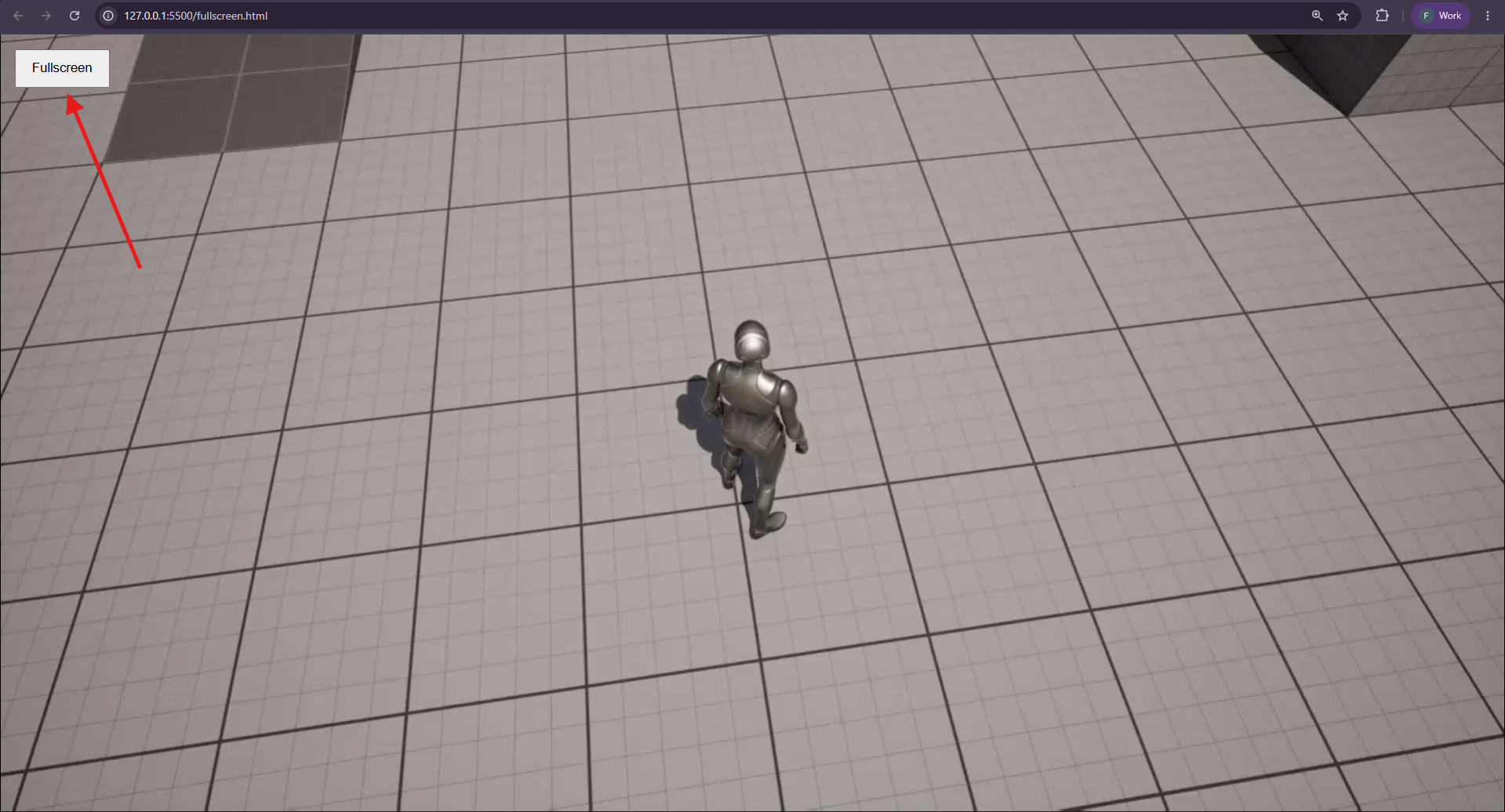
Click Fullscreen to enter fullscreen mode (Figure 1)
-
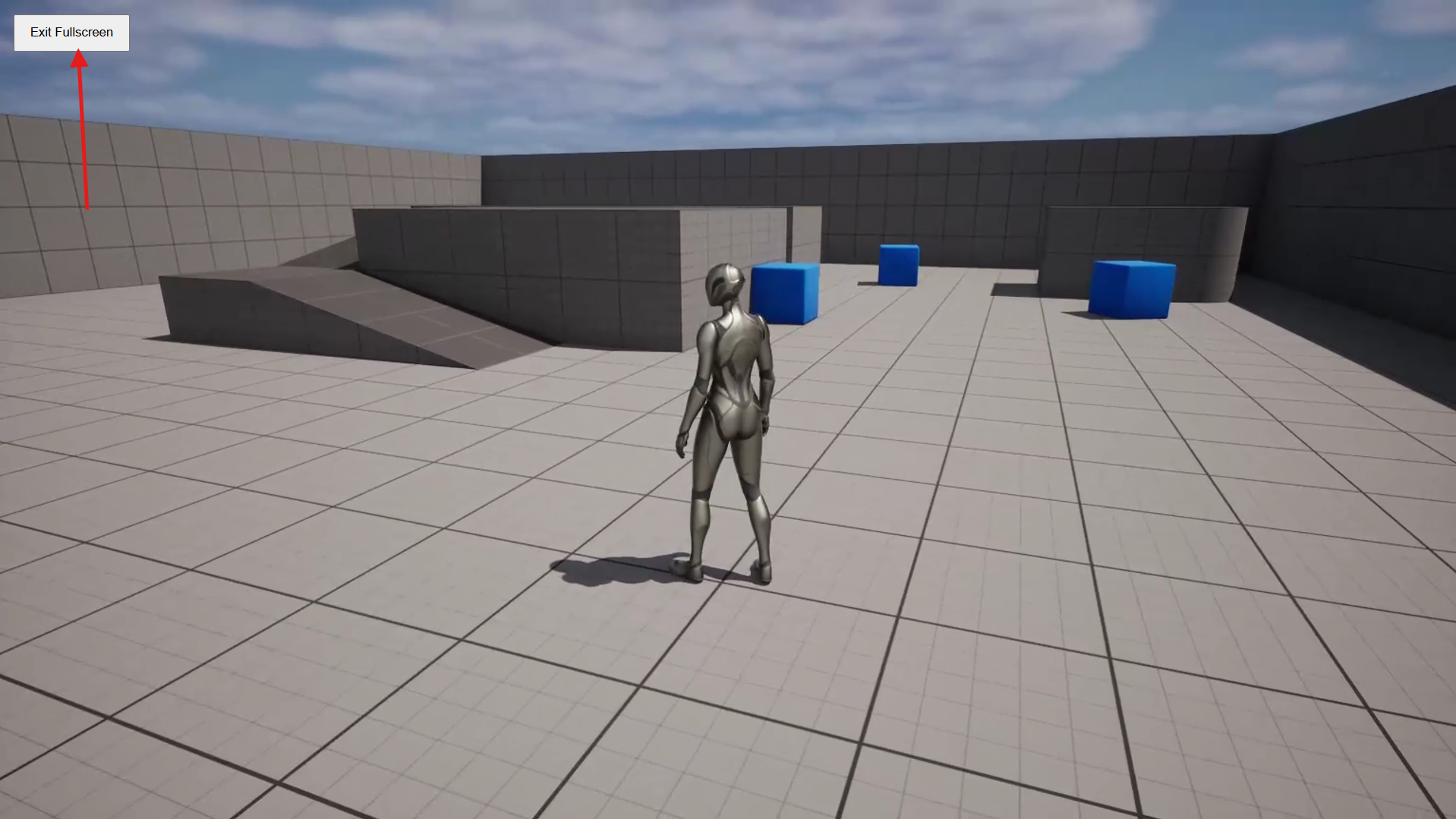
Click Exit Fullscreen or press Esc to exit fullscreen mode (Figure 2)
-
The button text will automatically update based on the current fullscreen state.
Full Example Code
Expand to view the complete example.
Notes
-
Fullscreen is triggered using the browser's native Fullscreen API.
-
Users can also exit fullscreen by pressing the Esc key.
-
The
allowfullscreenattribute must be present on the<iframe>element. -
If you are using the E3DS SDK to embed your stream, refer to the Toggle Fullscreen Using SDK guide.
-
If you want to implement fullscreen functionality from within your Unreal application, refer to the Toggle Fullscreen from Unreal guide.
Troubleshooting
|
Issue |
Possible Cause |
Solution |
|---|---|---|
|
Clicking the Fullscreen button does nothing. |
The browser requires fullscreen requests to be triggered by a user interaction. |
Ensure |
|
The Fullscreen button is hidden behind the stream. |
The button has a lower |
Set the button to |
|
The button text does not change to Exit Fullscreen. |
The |
Add a |
|
The stream does not fill the entire screen in fullscreen mode. |
The iFrame or its container does not occupy the full viewport. |
Set the iFrame (or its parent container) to |
|
The browser exits fullscreen when pressing Esc, but the button still says Exit Fullscreen. |
The button text is not synchronized with the fullscreen state. |
Use the |
Need help?
If you need any assistance, feel free to reach out through any of the following channels:
🛠️ Support Portal: Contact Our Support Team
💬 Discord Community (Faster Support): Join Our Discord Community
📧 Email Support: support@eagle3dstreaming.com
Follow us on: