Try it on a demo app
Upload a prepared demo build and a ready-made patch to Eagle 3D Streaming, and watch the app change — the quickest way to understand patching before your own project is involved.
The packaged demo project, which contains both the build and a patch file. No Unreal Engine required.
-
Upload the ZIP to the Control Panel as an ordinary app — see uploading from the Control Panel.
-
Play it and note what it looks like. This is the "before".
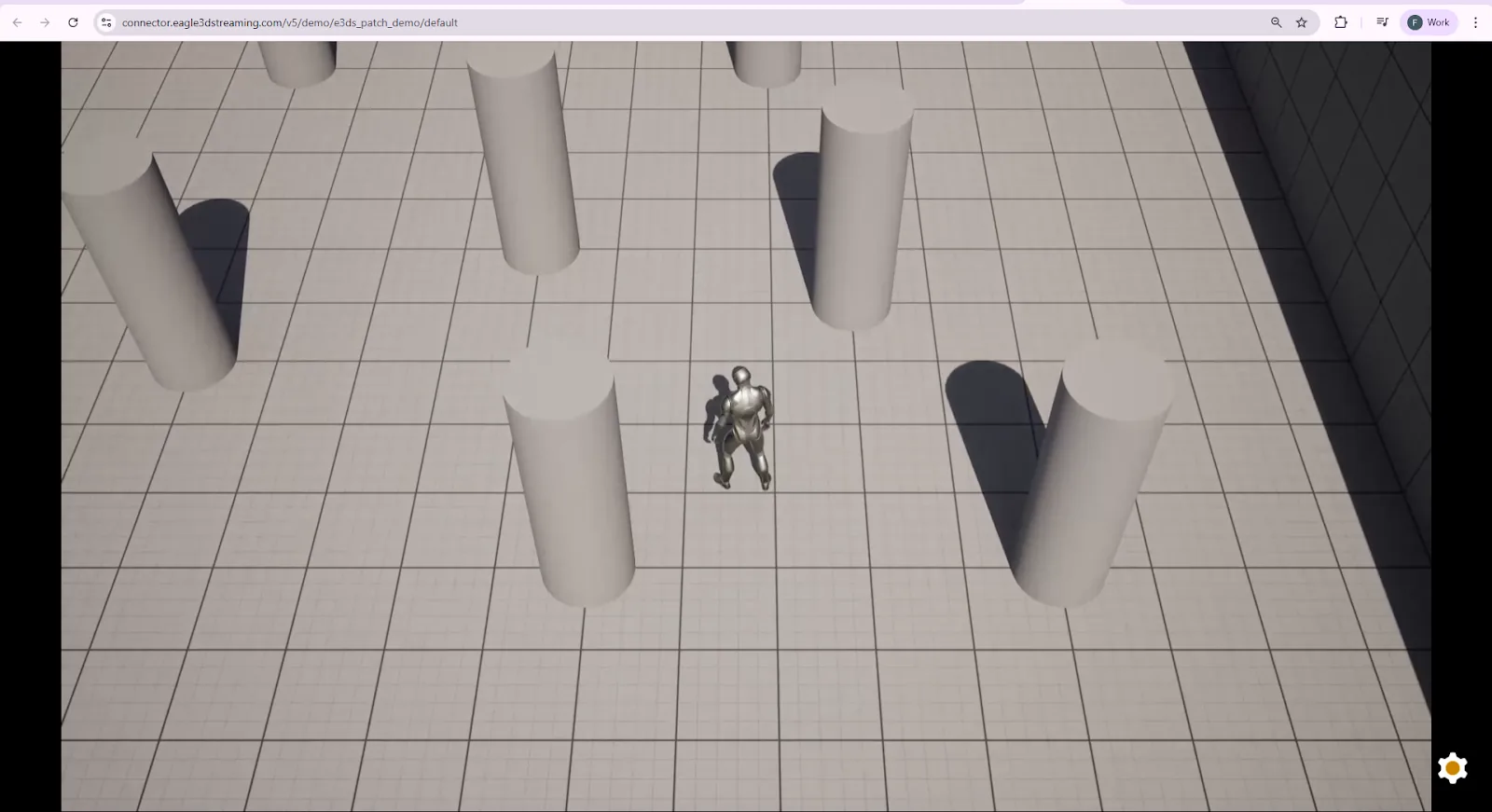
Send the patch from the Control Panel
A build has two kinds of pak file. Its main pak files came with the upload and are never removed. Patch pak files are sent later, from the Control Panel, and are added beside them.
In the Control Panel, open Utilities → Pak files:
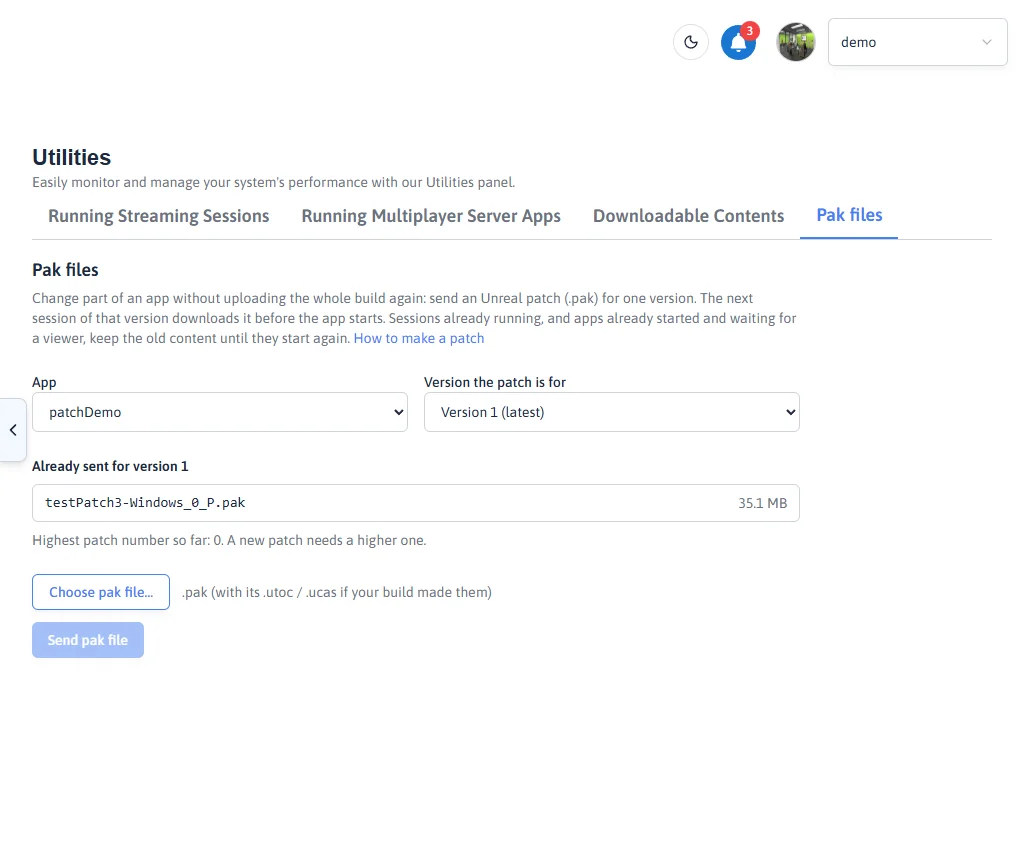
- Choose the app (for the demo, the name you gave it when uploading).
- Choose the version the patch is for. The newest is chosen for you. The list below it shows the patch pak files already sent for that version, and the highest patch number so far.
- Choose the patch
.pakfile — for the demo,testPatch3-Windows_0_P.pakfrom the extracted ZIP. If your build also produced.utocand.ucasfiles for the patch, choose them together with it. - Tick the box confirming the patch was built against that version and carries a higher number, then Send pak file. The file appears in the list for that version.
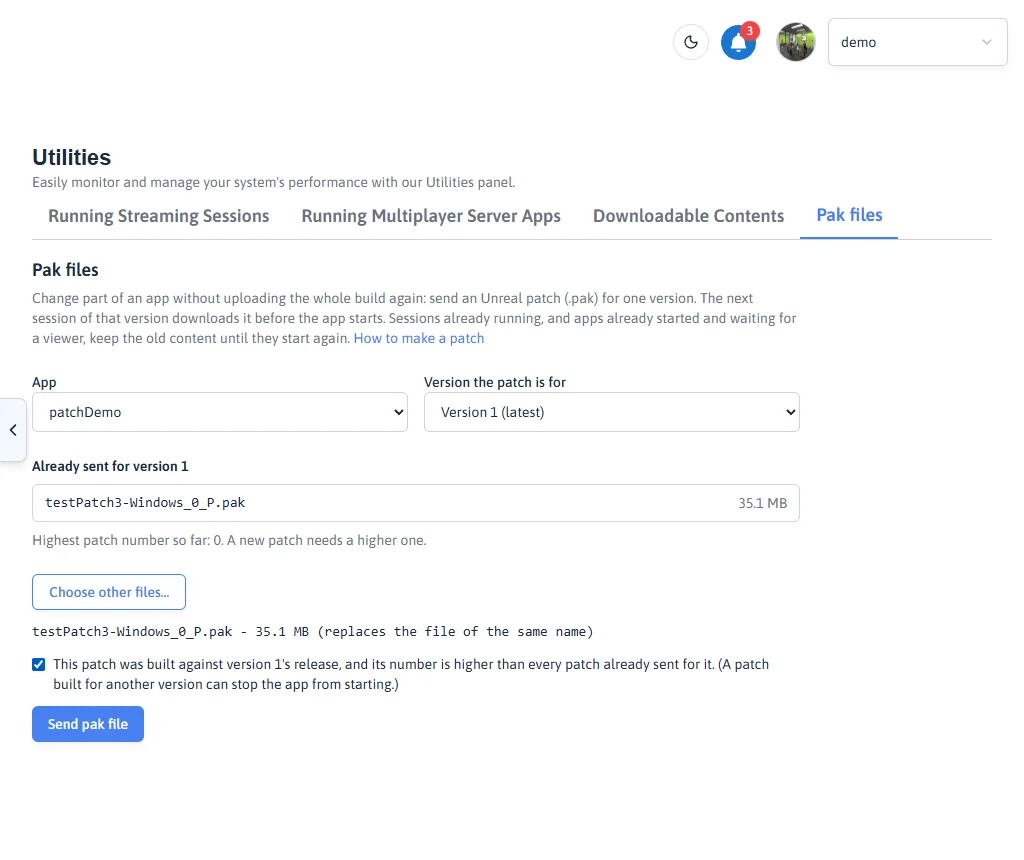
The Control Panel refuses, before sending, a file that is not a pak file, a pak whose name has no patch number
(Unreal names a patch <name>_<number>_P.pak), and a patch numbered no higher than one
already sent for that version — Unreal loads the higher number last, so a lower one would be overruled by the
older patch. Sending a file with the same name as one already there replaces it.
Play it again: the "after"
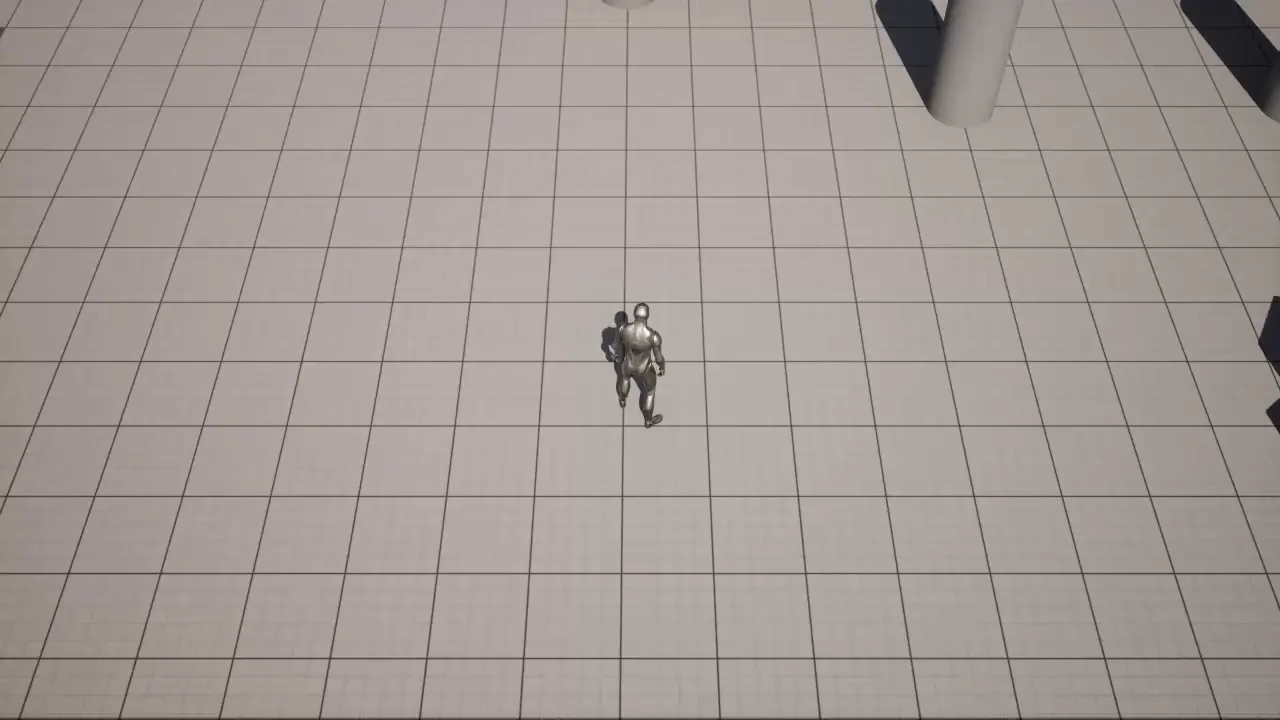
Open the app's link again. Before the app starts, Eagle 3D Streaming downloads the patch pak file beside the build's main pak files, so the new session shows the patched content — in the demo, trees appear around the character. Nothing else was uploaded: the 700 MB build stayed as it was, and only the 37 MB patch pak file was sent.
| before the patch | after sending the pak |
|---|---|
 |
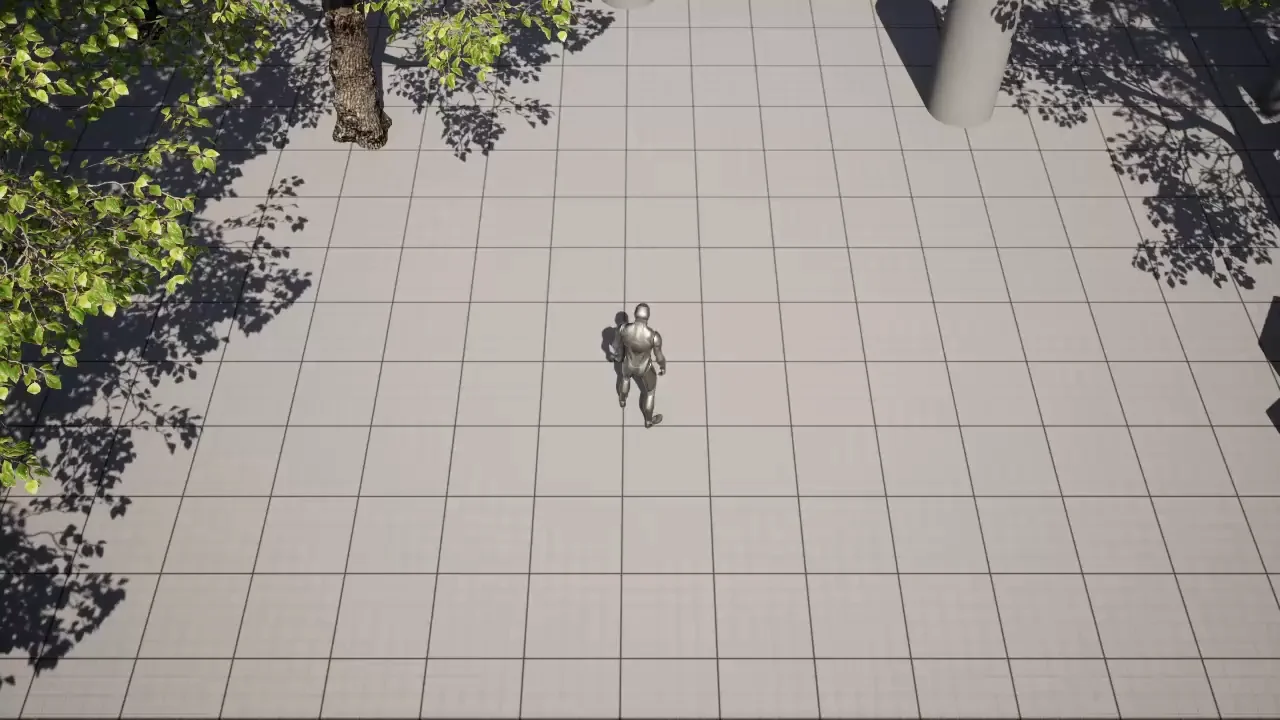 |
Sessions that were already running, and apps already started and waiting for a viewer, keep the old content until they start again.
Start without the patch pak files
Not released in production yet — coming soon.
To compare the build before and after a patch without uploading anything, turn on Start without patch pak files on the configuration's Common tab. The next session starts with only the build's main pak files: the patch pak files are removed before the app starts. Turn it off and the next session downloads the patch pak files again.
| Start without patch pak files | next session starts with |
|---|---|
| off (default) | main pak files + every patch pak file sent for that version |
| on | main pak files only — the patch pak files are removed, nothing is uploaded |
Need this now? Ask support (support@eagle3dstreaming.com).
Pak files with your own launcher
If you put your own launcher in front of the Unreal app, patch pak files still work
when the launcher sits beside the Unreal exe, in the top folder of the build, and
Engine and your project folder stay where Unreal put them:
MyApp.exe                 <- your launcher, with the app's name
MyProject.exe             <- the packaged build's exe, exactly as Unreal made it
Engine\
MyProject\
    Content\
        Paks\             <- the pak files go here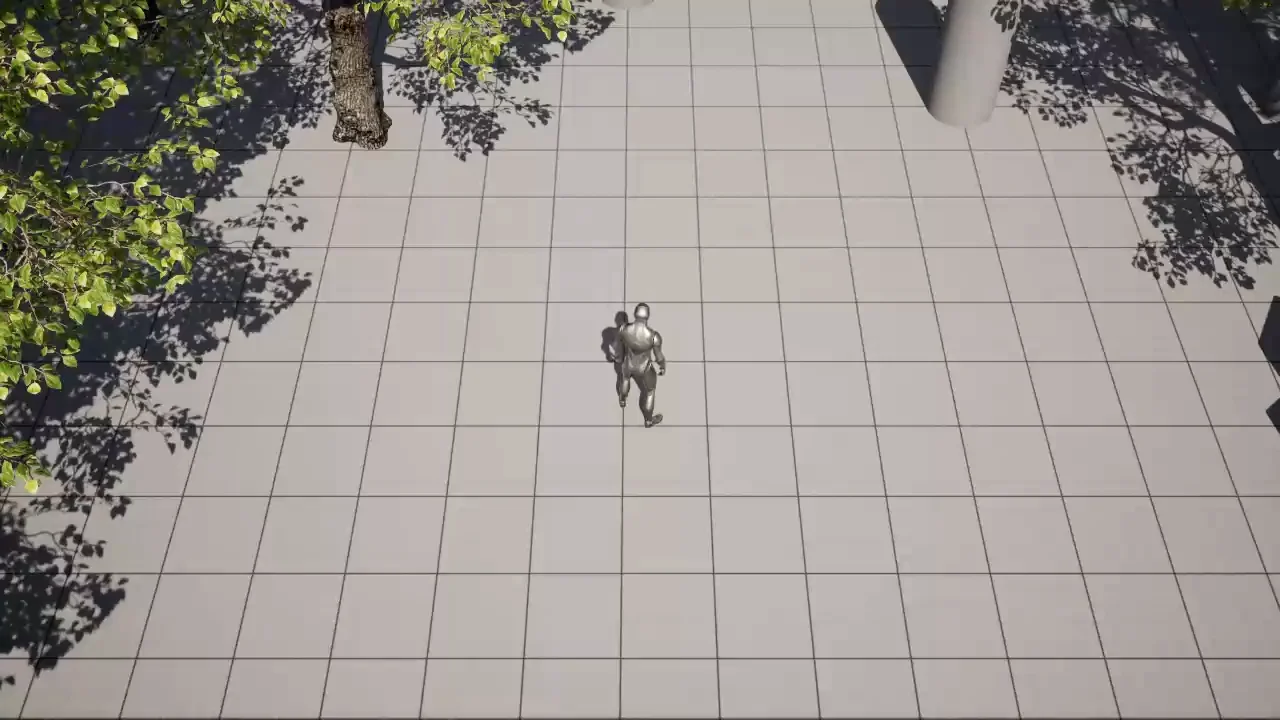
If the launcher moves the Unreal build into a subfolder, Eagle 3D Streaming no longer finds
Content\Paks: the patch pak files are not applied, and other features that expect the default layout may
not work either (log collection, for example).
Need the subfolder layout? Ask support (support@eagle3dstreaming.com).
Producing base builds and patches from your own project.
Related
Last updated