The Select Region feature allows you to choose the geographic region of the streaming servers from which your application will be streamed. This helps optimize performance, reduce latency, and manage resource availability based on your requirements.
Available Regions
Currently, the following region options are available:
-
Global (Default)
-
USA
How It Works
Global (Default)
-
This is the default setting for all configs
-
Users are automatically connected to the nearest available streaming machine based on their geographic location.
-
Provides the best performance and lowest latency in most cases.
USA
-
Users will be connected specifically to USA-based streaming machines.
-
If all USA streamers are currently in use, the user will be placed in a queue until a machine becomes available.
How to Select a Region
Follow these steps to configure the region:
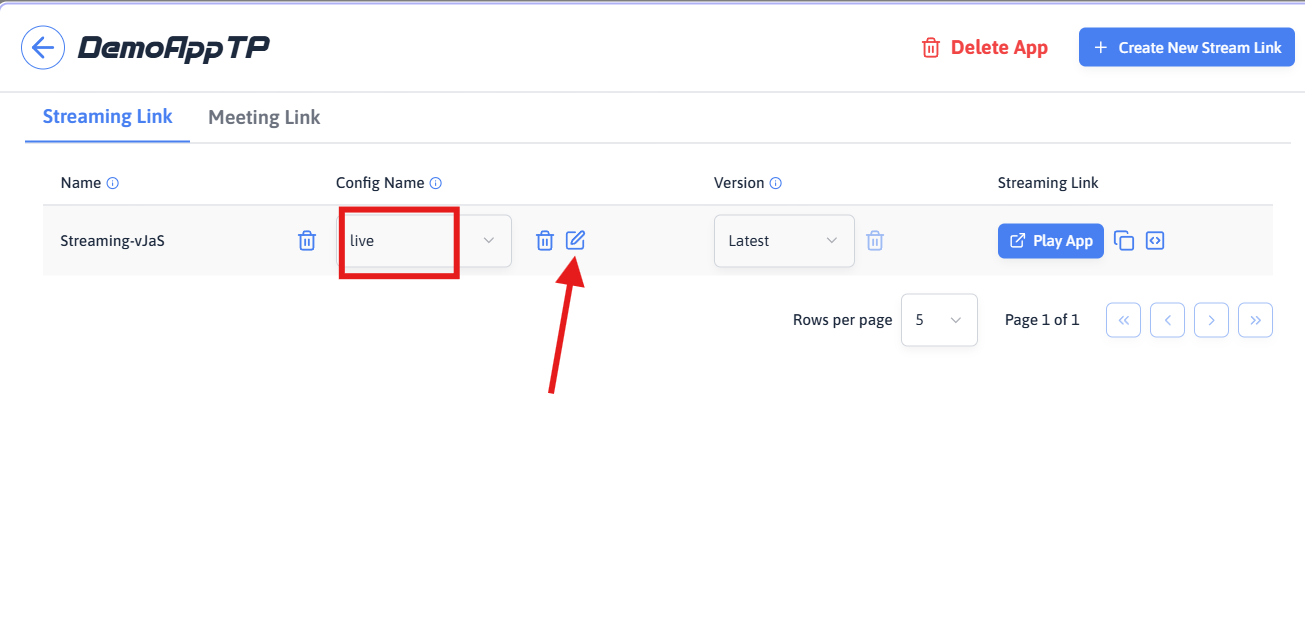
Step 1. Select Configuration
Select your desired configuration.
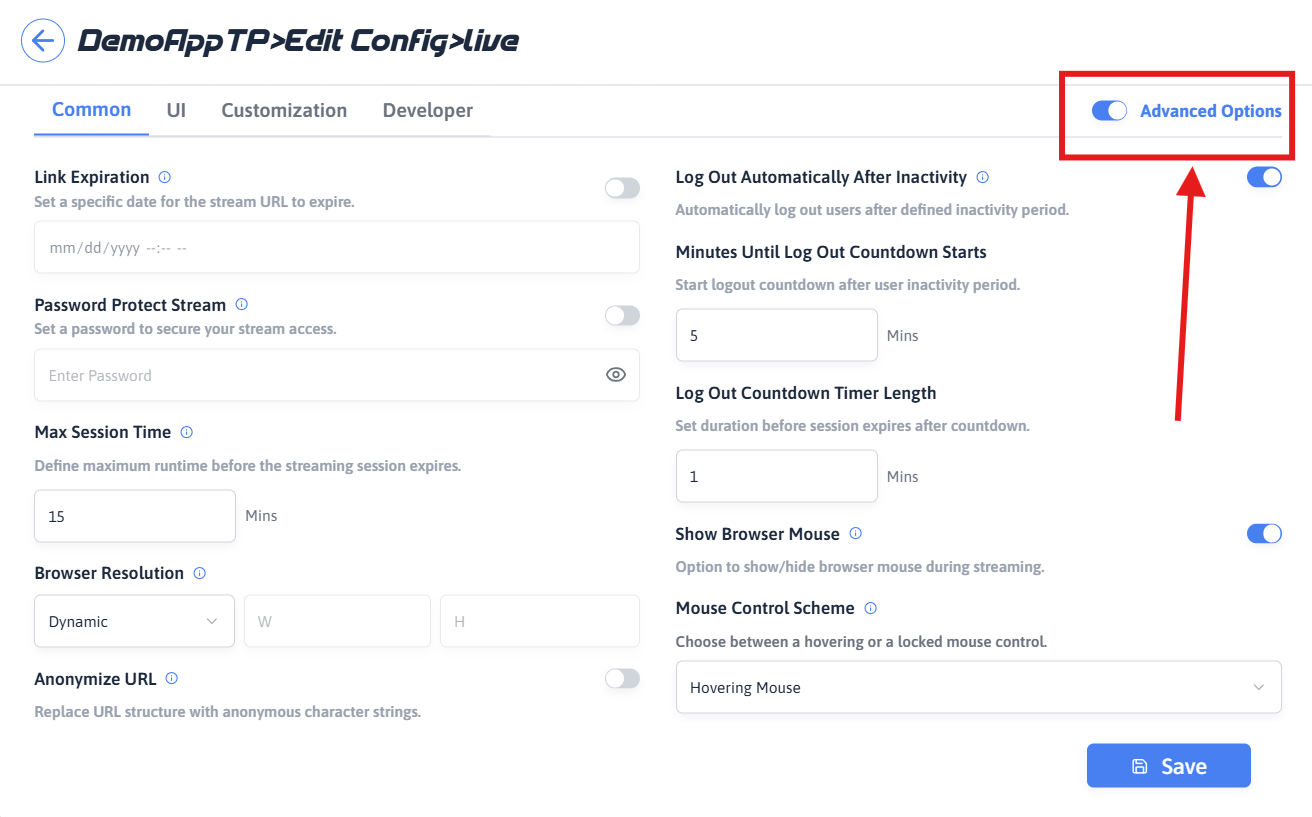
Step 2. Enable Advanced Options
Enable the Advanced Options in the configuration settings.
Step 3. Navigate to Developer Tab
Go to the Developer tab.
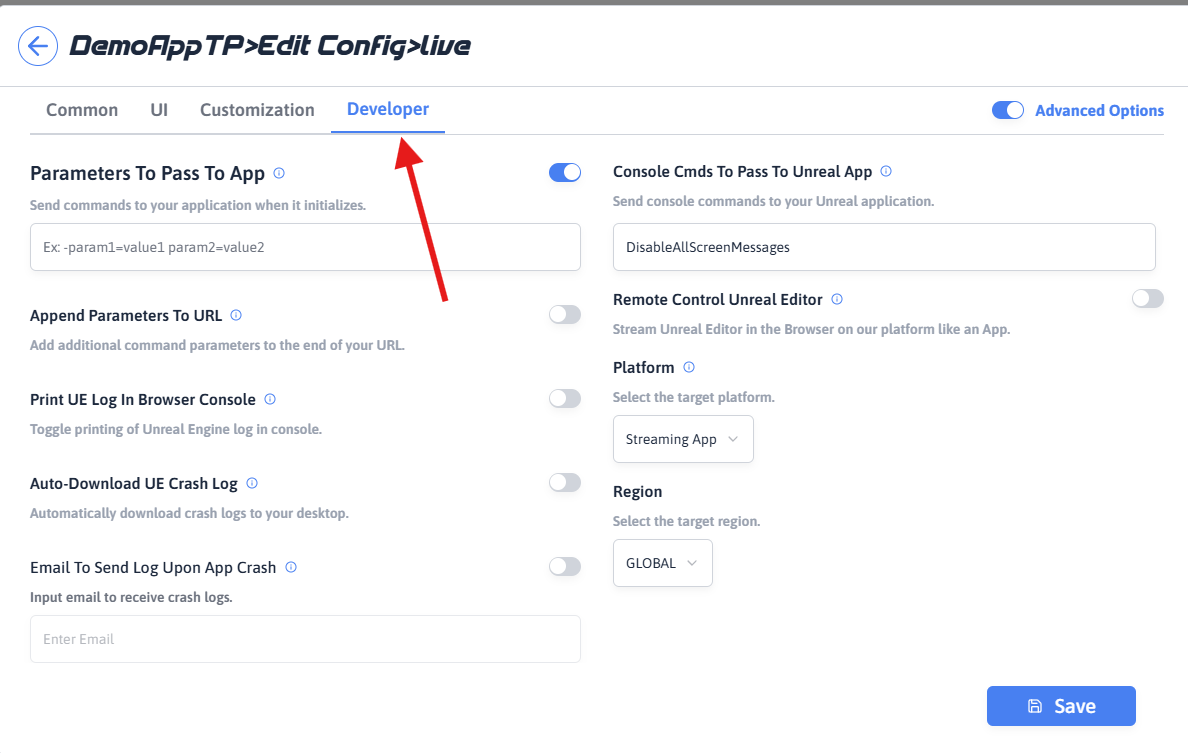
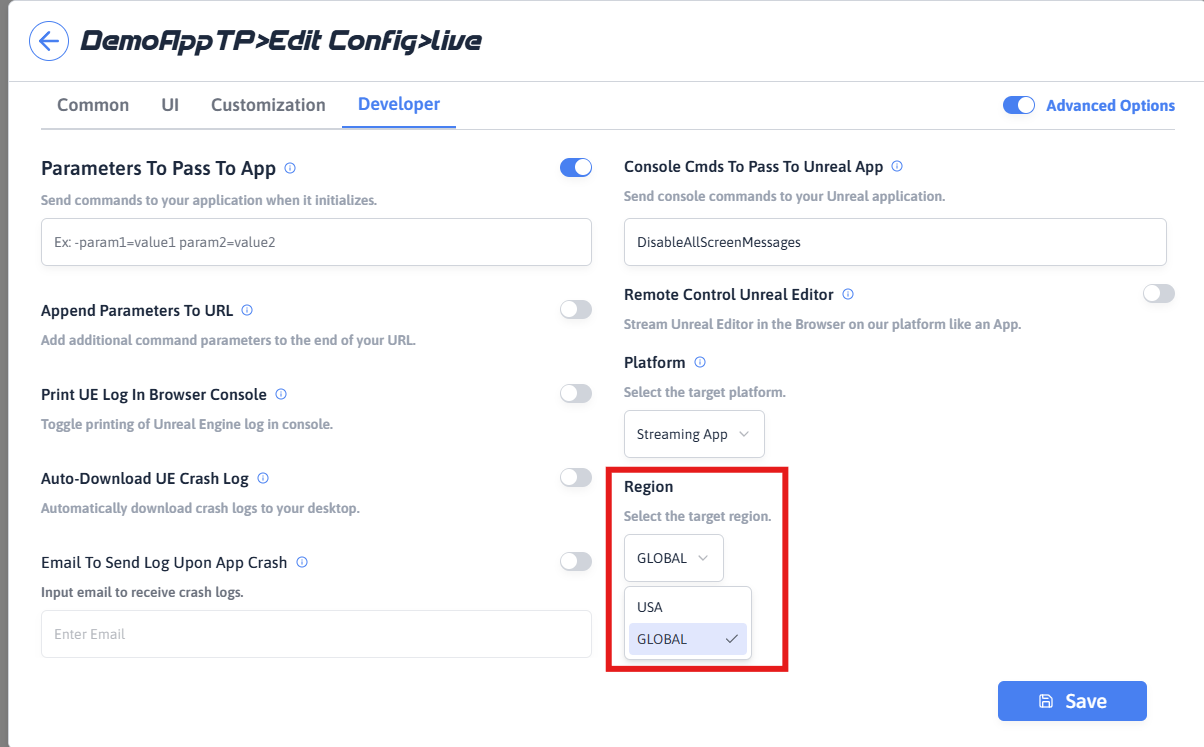
Step 4. Select Region
Choose your preferred region (Global or USA).
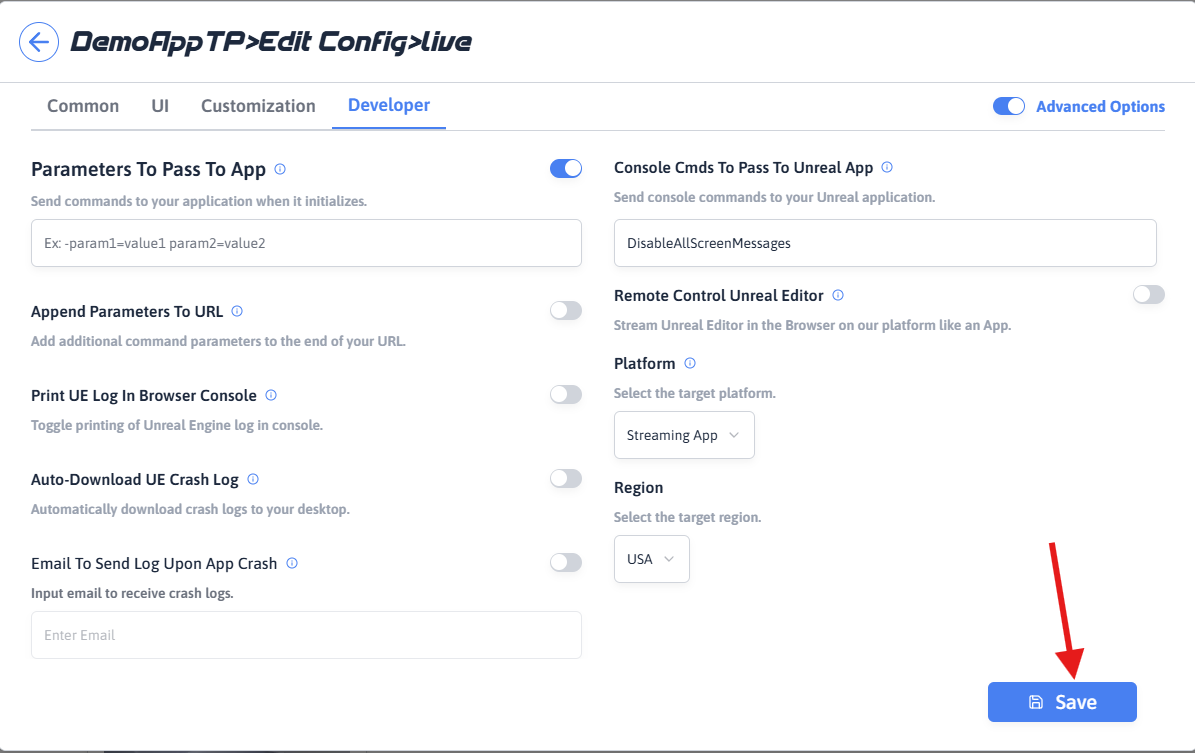
Step 5. Save Changes
Save your configuration.
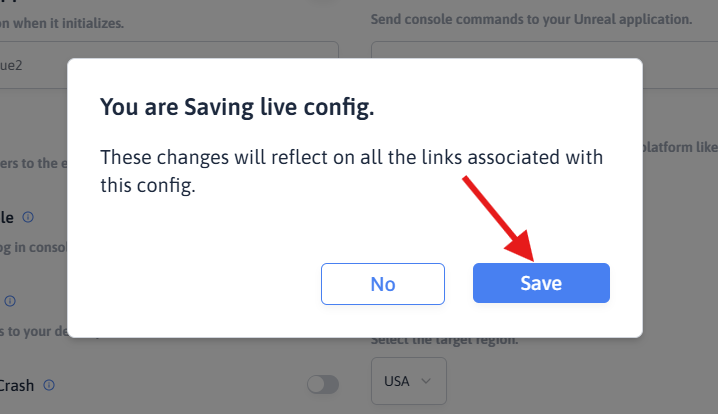
Step 6. Confirm Save
Ensure all changes are saved successfully.
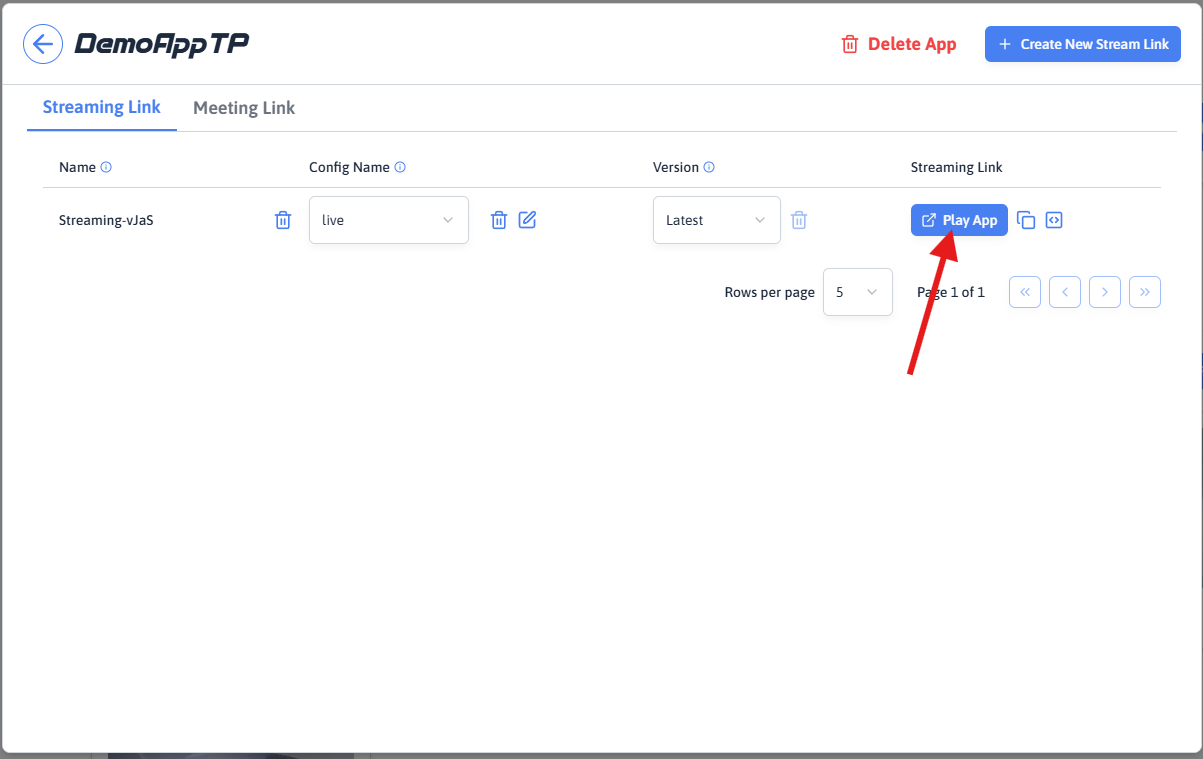
Step 7. Launch Application
Click Play to launch your application.
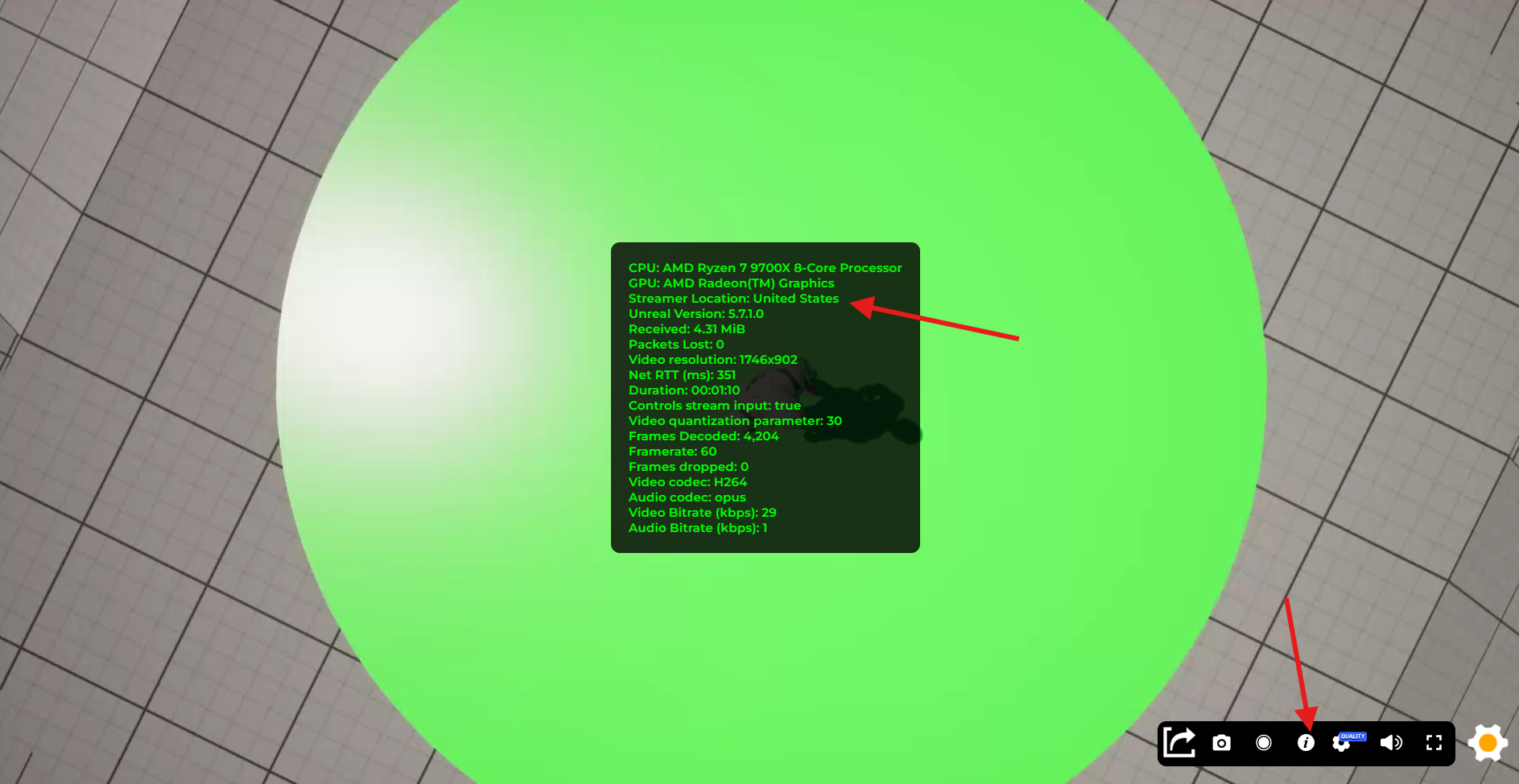
Step 8. Verify Region
Click the Info button to confirm the connected region (e.g., USA).
Notes
-
Region selection directly impacts latency, availability, and queue time.
-
Choosing a specific region (e.g., USA) may result in longer wait times if resources are fully utilized.
Video Preview
Watch the full walkthrough on how to select region and stream:
Need help?
If you need any assistance, feel free to reach out through any of the following channels:
🛠️ Support Portal: Contact Our Support Team
💬 Discord Community (Faster Support): Join Our Discord Community
📧 Email Support: support@eagle3dstreaming.com
Follow us on: