Command-line parameters
A command-line parameter is a value handed to your Unreal application at the moment it starts. Your application decides what any of them mean, so what you can do with them is up to your own code:
- load a particular level
- start the player somewhere specific
- set a resolution or a quality option
- turn a feature of your own on or off
- tell the application which user is watching
The simplest way to send them is the one below, and for most applications it is the only one needed.
The two places a parameter can come from
One is fixed per configuration. The other changes per visitor.
Parameters To Pass To App. In the Control Panel, open the configuration attached to your stream link and go to the Developer tab. The field named Parameters To Pass To App holds a command line that every visitor to that link receives. Use it for anything that is true of the application always.
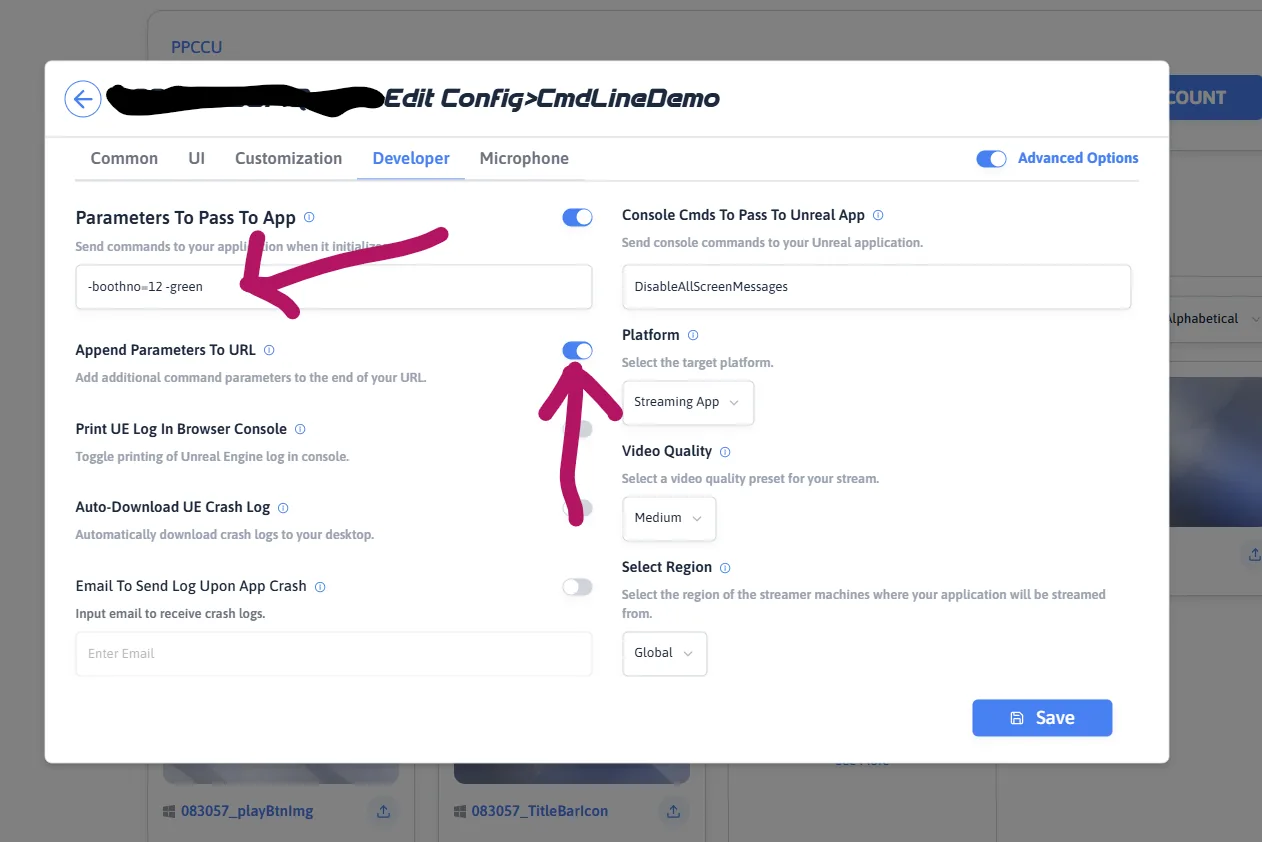
CmdLineDemo configuration.
Parameters To Pass To App holds -boothno=12 -green, and
Append Parameters To URL — the switch that decides
append or replace — is on.
That is the whole of it. Every visitor to that link starts the application with those parameters, and nothing else has to be set up.
The stream link. The other place is the link itself: add
?exeLaunchArgs=
to the end of the stream link, and the parameters after it apply to that
visit only. That is covered on
parameters in a link.
?commandLineArgs= is the same thing under a second name.
Links made with the older name appParameters keep working.
▶ Watch this part in the video (0:59)
Useful parameters Unreal understands by itself
No code needed. Each one checked in the Unreal Engine 5.7 source.
Most parameters mean whatever your own code decides. The ones below are different: Unreal Engine reads them itself, so they work in any application without a line of code. Put them in Launch options (Parameters To Pass To App on older panels) on the configuration's Developer tab, separated by spaces, and the next session starts with them.
| Parameter | What it does | Use it when | Side effect |
|---|---|---|---|
-handleensurepercent=0 |
Unreal stops reporting failed ensure checks |
A Development build freezes at start and no picture ever arrives | Failed ensures are no longer reported |
-RenderOffScreen |
The app renders without a window | Viewers with large screens should get more than 1920×1080 | Code of yours that depends on the window may behave differently |
-dx11 |
Starts with DirectX 11 | The app crashes or shows black with DirectX 12 | No Nanite, no hardware ray tracing |
-dx12 |
Starts with DirectX 12 | The project defaults to DirectX 11 but needs DirectX 12 features | Needs DirectX 12 shaders in the package |
-PixelStreamingWebRTCFps=30 |
Streams 30 frames per second instead of 60 | Viewers are on slow or mobile connections | Movement looks less smooth |
-PixelStreamingWebRTCDisableTransmitAudio |
No sound is sent to viewers | Viewers should not hear the app | Viewers hear nothing at all |
-handleensurepercent=0 — Development builds that freeze at start
In a Development build, when an ensure check fails, Unreal
pauses the app to write a crash report with a memory dump. Usually that takes
half a second. Now and then the dump never finishes, and the app hangs before
the stream starts: the process is alive, the viewer gets no picture.
-handleensurepercent=0 tells Unreal to handle 0 percent of
failed ensures, so no report and no dump is made, and nothing can hang.
- Use it when a Development build sometimes never shows a picture,
or its log stops right after
Ensure condition failed. The full story, and how to check your build, is in Unreal app freezes at start: the Development-build ensure dump. - Side effect: failed ensures are no longer reported. The problem they warn about is still there, only hidden.
- Shipping builds: no effect and no harm — ensures are not in a Shipping build.
- One exception: if your project sets
HandleEnsurePercentunder[Core.System]in its Engine ini, Unreal uses that value and ignores this parameter. - Verified on an Eagle 3D Streaming test machine with a build that froze this way: with the parameter, it started every time.
-RenderOffScreen — larger than 1920×1080
Normally the app draws into a window, and a window cannot be larger than the
machine's desktop, so the stream stops at 1920×1080 however large the
viewer's screen is. With -RenderOffScreen there is no window: the
app draws into memory, and the picture can be the size the viewer's browser
asks for. Measured on Eagle 3D Streaming machines: 2560×1440,
3840×2160 and a phone's 1170×2532 were all delivered at full size;
without the parameter every one stopped at 1920×1080.
- Use it when viewers have screens larger than Full HD and the extra sharpness matters.
- Side effects: larger pictures cost more GPU on the machine and more data for the viewer. Code of yours that reads the window (its size, focus, or whether it exists) may behave differently. Try it on one stream link before using it everywhere.
- Eagle 3D Streaming does not add it by default. When you add it, it always reaches your app.
-dx11 — start with DirectX 11
Unreal Engine 5 apps start with DirectX 12 unless the project says otherwise.
-dx11 starts the app with DirectX 11 instead
(-d3d11 is the same switch).
- Use it when the app crashes at start, or shows only black, with DirectX 12 — for example a log that ends in a D3D12 or device-removed error.
- Side effects: Nanite and hardware ray tracing need DirectX 12. With
-dx11Nanite meshes draw their simpler fallback versions and ray-traced effects are off. Check how the app looks before keeping it. - Your package must include DirectX 11 shaders (Project Settings > Platforms > Windows > Targeted RHIs). Without them the app may not start.
- Do not combine it with
-dx12or-vulkan.
-dx12 — start with DirectX 12
The opposite switch (-d3d12 is the same). It matters only for a
project whose default graphics API is DirectX 11 — older and Unreal
Engine 4 projects, mostly.
- Use it when the project defaults to DirectX 11 but needs a DirectX 12 feature such as Nanite or hardware ray tracing.
- Side effect: your package must include DirectX 12 shaders (Targeted RHIs, as above). Without them the app may not start.
- Do not combine it with
-dx11or-vulkan.
-PixelStreamingWebRTCFps=30 — stream 30 frames a second
Pixel Streaming sends 60 frames per second unless told otherwise.
-PixelStreamingWebRTCFps=30 sends 30. Any whole number works;
30 is the common choice. Works with both Pixel Streaming plugins.
- Use it when viewers are on slow, distant or mobile connections, or the app is mostly still (a configurator, a floor plan): fewer frames leave more data for each one, so the picture stays sharper.
- Side effect: fast movement looks less smooth. The app itself still
renders at its own rate — to save GPU as well, also run the console
command
t.MaxFPS 30(field Unreal console commands to run at start).
-PixelStreamingWebRTCDisableTransmitAudio — no sound to viewers
The app's sound is not sent to the browser. The app still plays it on the streaming machine, where nobody hears it.
- Use it when the app has sound that viewers must not hear, and you cannot remove it from the build.
- Side effect: viewers hear nothing at all from the app. A viewer's microphone is not affected.
Parameters Eagle 3D Streaming already sets
These are added to every launch, after yours. Adding them again changes nothing, or fights a setting in the Control Panel — use the setting.
| Parameter | Set by | To change it |
|---|---|---|
-AudioMixer, -AllowPixelStreamingCommands,
-Windowed, -ForceRes, -log,
-Unattended, -PixelStreamingURL= |
Eagle 3D Streaming, every launch | Not needed |
-ResX=, -ResY= |
The Resolution setting | Change Resolution on the configuration |
-PixelStreamingEncoderCodec= |
The Codec setting | Change Codec on the Developer tab |
-PixelStreamingWebRTCMaxBitrate= |
The Maximum Bitrate setting | Change Maximum Bitrate on the Developer tab |
-PixelStreamingEncoderMinQP=, -PixelStreamingEncoderMaxQP= |
The Video Quality setting | Change Video Quality |
Well-known flags that are not on this page, and why
-PixelStreamingHideCursor— not in Unreal Engine 5's Pixel Streaming plugins; it does nothing.-PixelStreamingWebRTCStartBitrate=— WebRTC does not start above 1 Mbit/s, which is already the default, so raising it does nothing.-LogCmds="LogTemp Verbose"and any other value with a space — the field is split at spaces, so the value arrives in two pieces. Use a console command instead (log LogTemp Verbosein Unreal console commands to run at start).-vulkan— not tested with Pixel Streaming on Eagle 3D Streaming's Windows machines.-nosound— turns off the app's audio device, which the stream's sound comes from. Use-PixelStreamingWebRTCDisableTransmitAudio.
Watch it in 1:19

A demo app that shows the value arriving, one change at a time. Nothing to install.
Per-visitor values, combining both sources, reading them inside your application, and what to do when one does not arrive.
Related
Last updated