E3DS Stream Agent: stream from your own hardware
E3DS Stream Agent is a small program that runs on your own Windows machine and keeps it connected to Eagle 3D Streaming. With it you stream your Unreal applications from your machine instead of Eagle 3D Streaming's. The app stays on your hardware; Eagle 3D Streaming handles the connection, the link and the session.
Worth doing when the app cannot leave your network, when you already own capable hardware, or when you want a machine reserved for one purpose. Otherwise, uploading to the platform is less work and less to maintain.
Is my machine connected, and who is watching? See it in the Control Panel — Check your agent is connected: Your stream agents and the live Running Streaming Sessions, step by step.
Free for non-commercial use. Streaming from your own hardware costs nothing for non-commercial projects, and students and research projects can have the relay sponsored — see stream from your own GPU, free.
Watch it

Before you begin
- An Eagle 3D Streaming account, for the API key.
- Windows 10, 11 or Server, with a GPU and a good internet connection.
- The Unreal Engine prerequisites for the engine version you build with. These come from Epic, not from Eagle 3D Streaming.
- Disk space — see the rule below, which is easy to underestimate.
- Outgoing connections to
stream.eagle3dstreaming.comon TCP 443 and TCP 4568. Most networks allow them already; behind a strict firewall or proxy, ask your IT team to allow these two.
Install it
-
Download the Stream Agent
Download E3DS-Stream-Agent.zip — also in the Control Panel under Utilities › Downloadable Contents. It is always the current version.
-
Unzip it to a permanent folder
For example
C:\E3DS-Stream-Agent. The folder holds:File What it is E3DS-Stream-Agent.exeThe Stream Agent. agent.config.jsonYour settings: the API key, and optionally the folder for your builds ( e3dsBuildDirectory).E3DS Stream Agent - Setup Guide.pdfThis setup, as a printable guide. Quick Start.txtThe short version. -
Add your API key
Open
agent.config.jsonin Notepad and replacePASTE_YOUR_API_KEY_HEREwith your API key (API keys and tokens shows where to find it). Save the file. The API key is what ties the machine to your account.{ "apiKey": "your-api-key" } -
Start it
Double-click
E3DS-Stream-Agent.exe. A window opens and, within a few seconds, prints Connected to Eagle 3D Streaming as <machine name>. Ready to stream. Keep the window open: while it is open, the machine serves your account's streaming links.
The Stream Agent window prints Connected to Eagle 3D Streaming as <machine name>. Ready to stream. and the machine is ready (Check your agent is connected).
Open your stream
-
Upload your app
Upload it in the Control Panel as usual. The Stream Agent downloads it to your machine the first time it is streamed.
-
Open the stream link
https://stream.eagle3dstreaming.com/v5/<username>/<appName>/<configName>For example
https://stream.eagle3dstreaming.com/v5/demo/myDemoApp/default. The first time, the Stream Agent downloads and unpacks the app before the stream starts; for a large build that can take a few minutes. After that it starts in seconds.
Where your apps are kept
Each app is kept in its own folder, by account, app name and version:
C:\e3ds_streaming_apps\<username>\<appName>\<version>\<appName>.exe
e3dsBuildDirectory is the folder where the Stream Agent keeps your builds. You do not have to set it:
by default it is C:\e3ds_streaming_apps. To keep your builds on another drive, add an
e3dsBuildDirectory line to agent.config.json:
{
  "apiKey": "your-api-key",
  "e3dsBuildDirectory": "D:\\e3ds_streaming_apps"
}
Write every \ in the path twice, as above. A setup from an earlier version whose
agent.config.json still has a root line keeps working - nothing to change.
To stream your own build without uploading it, replace the files in that folder — see Replace an app's build on your own machine. The Stream Agent starts the build it finds there and never downloads it again.
Check your agent is connected
Two pages in the Control Panel show your agent. Neither needs a setting.
| Page | It answers | Shows the machine when nobody is watching? |
|---|---|---|
| Your machines → Your stream agents | Is my machine connected? Is someone using it right now? | Yes, as Idle (no viewer) |
| Utilities → Running Streaming Sessions | Which sessions are live right now, on which device, in which browser, from which country — and on which machine: ours or yours? (filter) | Yes, as Idle (no viewer), with the filter on All or My machines |
To end a viewer's session on your machine, press KICK PLAYER in its row on Running Streaming Sessions: the viewer sees You have been kicked out and your machine goes back to Idle (no viewer) — see End a session.
Your machines → Your stream agents
Every machine of your account that is running the agent is listed here. Open it whenever you want to know whether a machine is really connected, and who is using it right now. In the Control Panel's left menu choose Your machines, or go straight to controlpanel.eagle3dstreaming.com/machines. The list updates by itself; there is no need to reload the page.


| What you see | What it means | What to do |
|---|---|---|
| The machine, status Idle (no viewer) | The agent is connected and ready. Nobody is streaming from it. | Nothing. Open your stream link and the machine is used. |
| The machine, status Streaming, with the app and the viewer's browser, device and country | Someone has your app open on this machine. | Nothing. When the viewer closes the stream, the row goes back to Idle within a few seconds. |
| The machine is not in the list | The agent is not running, or cannot reach Eagle 3D Streaming. | Check the agent window on the machine. The machine appears within a few seconds of the window printing Ready to stream. |
| "No stream agent is connected to this account right now" | None of your machines is connected. | Start the agent with this account's API key (Install it). |
Machine is the name of the computer. Where is its location, found from its internet address. Connected for counts from the moment the agent last connected, so it starts again after a restart or a network drop. When you close the agent, the machine leaves the list within a few seconds.
Watch a session live: Utilities → Running Streaming Sessions
This is the Control Panel's stream monitor. It lists every live session of your account — on our machines and on yours — and says for each one where it runs. More about it: Monitoring and analytics.
Which machines: All, Eagle 3D Streaming machines, My machines
Above the table, three buttons choose which machines you see. The number on each button is how many rows it shows. The Runs on column tells you where each session runs: Eagle 3D (our machines) or Your machine: <name> (a machine of yours running the Stream Agent; the name is the computer's name).

| Button | Shows | A connected machine of yours with nobody watching |
|---|---|---|
| All (the default) | Every live session of your account, on our machines and yours | Listed, as Idle (no viewer) and how long it has been connected |
| Eagle 3D Streaming machines | Only sessions on our machines | Not listed |
| My machines (Stream Agent) | Only sessions on your own machines | Listed, as Idle (no viewer). If none of your machines is connected, the page says so, with a link to Install it |
The page remembers the button you chose last, in this browser. To open it straight on your machines, use controlpanel.eagle3dstreaming.com/utilities?tab=running-sessions&machines=mine. Your machines → Your stream agents above shows the same machines; both pages stay.
-
Open it
In the Control Panel's left menu, choose Utilities. The first tab, Running Streaming Sessions, opens. Or go straight to controlpanel.eagle3dstreaming.com/utilities?tab=running-sessions.
On a phone the menu is folded away: tap the menu icon at the top left, tap More, then Utilities. The table is wider than a phone screen — swipe it sideways to see every column.
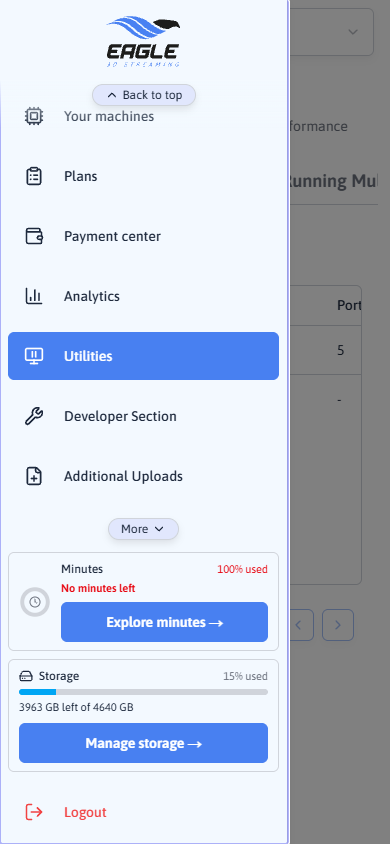
On a phone: menu icon, then More, then Utilities. -
Open your stream link
Open your app's link (
https://stream.eagle3dstreaming.com/v5/<username>/<appName>/<configName>) in another tab or on another device. The session shows up in the table by itself, usually within half a minute of the picture appearing. -
Read the row

A session running on a Stream Agent machine (the city is hidden in this picture). Column What it shows App Name The application being streamed. For a machine of yours with no session: Idle (no viewer). Runs on Eagle 3D or Your machine: <name> — see Which machines. Version The version the viewer opened, or Latest when the link always opens the newest one. Port The number of the session on our streaming server. Quote it if you write to support about a session; nothing to act on otherwise. It is not a port on your machine. Device The viewer's device: desktop, smartphone, tablet. Browser The viewer's browser, for example Chrome or Safari. Country, City Where the viewer is, from their internet address. Approximate. Action The KICK PLAYER button — see End a session. The table has no start time. To see when sessions started and how long they ran, use Analytics.
-
When the viewer closes the stream
The row stays for up to about 5 minutes after the viewer has left. The stream is already over and your machine is already free — the table drops a row only once it has heard nothing from the session for 5 minutes. To see straight away that the machine is free, look at Your stream agents: the machine is back to Idle (no viewer) within a few seconds.
-
End a session
Press KICK PLAYER in the session's row (Utilities → Running Streaming Sessions). The viewer's stream stops at once and their page says You have been kicked out; your machine goes back to Idle (no viewer) within a few seconds and the agent keeps running. It works the same as for sessions on Eagle 3D Streaming's machines, and only for your own account's viewers. Details: End a session: KICK PLAYER.
If you do not see your session
- Wrong account. The table shows only the account you are signed in with — its name is at the
top right of the Control Panel. It must be the account whose API key is in the agent's
agent.config.json, and whose username is in the stream link. - The agent is not connected. The agent window must say Ready to stream. If it says anything else, see Troubleshooting.
- The link is not a stream link. Sessions on your own machine run only through links that start with
https://stream.eagle3dstreaming.com/. - The stream has not started yet. While the app is still downloading or starting there is no row. Once the picture shows, give it up to half a minute.
- Nobody is watching. With no viewer there is no session. Your connected machine still shows, as Idle (no viewer), with the filter on All or My machines — and under Your machines → Your stream agents.
- The filter is on Eagle 3D Streaming machines. Sessions on your own machine are hidden there; choose All or My machines.
Troubleshooting
| What you see | What to do |
|---|---|
No API key yet, or agent.config.json still holds the example text |
Paste your API key (Control Panel → Developer Section → API Key tab) into agent.config.json and save the file. |
Your API key was not accepted or This is your Streaming API key |
Copy the API key again from the API Key tab and keep the quotes around it. The agent tries the saved key again by itself. Which key goes where: API keys and tokens. |
agent.config.json has a typing mistake |
Every value needs double quotes, lines are separated by commas, and folder paths use double backslashes, for example "D:\\e3ds_streaming_apps". |
The build folder … does not exist |
Create the folder, or correct e3dsBuildDirectory in agent.config.json and start the agent again. |
Cannot reach Eagle 3D Streaming |
Check the machine's internet connection, and that a firewall or proxy lets E3DS-Stream-Agent.exe connect out to stream.eagle3dstreaming.com on TCP 443 and TCP 4568 (Before you begin). The agent keeps trying by itself. |
| The link downloads the app again although you replaced it | Check the folder path and version number, and that the executable is named exactly like the app. |
| The link waits and does not start | Check that the Stream Agent window is open and shows Ready to stream, and that the machine is online. |
… closed unexpectedly (exit code …) |
Install the Unreal Engine prerequisites for your engine version, and check that the build runs when you start it by hand. A build you copied in yourself must be complete: its own .exe together with its project folder. |
… did not start streaming in time |
Check that the build has the Pixel Streaming plugin enabled, that it runs when you start it by hand, and that no other program keeps the graphics card busy. |
… could not be started: … |
The rest of the line says what is wrong with the build folder (for example two programs in it, or a program that belongs to another build) and what to change. |
Another program on this machine already uses the connection |
Close the other Stream Agent window on this machine: run one agent per machine. |
Another E3DS Stream Agent is already running on this computer |
Only one agent can run on a computer: close the one that is running, then start this one again. |
Only one Stream Agent per computer
If you start the Stream Agent while another one is already running on the same computer, the new window says:
Another E3DS Stream Agent is already running on this computer. Only one can run at a time.
Close it first (Task Manager > Details > E3DS-Stream-Agent.exe > End task), then start this one again.
The new copy then closes by itself after 30 seconds. The agent that was already running keeps working; nothing was changed. This applies to every copy on the computer, whichever folder it was started from and whichever Windows user started it.
Why only one. Two agents on one computer get in each other's way, and that causes many other problems:
- Both start their app on the same connection, so the second app cannot stream.
- Both can use the same build folder, so one downloads or removes files the other is using.
- One graphics card has to run two apps, so both streams get slower.
- Updates and the clean-up after a session can stop the other agent's app.
Running several agents on one computer may come later. There is no plan for it today.
Find and close the agent that is running
- Press Ctrl+Shift+Esc to open Task Manager, and open the Details tab.
- Find every
E3DS-Stream-Agent.exe(orEL.exe, the name of older versions). Select it and press End task. Close all of them before you start a new one. - An agent started by another Windows user on the same computer appears here too (tick Show processes from all users if your Windows version has it). An agent that runs as a Windows service or a scheduled task starts again by itself: stop it there.
- Start
E3DS-Stream-Agent.exeagain. Its window says Ready to stream.
Start it automatically with Windows
The Stream Agent does not install itself as a service. If the machine reboots overnight, nothing brings it back unless you arrange it — and the failure looks like a machine that is simply never available.
-
Open Task Scheduler and create a task
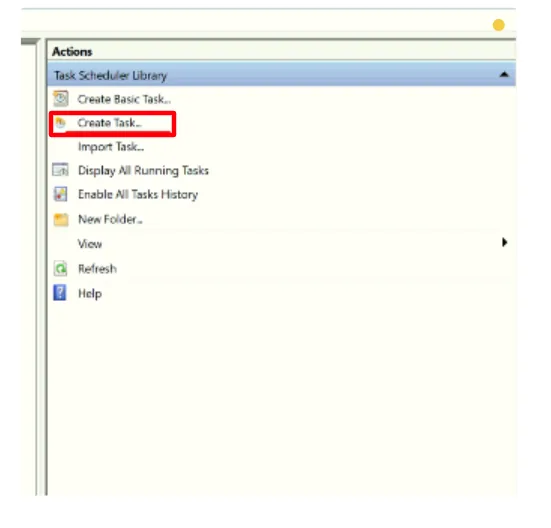
Task Scheduler. -
Trigger: At log on, for any user
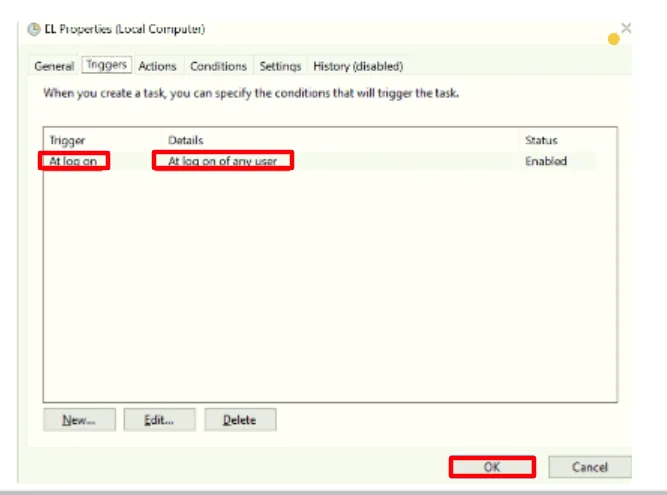
At log on of any user. -
Action: start
E3DS-Stream-Agent.exeIn Program/script, browse to
E3DS-Stream-Agent.exein the folder you unzipped. The Stream Agent readsagent.config.jsonfrom its own folder, wherever it is started from.
Keep the app running so viewers connect in seconds rather than waiting for a cold start.
In this section
Related
Last updated