Frame rate: what your app draws and what viewers get
The frame rate your viewers get matters as much as resolution. Aim for at least 30 frames per second. This page shows how to check your app's frame rate on the desktop and in Pixel Streaming (streamed locally on your own computer), and why the two numbers can differ.
Why 30 frames per second
A stream at 30 frames per second or more looks smooth and plays reliably in every browser we support. At 15 it may still work on a fast computer, but on some devices and stricter browsers it does not. We have seen iPhone Safari struggle to start or keep a 15 fps stream, possibly because of power-saving mode or similar restrictions on the phone. 30 is the safe minimum.
There are two frame rates
| Frame rate | What it is | Where to see it |
|---|---|---|
| App frame rate | How many frames your Unreal app draws per second on the machine | On the desktop, with a frame counter (check 1) |
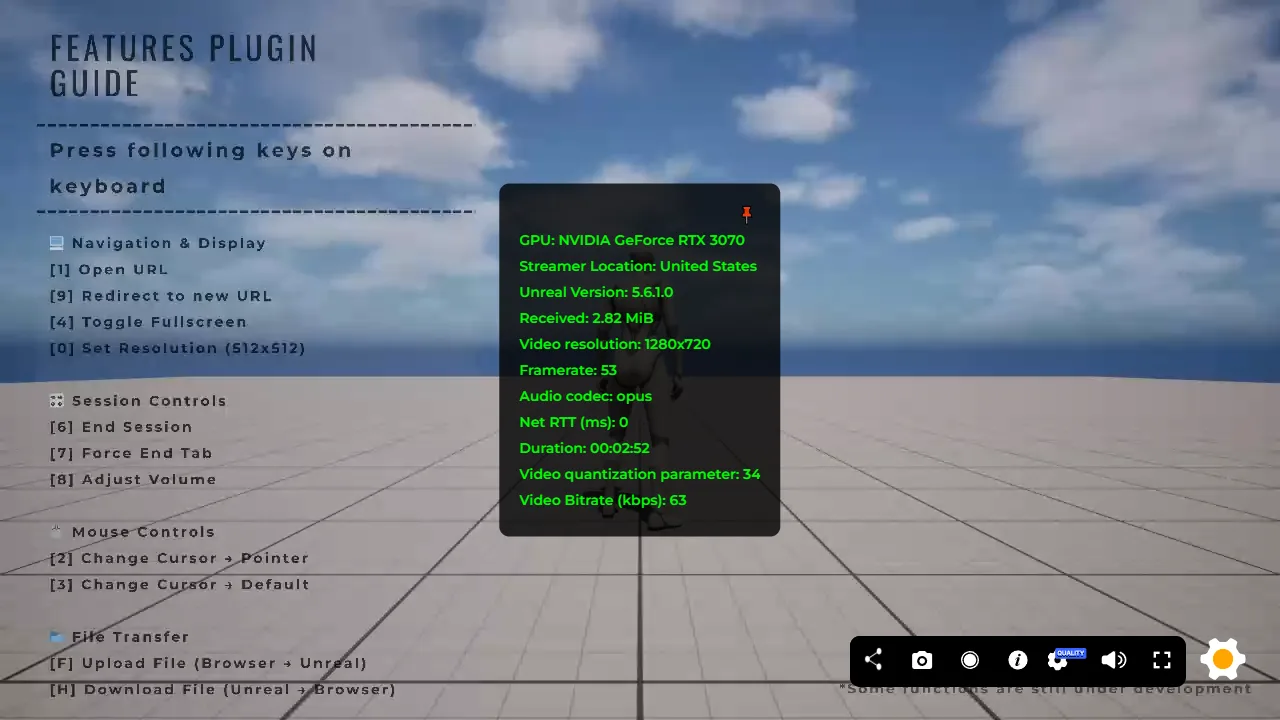
| Stream frame rate | How many of those frames are encoded and reach the viewer's browser (WebRTC) | In the stream's Info panel, while you stream your app locally (check 2) |
In the best case the two are the same. Check both before you upload.
Check 1: the frame rate on the desktop
- Package your app and run it on your own computer as a normal desktop app.
-
Development build: open the console (the
~key) and typestat fps, or start the app with-ExecCmds="stat fps". The frame rate appears in a corner of the window.stat unitalso shows where the time goes (game, draw, GPU). -
Shipping build:
statcommands are removed from Shipping builds, so use an outside frame counter instead - for example your graphics card's overlay (NVIDIA or AMD) or Intel's free PresentMon.
If the desktop already shows less than 30, the stream cannot be higher: look for a
frame rate limit in your project (Project Settings → Engine → General Settings
→ Framerate: Use Fixed Frame Rate or Smooth Frame Rate, or a
t.MaxFPS in your config or Blueprints), and for anything heavy in the scene.
Check 2: the frame rate in local Pixel Streaming
- Stream your app locally, as described in Test your app locally.
- Open the Info panel from the stream's settings bar (Settings bar → Info) and read Frame rate. This is the frame rate the browser actually receives.
Why the two numbers can differ
- The Pixel Streaming plugin has its own settings. Project Settings → Plugins → Pixel Streaming includes a WebRTC frame rate and related options. They apply only while streaming, so an app can draw 60 on the desktop and still stream at a lower rate set there. If check 2 is much lower than check 1, look here first.
- WebRTC adapts to the viewer's network. When the connection gets worse, WebRTC lowers what it sends - by default often the frame rate (for example from 60 to 30 or 25), even though your app is still drawing more. Depending on the Pixel Streaming settings, Unreal can also slow down its drawing to match, so it does not waste GPU time on frames nobody receives; then the desktop number drops too.
Keep this in mind: a viewer on a weak connection can see a lower frame rate than you see at your desk.
Keep the frame rate, or keep the resolution
WebRTC has two ways to cope with a weak connection: lower the frame rate, or lower the resolution. If smooth motion matters more for your app than sharpness, set Pixel Streaming to keep the frame rate (its degradation preference). Then WebRTC lowers the resolution instead of dropping frames. How to choose and set it is covered in a separate article.
| You see | Most likely | What to do |
|---|---|---|
| Desktop under 30 | A frame rate limit in the project, or a heavy scene | Check the Framerate project settings and t.MaxFPS; see Optimise your app |
| Desktop 60, local stream far lower and always the same number | A cap in the Pixel Streaming plugin settings | Check Project Settings → Plugins → Pixel Streaming |
| Desktop 60, stream lower only on some networks | WebRTC adapting to the viewer's connection | Normal; choose whether to keep frame rate or resolution |
| Both 30 or more | Good | Upload |
Stream your app on your own computer before you upload it.
Related
Last updated