When Google sign-in does not work
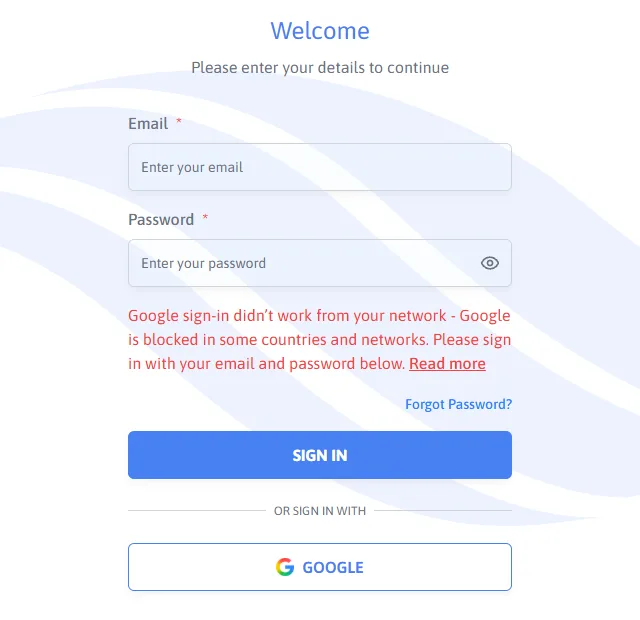
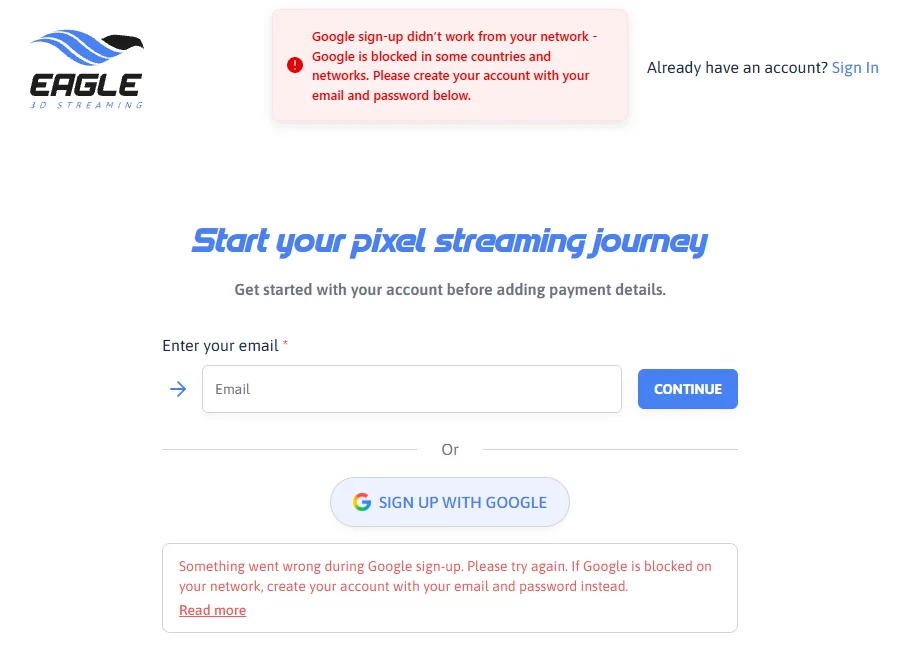
You pressed Google on the sign-in or sign-up page and saw a red message saying Google didn’t work from your network. Your account is fine, and nothing is broken on your computer. Google cannot be reached from where you are, so use your email and password instead. It does not use Google at all.
What the message looks like
On the sign-in page, the message appears above the Sign in button:
On the sign-up page, it appears at the top of the page and under the Sign up with Google button:
Why it happens
Signing in with Google opens Google’s own sign-in page. If your browser cannot reach Google, that page never answers. The Control Panel waits a few seconds, then shows the message. Common reasons:
- Your country or region blocks Google. Google’s sites are not available everywhere.
- Your company or school network blocks Google sign-in. Many office firewalls allow only approved sites.
- A VPN, proxy or privacy extension is stopping the Google sign-in window.
Trying Google again from the same network usually gives the same result. Use email and password instead, as described below.
Create your account with email and password
Open controlpanel.eagle3dstreaming.com/signup and type your email address into the box at the top. Do not press Sign up with Google. Then:
- Choose a password: 8 or more characters, with at least one upper-case letter, one lower-case letter, one number and one special character.
- Choose your username.
- Enter the 6-digit code sent to your email. If it does not arrive within a minute, look in your spam folder, then press Resend.
- Add your phone number and press Create. Your Control Panel opens.
Each step, with pictures: Create your account.
Sign in with email and password
On controlpanel.eagle3dstreaming.com/signin, type your email and password and press Sign in. Do not press the Google button. If you have forgotten your password, press Forgot password? under the password box.
Already have an account made with Google?
An account created with Sign up with Google has no password of its own. On a network where Google is blocked, write to support@eagle3dstreaming.com from the same email address. Say that Google sign-in is blocked where you are, and the support team will help you get into your account.
Checked on the live Control Panel
| With every Google address blocked in the browser | Result |
|---|---|
| Press Google on the sign-in page | The message above appears after a few seconds |
| Press Sign up with Google | The message above appears after a few seconds |
| Create an account with email and password | Works: the code email arrives, and the account opens on Your Projects |
| Sign out, then sign in with email and password | Works: Your Projects opens |
Related
Last updated