iframe demo
A manual for the running Eagle 3D Streaming iframe demo. No account, no key, nothing to download — open the page and every control described here is in front of you. When you want the code, there is one link at the bottom.
Open the demo on your own app
Add ?src= and your stream link to the demo’s address. The demo then streams your application
instead of our sample, with every control on this page — nothing to download or edit:
https://e3ds.github.io/E3DS-Iframe-Demo/?src=https://connector.eagle3dstreaming.com/v5/<owner>/<app>/<config>| Part | What it is |
|---|---|
https://e3ds.github.io/E3DS-Iframe-Demo/ |
The demo page itself. |
?src= |
“Put this link in the iframe.” It is the same address you would write in your own page’s
<iframe src="...">. |
https://connector.eagle3dstreaming.com/v5/ |
Our streaming address. Copy it from your Control Panel together with the rest of the link. |
<owner> |
Your username. |
<app> |
The name of your uploaded application. |
<config> |
The configuration to stream it with, for example default. |
Without ?src= the demo opens our Pixel Streaming sample. If you switch app in the control panel, the
address follows, so you can copy it from the browser and send it to someone else.
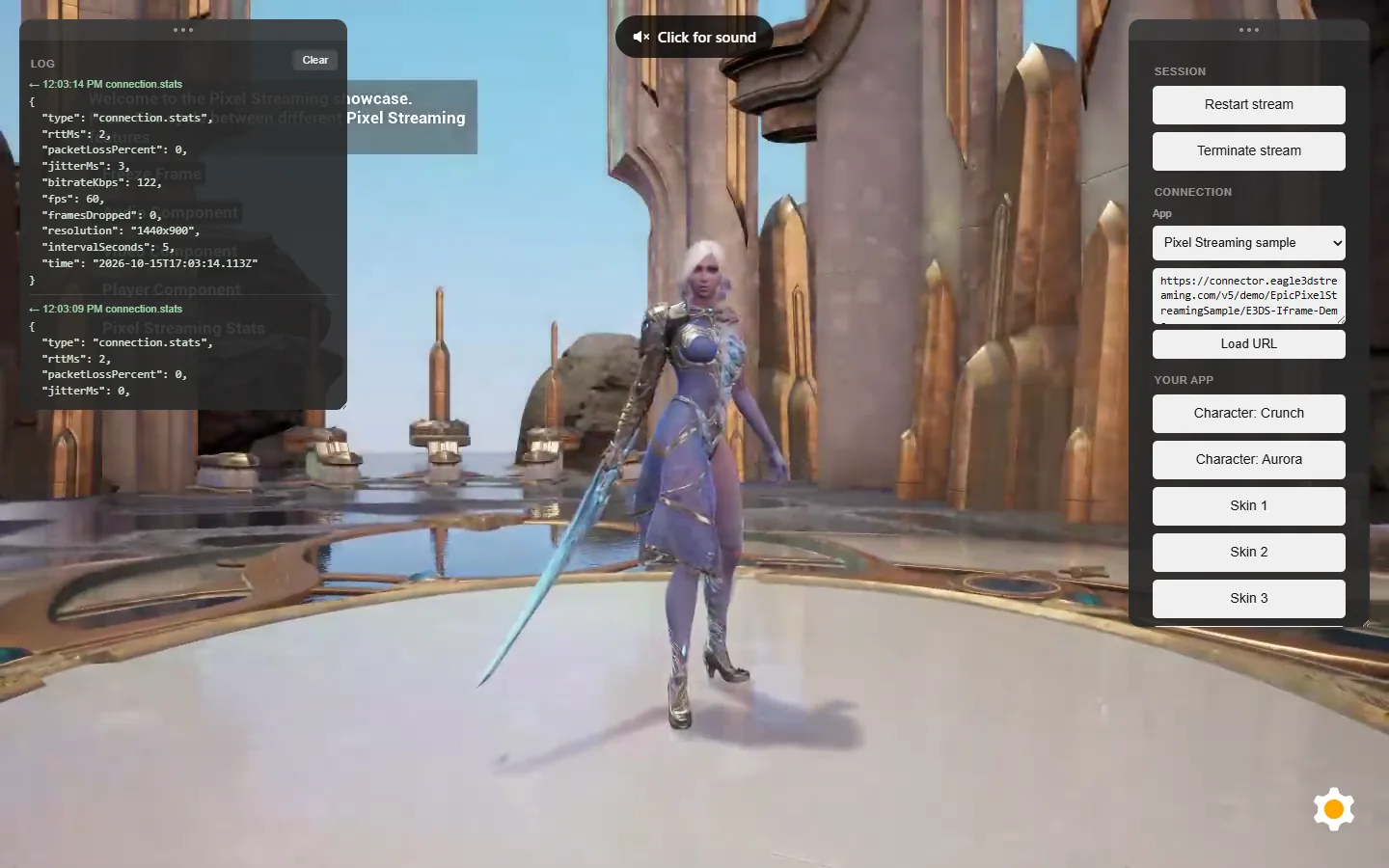
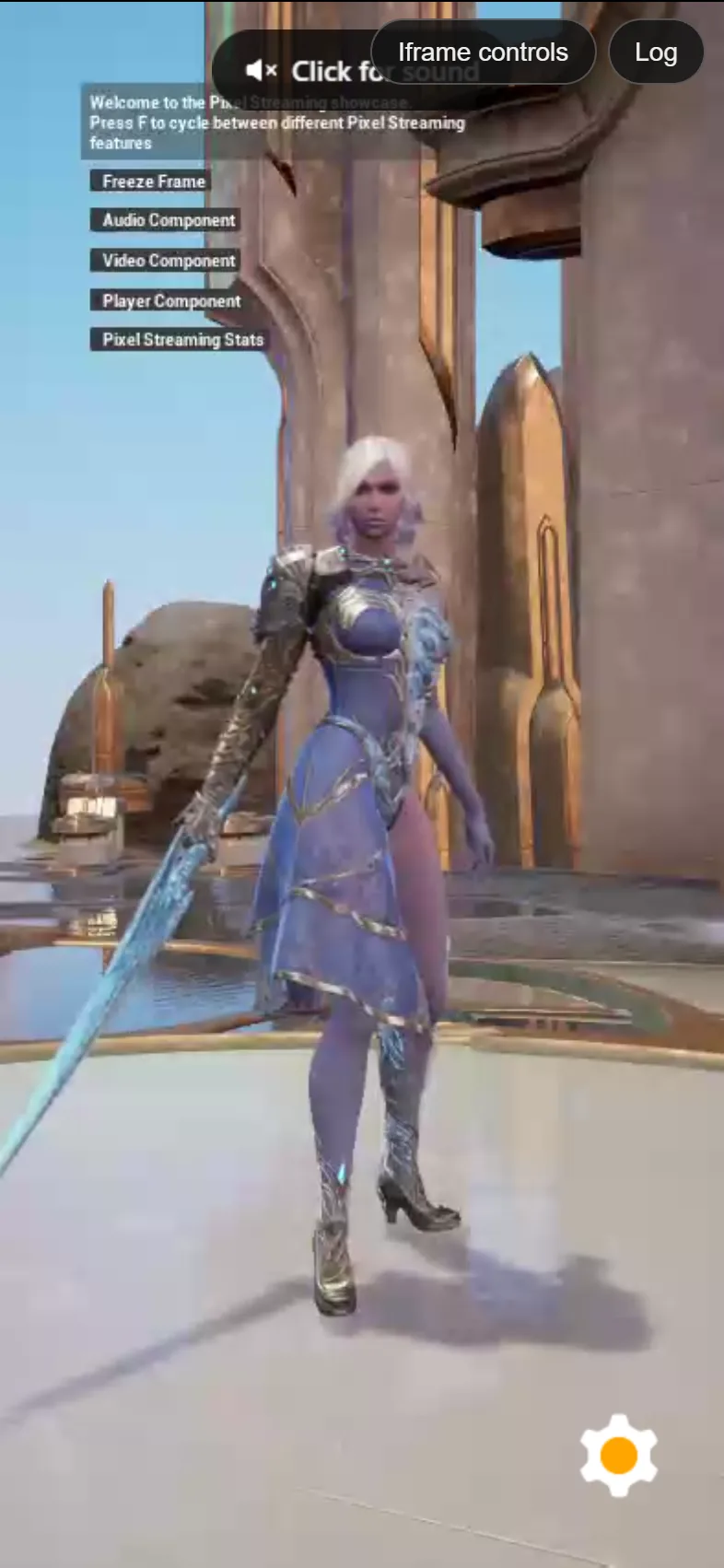
It is the same panel as the Web SDK demo
Deliberately. The two demos show the same controls over two different transports, so you can open them side by side and see that the difference is the wiring, not the features. Everything below has a counterpart in the Web SDK demo manual, usually with the same label.
| In this demo | In the SDK demo |
|---|---|
| a message posted at the frame | a JavaScript call on e3ds_controller |
{ cmd: "setVolume", value: 0.5 } | e3ds_controller.setVolume(0.5) |
an event arrives as a message | a callback you assigned is called |
Why the controls arrive at different times
The panel fills in rather than appearing complete. That is deliberate, and it is the first real thing this demo teaches: a control that cannot work yet is not shown yet.
| Appears | Needs | Which controls |
|---|---|---|
| Always | nothing | Restart stream, the Stream URL field, the permission rows |
| Once the channel is open | a two-way link to the application | Show FPS, streaming graphs, the console command box, Device info, messages to your app |
| Once frames arrive | a picture to act on | quality, resolution, volume, mouse, keyboard, fullscreen, screenshot, Terminate |
Features API › Volume: the same from your own page (iframe or Web SDK) or from your Unreal app, with demos and troubleshooting.
Features API › Fullscreen: the same from your own page (iframe or Web SDK) or from your Unreal app, with demos and troubleshooting.
The log, which is the most useful thing here
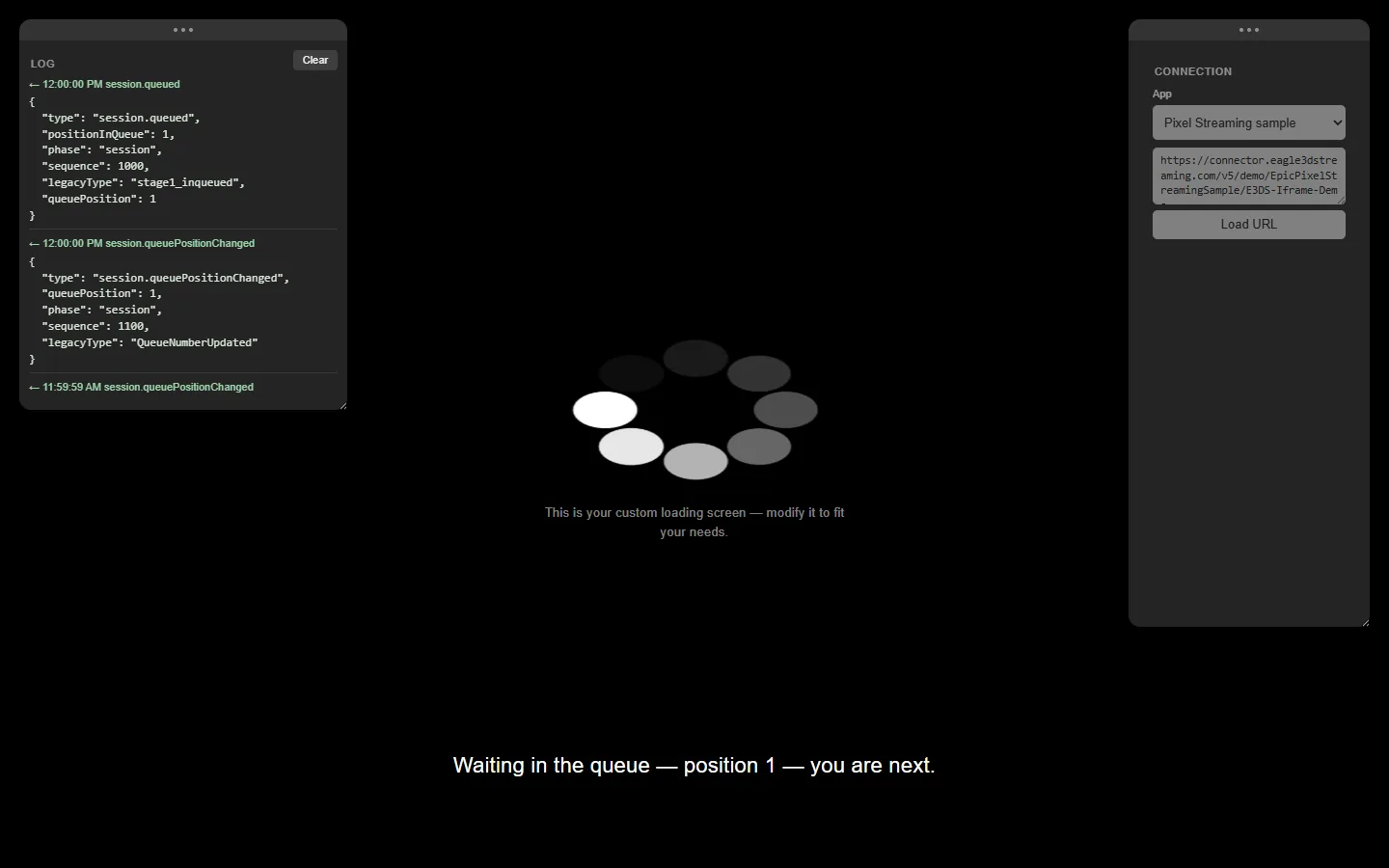
session.queued, then session.queuePositionChanged as the position moves.Everything this page sends into the stream, and everything that comes back, appears in the Log panel — newest first, with an arrow saying which direction it went.
The panel can be dragged by its handle and resized; Clear empties the log.
It answers the question every integration eventually asks: did that actually arrive? A message posted at a frame that nothing handles fails in complete silence, so watching the log while you press a control is the difference between debugging and guessing.
The panel, control by control
Picture
| Control | What it does |
|---|---|
| Quality: Low / Medium / High / Ultra | The four named levels, the same ones the viewer's own quality menu offers. A level is the portable unit — the platform resolves it to whichever encoder scale the running plugin uses. |
| Quality: HD and Quality point (QP) | A raw quantisation parameter: lower is a better picture and more bandwidth. Useful when you know which plugin you are on and want a specific number. |
| Adaptive quality | A minimum and a maximum instead of a point; the encoder moves between them as the network allows. Not in effect yet from an iframe on the current production player — the button sends the command, and nothing changes. |
| 1920 × 1080, 800 × 600, Custom resolution | Pins the stream to a fixed size, whatever the frame is doing.
1280x720, 1280 720 and 1280, 720
all work. |
| Match window resolution | Releases the pin and follows the frame again — the default, so it is also how you undo the three above. |
Sound and window
| Control | What it does |
|---|---|
| Volume | Acts on the player inside the frame. Raising it from silent may be refused until the viewer has clicked something — browsers block audio that starts without a gesture, and that refusal is invisible from the parent page. |
| Fullscreen | This one is done by the page, not the stream: the demo calls
requestFullscreen() on the iframe element. Nothing is sent
anywhere, which is why it keeps working when the session has ended. |
| Screenshot | Captures the current frame inside the player and downloads it. The parent page cannot do this itself — a cross-origin frame's pixels are not readable from outside — so it is a command, not a browser call. |
Input
| Control | What it does |
|---|---|
| Mouse: Hovering / Locked | How the mouse drives the camera. Locked captures the pointer, as a first-person game does. |
| Key + Press / Hold / Release | Types into the application from your own buttons. Press is one tap; Hold and Release are the pair you need for anything held, such as movement. This is how you build a WASD pad for a phone. |
| Touch input: on / off | Turn it off when your own buttons sit over the stream on a phone, so a tap on your control does not also reach the app underneath it. |
| Press play | Presses the player's own play button, for a page with its own start screen that does not want the viewer to click twice. |
Features API › Mouse mode: locked or hovering: the same from your own page (iframe or Web SDK) or from your Unreal app, with demos and troubleshooting.
Diagnostics
| Control | What it does |
|---|---|
| Show FPS | Sends the Unreal console command stat fps. The counter is
drawn by the application, inside the picture — which is
why it appears in a screenshot. |
| Show streaming graphs | The transport's own numbers: bitrate, packet loss, latency. Useful when the picture looks wrong and you want to know whether the network or the application is at fault. |
| Unreal console command | Any command the app accepts at its own console — stat
unit, r.ScreenPercentage 50. See the warning
below before putting a box like this in a public page. |
| Device info | Asks the platform what device the viewer is on, and the answer arrives
as takeUserDeviceInfo — the same message an Unreal app
gets when it asks. |
Your app
Character and Skin appear only when the demo is streaming an application known to understand them, and that gating is worth understanding: those buttons send a message that means nothing to any other app, and a message that means nothing produces no error — just a button that appears broken.
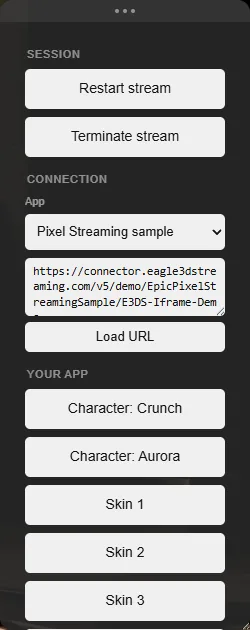
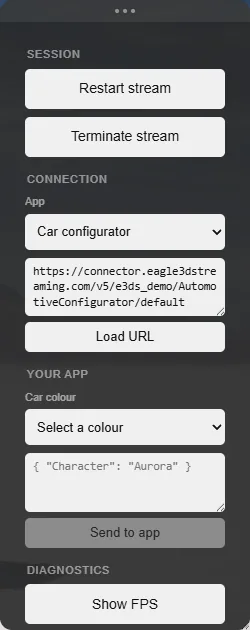
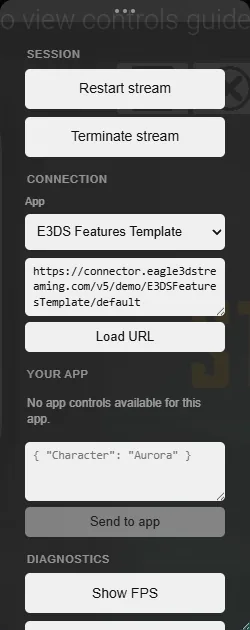
Message to your app + Send to app sends whatever you type: JSON if it parses, a plain string if it does not. That is the one to use the moment you point this demo at your own application — and what arrives at the other end needs something waiting for it, which is the Unreal side of sending and receiving data.
Session and connection
| Control | What it does |
|---|---|
| Restart stream | Reloads the frame, which starts a fresh session. Available even before there is a stream, because it is also how you recover from one that never started. |
| Terminate stream | Ends the session deliberately and releases the machine. Nothing reconnects on its own. |
| App list | Switches between our sample apps (Pixel Streaming sample, Car configurator, E3DS Features Template); the Your app buttons change with it. |
| Stream URL + Load URL | Points the demo at a different application — paste your own stream link — without editing a
file. What you type is remembered in your browser only. A ?src= link in the page address
(see Open the demo on your own app) comes first. |
| Camera, Fullscreen rows | What the page is willing to share with the frame, written into the
allow attribute when it reloads. The state beside each one is
what the browser currently thinks — the two are different
things, and a denied permission cannot be undone by any attribute. |
The microphone is a separate demo
e3ds.github.io/E3DS-Iframe-Demo/microphone/ is this same demo with the microphone built in: asking for the permission, choosing an input device, and the reasons both are harder than they look.
It is separate on purpose. A page that asks for a microphone costs every visitor a browser prompt, and most integrations do not need one. See choosing the microphone.
Like what you see?
Related
Last updated