Playing video inside your Unreal app
A video playing on a screen inside your Unreal level streams to your viewers like the rest of the scene - picture and sound. When it works on your PC but not on Eagle 3D Streaming, it is almost always one of three things: the video file was not packaged with the app, it points to a folder that only exists on your computer, or its audio is in a format Unreal cannot decode. This page shows how to get all three right, with a demo you can open.
See it working
| What | Link |
|---|---|
| Live demo (streams in your browser) | E3DS_InGame_Video |
The demo is an Unreal Engine 5.7 project. Walk the character up to each screen in the level:
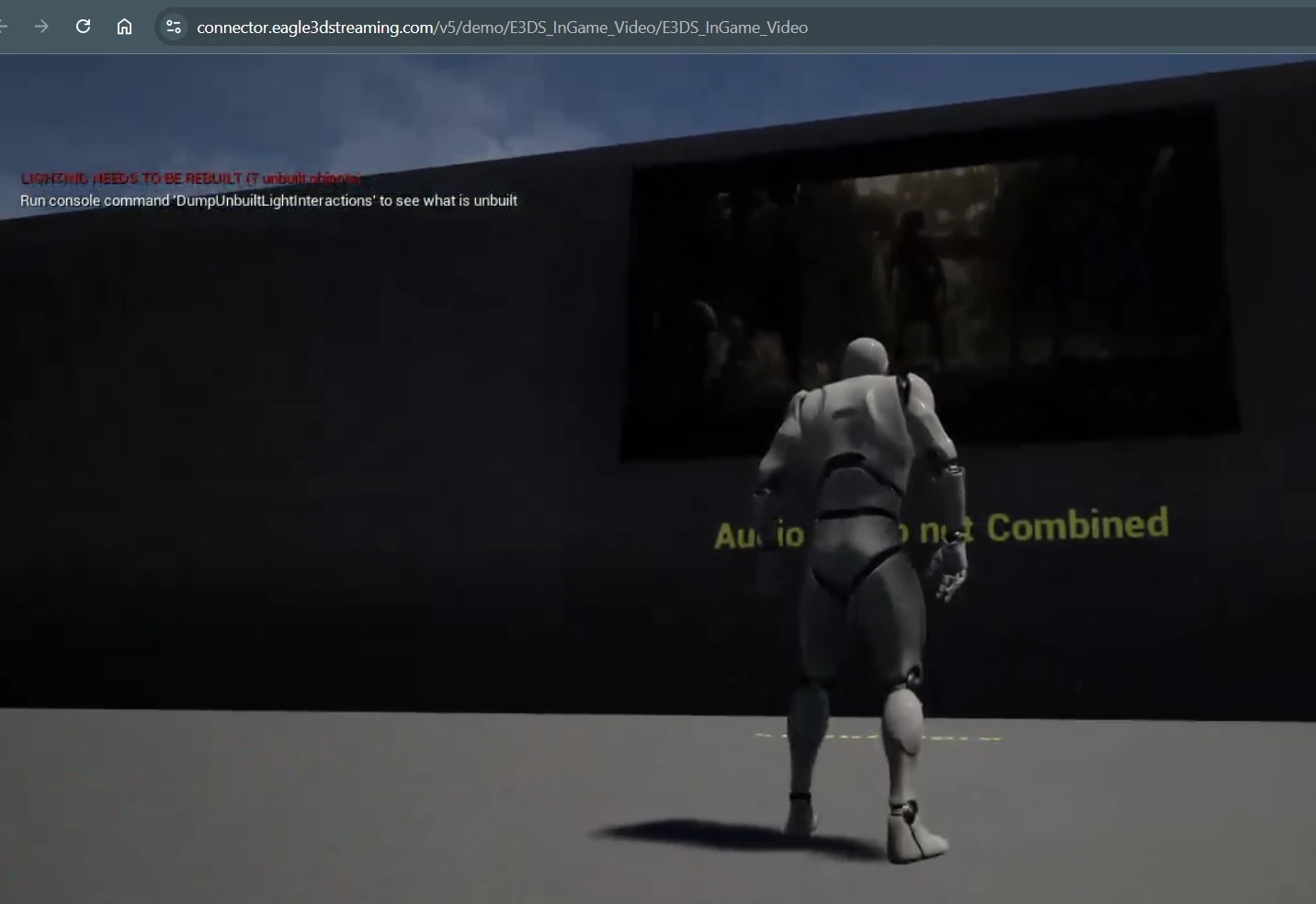
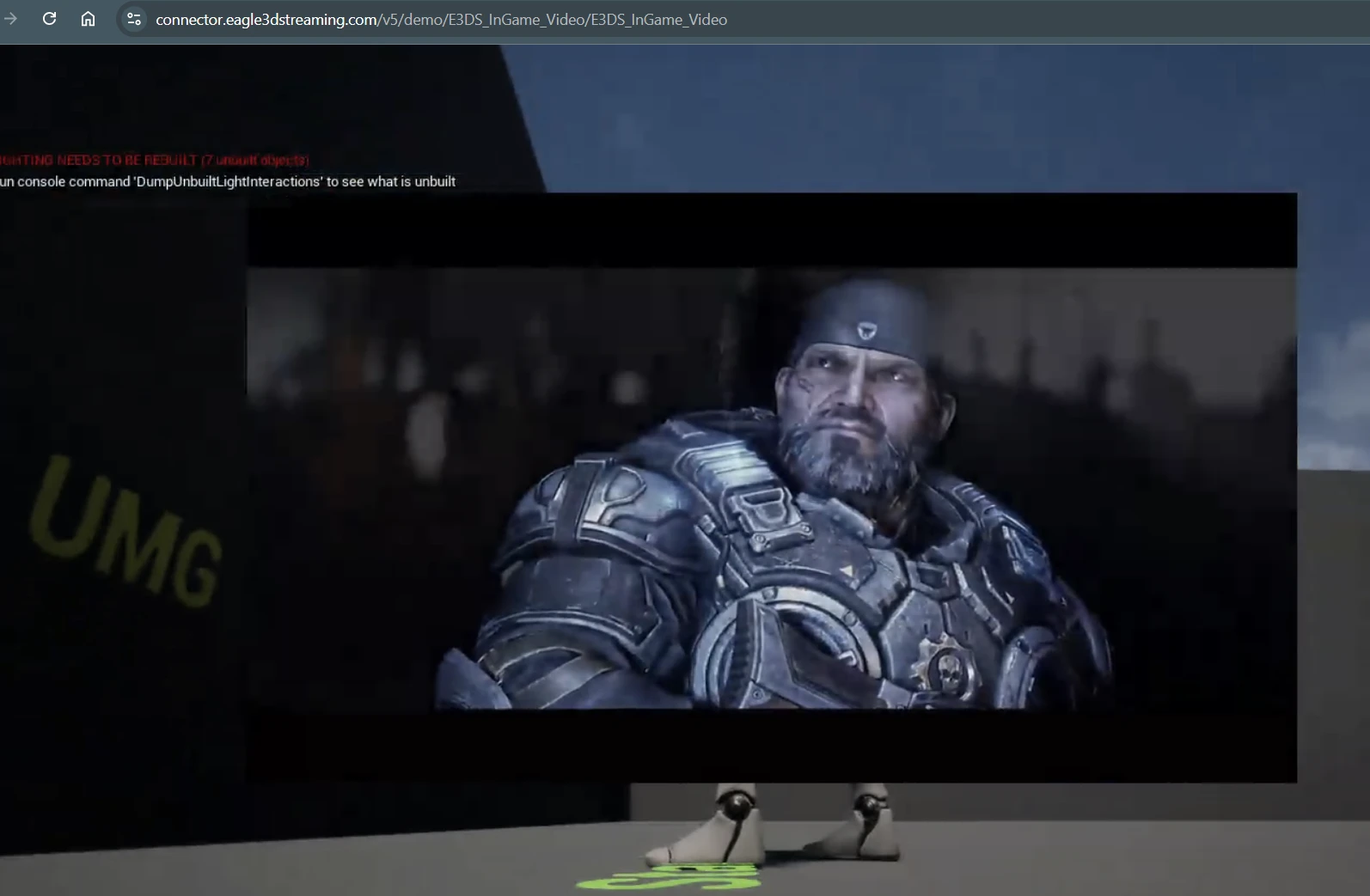
| Screen | Video | Audio | What you see and hear |
|---|---|---|---|
| 1 - "Audio and video not combined" | NextGenGamesReel.mp4 (H.264) | separate audio file played with it | Picture and sound |
| 2 - UMG screen | NextGenGamesReel.mp4 (H.264) | none in the file | Picture, no sound |
The point of the demo: a video that plays is not proof that its sound will play. The audio must be inside the file (or played alongside it) and in a format Unreal can decode - AAC in an .mp4 is the safe choice. Otherwise the picture plays and the sound silently does not, on your PC and in the stream alike.
Checklist before you package
- Put every video file in
Content/Moviesof your project. Unreal packages media files only from that folder; a file anywhere else plays in the editor and is missing from the packaged app. The editor shows a warning icon on a File Media Source whose file is outsideContent/Movies. - Select the file from
Content/Moviesin each File Media Source, so the path is relative (for example./Movies/MyVideo.mp4). Never a path likeC:/Users/you/Desktop/...- see below. - Use H.264 video with AAC audio in an .mp4 file. This is the combination Epic recommends for the best compatibility, and it is what our machines play reliably.
- Route the sound through a Media Sound Component attached to the actor that shows the video, set to your Media Player. Without it the video plays with no sound anywhere - on your PC and in the stream.
- If you use Project Settings → Packaging → Additional Non-Asset Directories to Copy, add
Moviesthere too; it copies that folder into the packaged app as it is.
The most common mistake: a path on your own computer
A File Media Source keeps exactly the path that was selected. If the video was chosen from your desktop or a project
folder outside Content/Movies, the packaged app looks for it in that same place - on every machine
it runs on. On your PC the file is there, so it plays. On our streaming machines that folder does not exist, so the video
never opens. Your app's log then shows a line like:
LogMediaAssets: Error: Failed to validate media source 01HD (file://C:/Users/you/Desktop/videos/01HD.mp4)
You can reproduce it on your own computer: move the video out of that folder and run your packaged app - the screen
stays empty. Fix: copy the video into Content/Movies, select it again in the File Media Source, package and
upload again.
Best way: play the video from a web address
If you can put the video online, this is the most flexible way, and it avoids every packaging problem above. Host the .mp4 at a public address and give that address to a Stream Media Source (used by your Media Player, on a screen in the level or in a UMG widget). While the app runs, Unreal reads the video from that address and plays it as a stream. The file is not inside your package, so:
- Change the video without repackaging - replace the file at the same address, and the next session plays the new one.
- No hard-coded path on your computer, nothing to forget in
Content/Movies. - The same format rules apply: H.264 video with AAC audio in an .mp4.
What the address must be:
| Must | Why |
|---|---|
| A direct link to the .mp4 file itself | Opening it in a browser should play or download the video - not show a page about it (a Dropbox or Drive preview page will not work). |
| Public, no sign-in, no password | The streaming machine opens it with no account of yours. |
| HTTPS, on storage you control (for example an Amazon S3 or Cloudflare R2 bucket) | It must stay online for as long as the app is used. |
For example, our demo video is hosted as a public Google Cloud Storage file:
https://storage.googleapis.com/e3ds-public-assets/demo/VideoAssets/NextGenGamesReel.mp4It also shows what happens when an address stops working. The same video used to be at an Amazon S3 address; when that storage was moved, an app still pointing there kept running, but its TV stayed empty, and the app's log said:
LogWmfMedia: Error: Failed to resolve URL https://test-upload-app.s3.amazonaws.com/demo/VideoAssets/NextGenGamesReel.mp4: The system cannot find the file specified.So keep the address stable: replacing the file at the same address needs no new upload, but moving it to a new address means changing the URL in your project and packaging again. If you expect to move it, read the URL at runtime (for example from a small config file or your own web page) instead of typing it into the Blueprint.
What you see, and why
| You see | Most likely cause | What to do |
|---|---|---|
| The video plays on your PC but the screen is empty in the stream | The file is not in Content/Movies, or the File Media Source points to a folder on your computer | Move the file into Content/Movies, select it again, repackage |
| Neither "On Media Opened" nor "On Media Open Failed" fires | The media source failed validation (missing file or bad path) before Unreal tried to open it | Check your log for Failed to validate media source |
| Picture plays, no sound - on your PC too | No Media Sound Component, or the file's audio is in a format Unreal cannot decode | Add a Media Sound Component; re-encode the audio to AAC |
| Picture and sound play, but the viewer hears nothing | Browsers start a stream muted until the viewer clicks | See Audio and microphone |
| A video from a URL never starts | The URL is no longer reachable | Check the address opens in a browser; host the file somewhere stable |
Epic's documentation
- Play a Video File in Unreal Engine - adding a video so it plays in the packaged app, including the Media Sound Component.
- Media Folder Structure in Unreal Engine - why media must be in
Content/Movies. - Project Settings - Packaging - "Additional Non-Asset Directories to Copy".
Still stuck? Send us your app's link and your log file: support@eagle3dstreaming.com.
Related
Last updated