iframe demo (React)
This is the older React version. The main iframe demo is plain HTML: see the
iframe demo. This page is a manual for the React one: a web page whose sidebar drives a streamed Unreal app through an
<iframe>. No account, nothing to download — open the page and every button described here
is in front of you. When you want the code, it is at the bottom.
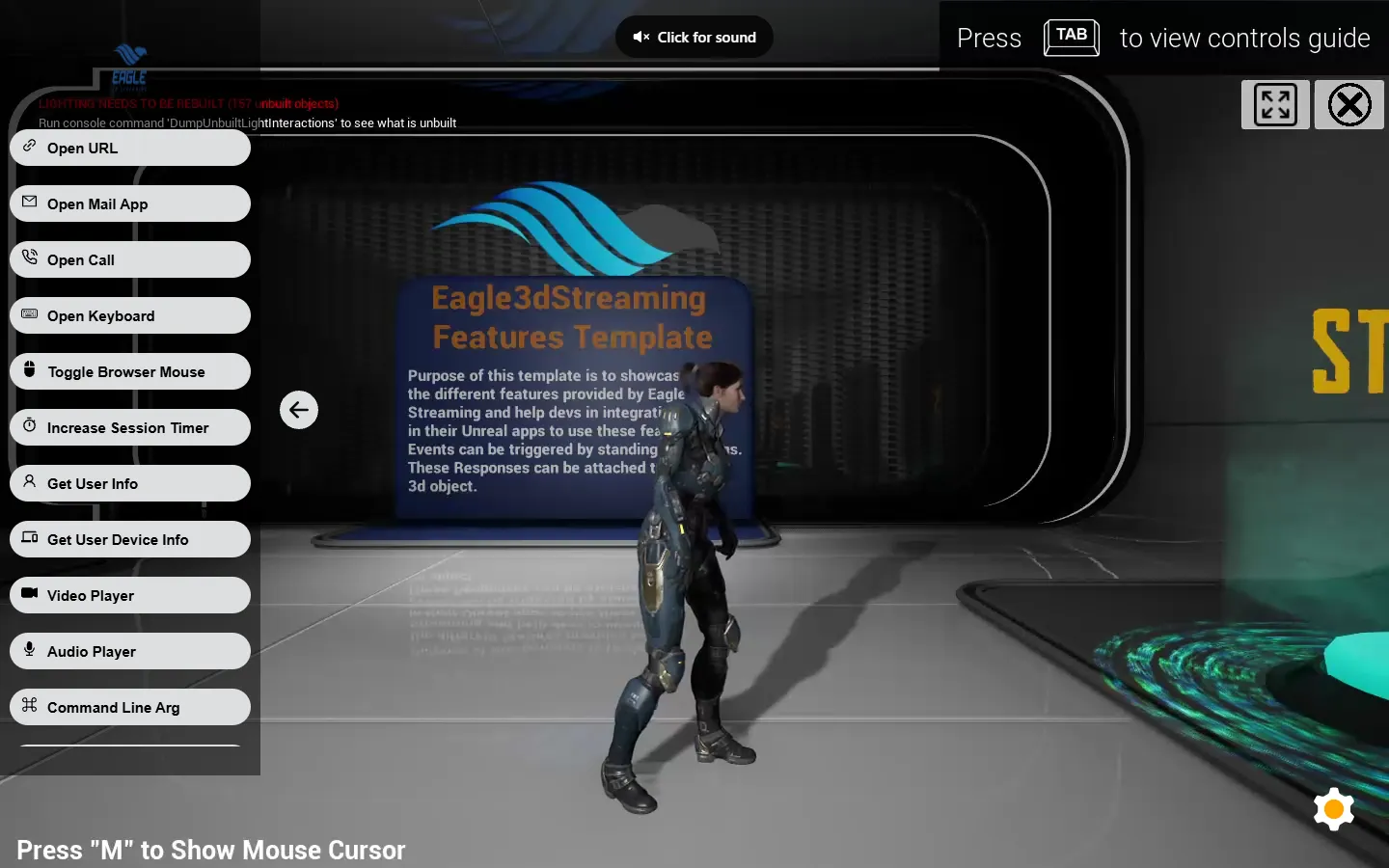
What it demonstrates
Every button in the sidebar belongs to the page, not to the app. A click sends a message into the iframe, the app receives it, and something happens in the 3D scene. The app streamed here is the E3DS Features Template: a showroom where each feature of Eagle 3D Streaming has its own station. Each button walks the avatar to one station, and standing on it triggers that feature.
Your own interface — your buttons, your styling, your framework (here React) — with the stream as one element inside it. The app does not need to draw the UI, and the page does not need to know anything about Unreal beyond the message it sends.
The sidebar, button by button
| Button | Message sent | What happens |
|---|---|---|
| Open URL | Teleport: "2" | the avatar goes to the Open URL station; the app asks the page to open a web address |
| Open Mail App | Teleport: "3" | opens the viewer's mail app with a prepared email |
| Open Call | Teleport: "4" | starts a phone call link |
| Toggle Browser Mouse | Teleport: "6" | switches between the browser's mouse cursor and the app's |
| Increase Session Timer | Teleport: "7" | extends the session; the page shows an alert when the event comes back |
| Get User Info | Teleport: "8" | the app asks for the viewer's information and displays it |
| Get User Device Info | Teleport: "9" | the app asks for the viewer's device details |
| Video Player | Teleport: "10" | plays a video in the scene |
| Audio Player | Teleport: "11" | plays audio in the scene |
| Command Line Argument | Teleport: "12" | shows the launch parameters the app was started with (see command-line parameters) |
| Redirect URL | Teleport: "16" | sends the viewer to another address |
| Hide Settings | cmd: "style" | hides the player's settings button — a page can restyle the player too |
The station numbers are the ones in the source (src/utils/index.js); the live page may still show an Open Keyboard button from an older build — it was removed from the source.
The arrow on the sidebar's edge folds it away and gives the keyboard back to the stream.
How a message gets there
The page posts a JSON string into the iframe. The player picks it up and hands the inner value to the app:
function switchTo(val) {
  const obj = {
    cmd: "sendMessageToStreamingBuild",          // "pass this through to the app"
    value: { Teleport: val },     // yours: the app decides what it means
  };
  document.getElementById("iframe_1")
    .contentWindow.postMessage(JSON.stringify(obj), "*");
}
cmd: "sendMessageToStreamingBuild" is the envelope. value is your own data: the app reads it in its
Pixel Streaming input event.
The other direction
The player also posts to the page: loading stages (stage1_inqueued, stage2_deQueued,
stage4_playBtnShowedUp, stage5_playBtnPressed, QueueNumberUpdated ...),
answers from the app (ResponseFromUE4) and events such as increaseSessionExpireTime. The demo
listens with window.addEventListener("message", ...); see
sending and receiving data.
The iframe itself
<iframe
  allow="camera;microphone"
  id="iframe_1"
  src="https://connector.eagle3dstreaming.com/v5/demo/E3DSFeaturesTemplate/E3DS-Iframe-Demo"
  width="100%" height="100%"
  allowfullscreen>
</iframe>
src is the app's stream link; put yours there. The allow attribute matters if your app uses
the microphone or camera — without it the browser refuses those
permissions to the frame.
Run it yourself
git clone https://github.com/e3ds/E3DS-Iframe-Demo
cd E3DS-Iframe-Demo
git checkout iframe-demo-react
npm install
npm start
It opens at http://localhost:3000. The sidebar is in src/App.js, the button list in
src/utils/index.js, the incoming messages in src/utils/demo.js. To publish your own copy for
free, see host your page on GitHub Pages.
The Unreal side
Enable the Pixel Streaming plugin in your project — or Pixel Streaming 2 on a Pixel Streaming 2 project.
Add a PixelStreamingInput component to the Player Controller (PixelStreaming2Input on Pixel Streaming 2).
In its Details panel, under Events, click Input event to generate the node, and handle the value your page sends.
Putting the stream into your own site, beyond the demo.
Related
Last updated