Make a Unity project stream, step by step
This page is for someone who has a Unity project and has never streamed one. It explains what happens when a Unity app is streamed by Eagle 3D Streaming, then walks through the setup in the order it is done: package, scene, settings, build, zip, upload, test. The steps were followed to bring three of Unity's own demo projects to Unity 6 and stream them; how each of those went is told in Bringing three old Unity demos to Unity 6.
1. What "streaming a Unity app" means
The app does not run in the viewer's browser. It runs as a normal Windows program on an Eagle 3D Streaming GPU machine. What the viewer gets is a video of the app's window, and what the viewer does - mouse, keyboard, touch - is sent back to the app. Nothing has to be installed by the viewer; a link opens it.
Unity has its own package for this, Unity Render Streaming (com.unity.renderstreaming).
It turns the app into a WebRTC video source and an input receiver. Eagle 3D Streaming supplies everything around
it: the machine, the web page the viewer opens, and the connection between the two.
2. Your part, and what Eagle 3D Streaming does
| You do, in the Unity Editor | Eagle 3D Streaming does, for every viewer |
|---|---|
| Add Unity Render Streaming and the Input System (section 3) | Picks a GPU machine and puts your build on it |
| Put one streaming object in the first scene (section 4) | Starts your app and connects it to the viewer's browser - you never enter an address, server or port |
| Set a few player and input settings (sections 5 and 5b) | Sends the picture to the viewer and the viewer's mouse, keyboard and touch back to your app |
| Build for Windows, zip, upload (section 6) | Closes the app when the viewer leaves |
Leave every connection setting in Render Streaming at its default (signalling address, ICE / STUN / TURN servers): Eagle 3D Streaming supplies them when it starts your app. Two rules follow, and most problems on this page come from one of them:
- The app must make exactly one connection. A second Render Streaming object in the app opens a second connection; only one is accepted, and which one wins is luck (section 7, row 1).
- Input arrives through the Input System only. Game code that reads the old Input Manager
(
Input.GetAxis,Input.GetKey,StandaloneInputModule) never sees it (row 2).
3. Add Unity Render Streaming
- Install the Input System (
com.unity.inputsystem). Render Streaming needs it. In Project Settings > Player > Active Input Handling choose Input System Package, or Both while old code is being moved over. - Add Render Streaming
3.1.0-exp.9. On Unity 6.6 it does not compile as published, so it has to be an embedded copy (a folder underPackages/com.unity.renderstreaming) with three small changes:The third one is the important one: without it the app builds, starts, and never connects.File in the package Error on Unity 6.6 Change Runtime/Scripts/SignalingSettings.csanalyzer error UAC0005 on AppDomain.GetAssemblies()wrap the call in #pragma warning disable UAC0005/restoreEditor/RenderStreamingWizard.csAndroidSdkVersions.AndroidApiLevel22no longer existsuse AndroidApiLevel26Runtime/Scripts/SignalingManager.cs,Awake()no error - but without this change the app never connects to Eagle 3D Streaming call _Run(null, null, handlers.ToArray())at the start ofAwake() - Turn automatic streaming off. Open the package's
Runtime/RenderStreamingSettings.asset(also shown in Project Settings > Render Streaming) and set Automatic Streaming to off (automaticStreaming: 0). When it is on, Render Streaming creates its own streaming object at start-up in addition to yours - two connections, the race described in section 2.
4. Put one streaming object in the first scene
Add one GameObject, for example RenderStreaming, to the scene the game starts in, with these components:
| Component | Setting | Why |
|---|---|---|
| Video Stream Sender | Source Screen, size 1920 x 1080 | streams whatever is on screen, so it keeps working when the game switches cameras or loads new scenes. A Camera source shows only that one camera |
| Input Receiver | defaults | creates the remote mouse, keyboard and touchscreen |
| Broadcast | Streams: the Video Stream Sender and the Input Receiver | the handler that answers each viewer |
| Signaling Manager | Handlers: Broadcast. Run On Awake on. Leave the URL at its default | Eagle 3D Streaming supplies the address when it starts your app |
a small script calling DontDestroyOnLoad(gameObject) | - | games that load a menu, then a level, would otherwise destroy the streaming object with the first scene |
If the first scene can be loaded again later (some games return to a boot scene), make the script destroy a second copy of itself - otherwise that is a second connection again.
5. Player and input settings
| Setting | Value | What goes wrong without it |
|---|---|---|
| Player > Run In Background | on | the app pauses: on the streaming machine its window usually does not have focus |
| Input System settings > Background Behavior | Ignore Focus | remote mouse and keyboard are dropped while the window is unfocused - which is always |
| Player > Fullscreen Mode / default size | Windowed, 1920 x 1080 | a different window size than the video size can stream a cropped, zoomed picture (seen with HDRP) |
| Anything in the game that sets resolution at start-up | remove it, or skip it when streaming | a graphics-options script that forces full screen at native size overrides the window settings |
| Scripting backend | Mono or IL2CPP both stream; use what your build machine has installed | building IL2CPP without the IL2CPP Windows module fails with "Unable to build with the current configuration" |
5b. Picture quality: set it in the project - nothing outside can change it
Render Streaming streams at at most 1 Mbit/s and 30 frames per second unless the project says otherwise. That is very little for a 1920 x 1080 picture: the first Chop Chop build looked like this on the stream, while the game itself is sharp.
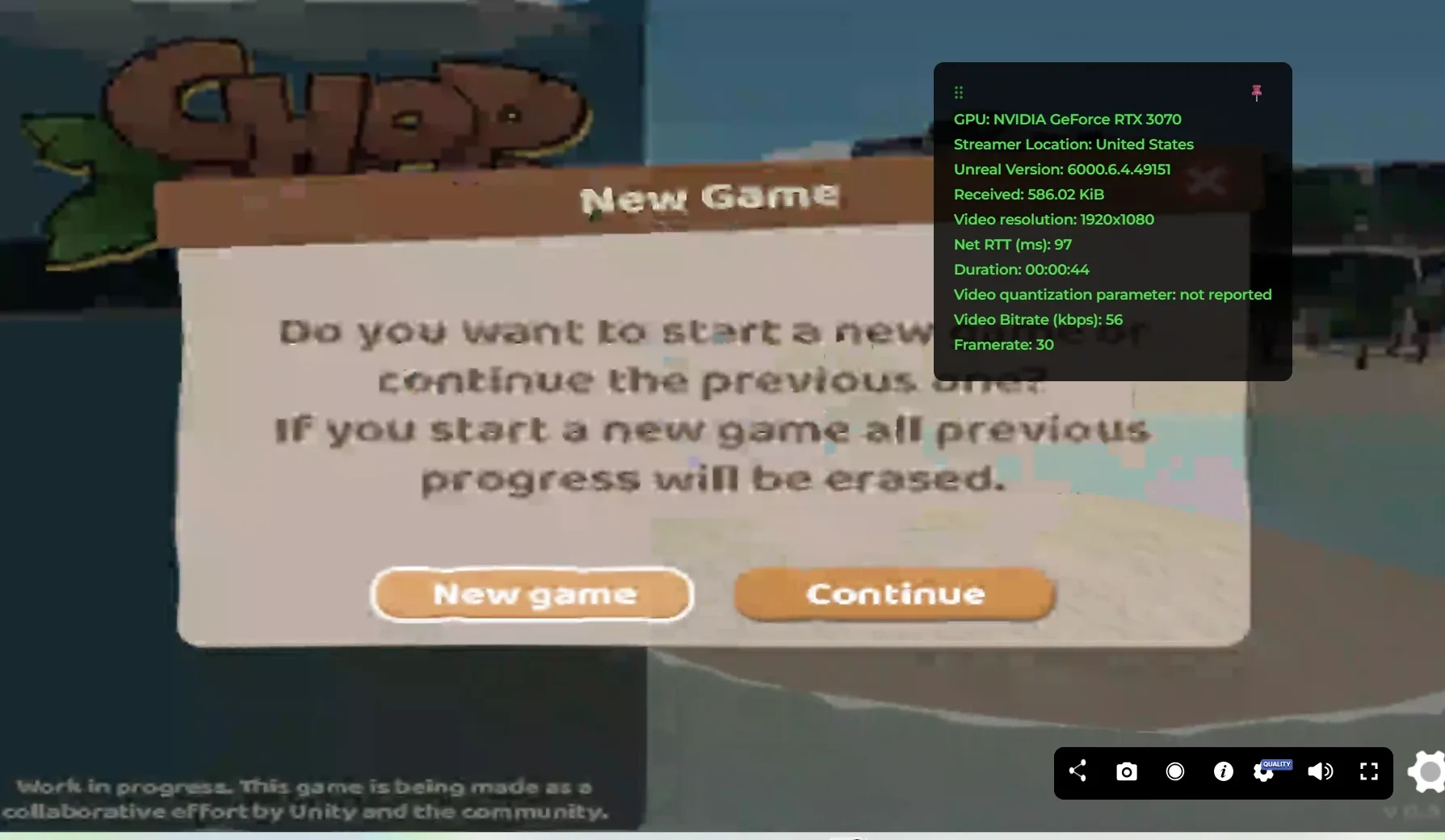
Unlike Unreal Pixel Streaming, Eagle 3D Streaming cannot change this from outside. Bitrate and frame rate live on the Video Stream Sender component inside your build - set them before you build:
| Video Stream Sender setting | Default | Use |
|---|---|---|
| Bitrate (kbit/s), minimum | 0 | 2000 |
| Bitrate (kbit/s), maximum | 1000 | 10000 (the highest the component allows) |
| Frame rate | 30 | 60 |
How the stream looks can be checked in the player's statistics panel (the i button): video bitrate, frame rate and resolution.
6. Build, zip, upload
- Build for Windows x86_64. If your project uses Addressables, build the Addressables content
first. The output is
<Name>.exe,<Name>_Data\,UnityPlayer.dll,MonoBleedingEdge\(Mono) and a crash handler. - Check that it can stream:
<Name>_Data\Plugins\x86_64\webrtc.dllmust exist. It comes with Render Streaming; without it the build is an ordinary game and cannot be streamed. - Zip the folder's contents so
<Name>.exeand<Name>_Dataare at the top of the zip. Do not rename the exe: Unity refuses to start an exe whose name does not match its_Datafolder. - Test it on your own computer first with Unity's own web server - see Test a Unity app locally. If it streams there, it streams here.
- Upload it in the Control Panel and make sure the project's platform is Unity 3D.
7. Troubleshooting
Every row below happened while building the demos. The app's own log is the first place to look; on your computer,
start the exe with -logFile log.txt.
| # | What you see | Cause | Fix |
|---|---|---|---|
| 1 | The picture streams, but mouse and keyboard work only in some sessions. Log: Other WebSocketSignaling exists with same URL … Signaling process may be in conflict, then WS connection closed, code: 1008 again and again | two streaming objects in the app: usually Automatic Streaming left on, or a scene with a streaming object loaded twice | section 3 step 3 and section 4; the log must show one Signaling: Connecting WS per attempt |
| 2 | The picture streams, input never works, no errors | the game reads the old Input Manager (Input.GetAxis, StandaloneInputModule) | move menus to InputSystemUIInputModule and player controls to Input Actions |
| 3 | The app starts and never connects. Log: Connecting WS ws://127.0.0.1:80 | the SignalingManager.cs change is missing | section 3, the SignalingManager.cs row |
| 4 | ArgumentException: Could not instantiate RTCPeerConnection | ICE / STUN / TURN servers typed into the project | remove them and leave the list at its default - Eagle 3D Streaming supplies the servers |
| 5 | "There should be '<x>_Data' folder next to the executable" | the exe was renamed | keep the exe name equal to the _Data folder name |
| 6 | Upload says the app cannot stream | no webrtc.dll in the build | Render Streaming is not in the build; check section 3 |
| 7 | Text drawn as solid blocks | an old project's own TextMeshPro shaders with Unity 6's TextMeshPro | replace Assets/TextMesh Pro/Resources/Shaders with the shaders from the TMP Essential Resources that ship with Unity 6's uGUI package |
| 8 | The stream shows a zoomed-in part of the screen | window size differs from the video size (Screen source) | window 1920 x 1080 windowed; remove start-up resolution changes |
| 9 | Input works on your computer, or in the first session only, but not when streamed - and the log is clean (one connection) | the window has no focus on the streaming machine, and the Input System's Background Behavior drops input without focus | Background Behavior = Ignore Focus, Run In Background on. If the project has its own Input System settings asset, set it there (m_BackgroundBehavior: 2) - that asset is what the build uses |
| 10 | Blocky picture; the statistics panel shows a low video bitrate (well under 1 Mbit/s) | Render Streaming's default maximum of 1 Mbit/s | section 5b: raise the Video Stream Sender's bitrate in the project and rebuild |
What is not known yet
- Only Windows builds have been streamed. A Linux Unity build has not been tried.
- Row 8 (zoomed picture) was seen with HDRP and a 1280 x 720 window. Why the Screen source crops at other sizes was not worked out; 1920 x 1080 avoids it.
- Audio from these demos was not checked.
Next: Bringing three old Unity demos to Unity 6 - what broke in each demo and how it was fixed. Overview: Unity streaming.
Related
Last updated