Start the multiplayer dedicated server and get its IP address and port
Start your uploaded dedicated server in the Control Panel and note the IP address and port it gets — that address is what your players' game connects to.
Start the server
In the Control Panel, go to Multiplayer Server Apps and open your uploaded server.
-
Click Start Server.
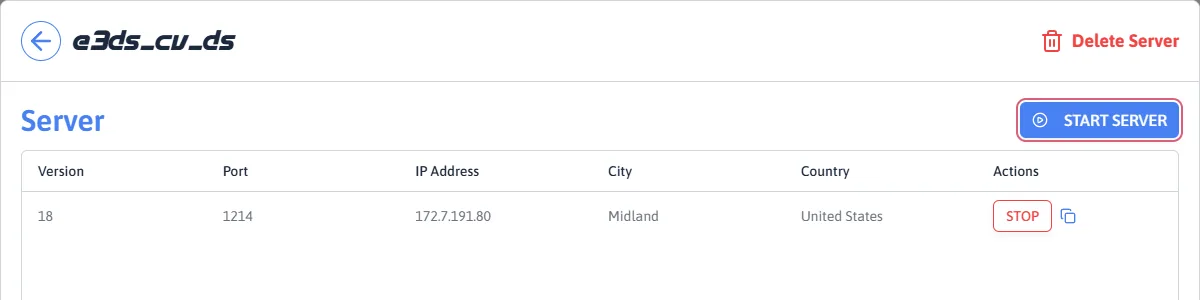
The running server is listed with its IP address and port (and its city and country). Note both - for example
172.7.191.81and28889.
Starting a server allocates it an address, and that is what the game connects to. It is assigned at start time, so it is not something you can hard-code once — note it each time you start a server, or let automatic join hand it to every player for you.
Skip the manual work: use the plugin
Everything on this page is the route without our Multiplayer Server Scaling plugin. With the plugin in your game:
- No starting the server - it is started automatically when a player opens the game.
- No IP address or port to note - the plugin hands the address to every player.
- No join box and no typing - every player joins the right server automatically.
- More servers when more players come - new servers start as matches fill up.
See automatic join for how to add it.
Watch it happen by itself: in this video the plugin starts the server and every player joins it on their own - no Start Server, no address, no typing.

Open the game's stream link and join this server with its IP address and port.
Related
Last updated